TemplatesNail Studio Bio Link Template

Help followers find their look and the right appointment

Nail Studio Bio Link Template

Contact formEmail sendingMulti step form

Nail Appointment Finder for Instagram and Social Media Bio Links

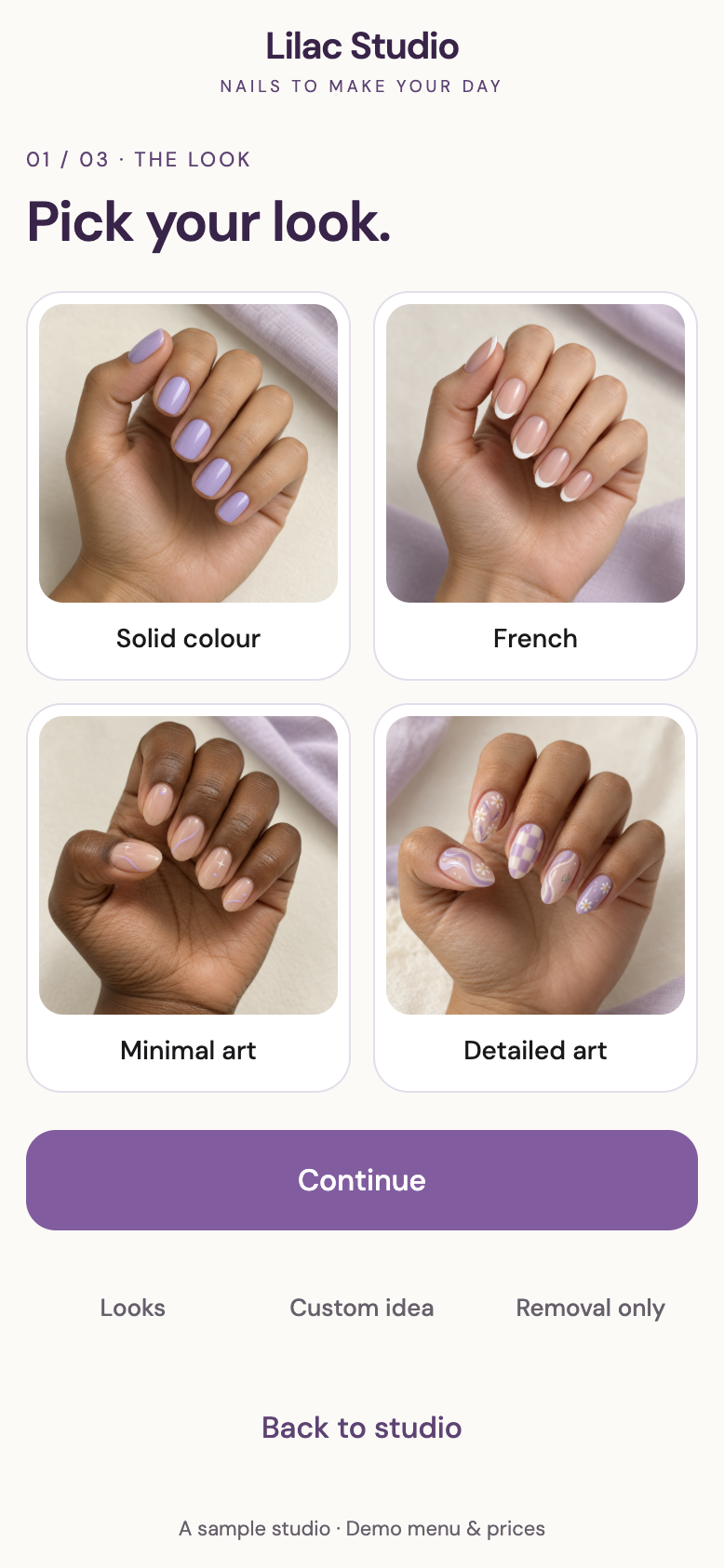
  • Visitors start with the look they want, and their selected photo follows them through the appointment finder.
  • Service matching considers nail length, existing product, and removal needs to suggest an appointment with an estimated price and duration.
  • A preferred date, reference photos, and design notes give the studio context before a booking or custom enquiry.

About this template

Give visitors from Instagram and other social platforms a visual starting point for their next nail appointment. This mobile-first bio page helps them choose a look, answer a few service questions, and see a suggested appointment with an estimated price and duration.

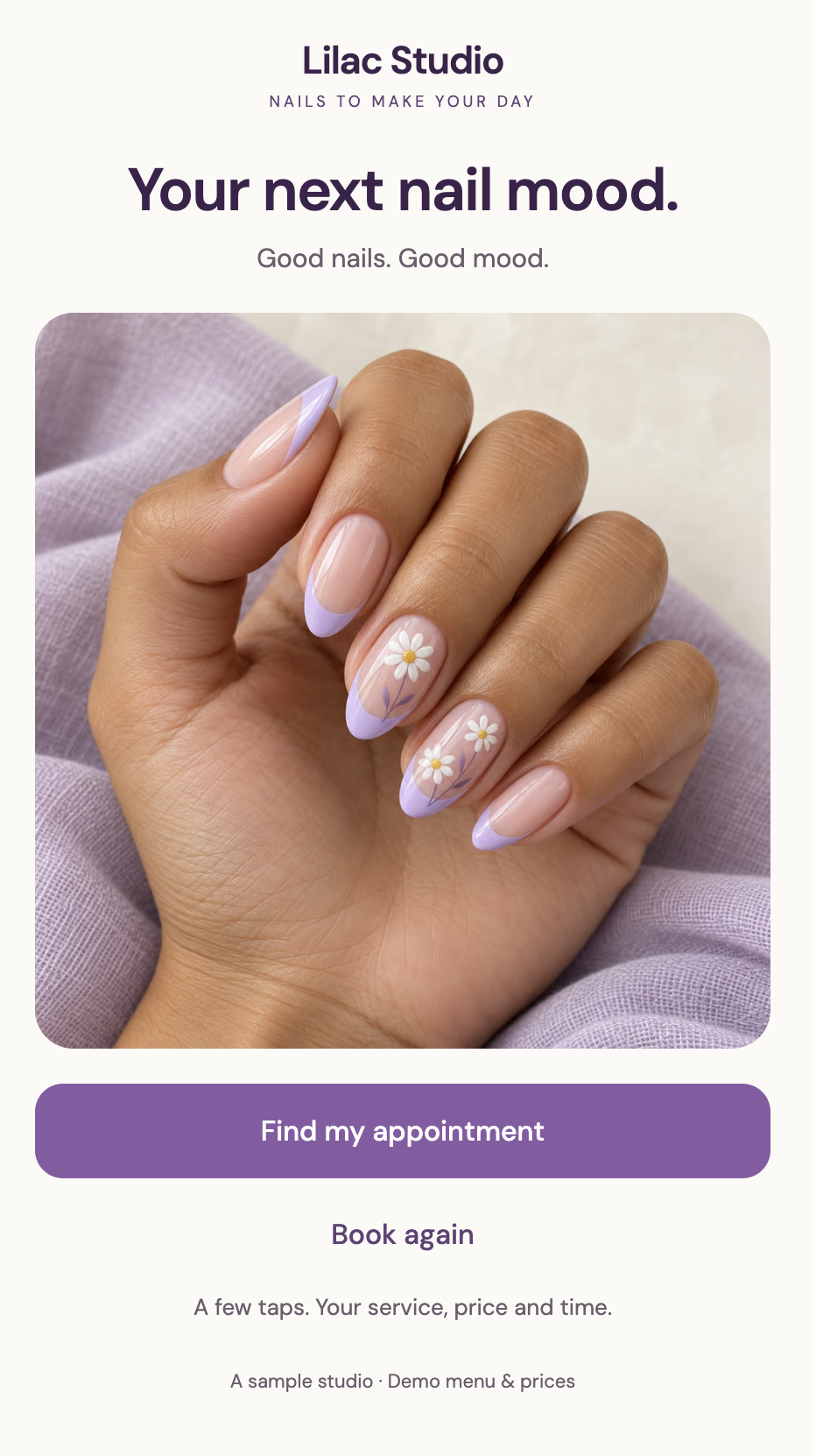
  • A photo-led welcome screen and four visual look options: solid colour, French, minimal art, and detailed art
  • The selected look image stays visible through the following steps and result
  • Compact choices for natural length, extensions, or infill
  • Questions about the product currently on the nails and where it was applied
  • Separate paths for custom ideas and removal-only appointments
  • An optional preferred-date picker, reference photo uploads, design notes, and compatible repair options
  • A personalised result showing the suggested service, estimated price, duration, and selected details
  • Configurable booking links, a returning-client booking route, and a native enquiry form for requests needing studio review

Visitors can understand which appointment fits their chosen look before continuing to booking. The studio can adapt its looks, service menu, matching rules, locations, prices, and appointment durations.

Lilac Studio branding, images, services, prices, and durations are examples. The date picker collects a preference; it does not check live availability or reserve an appointment. Booking URLs and enquiry emails require configuration. Booking links can lead to Fresha, Phorest, or another provider.

Instructions

  1. Replace the sample brand Update the Lilac Studio name, colours, welcome photo, look images, and contact information. Use clear photos of your studio’s own work.
  2. Set your looks and services Update the Looks and art tiers and Service menu tables with your options, prices, durations, removal charges, and repair rules.
  3. Review service matching Adjust the Service matching rules for natural nails, extensions, infills, existing products, and work applied elsewhere. Check which combinations need a studio review.
  4. Configure your locations Update the Locations and Studio settings tables. Confirm which services and booking destinations apply to each location.
  5. Set the date preference and enquiry fields Review the optional date picker, reference photos, notes, and contact fields. Keep the wording clear that the preferred date needs confirmation.
  6. Connect booking and enquiries Add your Fresha, Phorest, or other booking URLs and receiving email address. Test both the booking handoff and the native enquiry flow. Configure additional tools through an API or webhook, directly or through Zapier, where needed.
  7. Test before launch Check every look, service goal, existing-product option, removal path, repair choice, custom request, and date validation. Verify price and duration calculations, test on mobile, and turn off demo mode once setup is complete.

Confirm