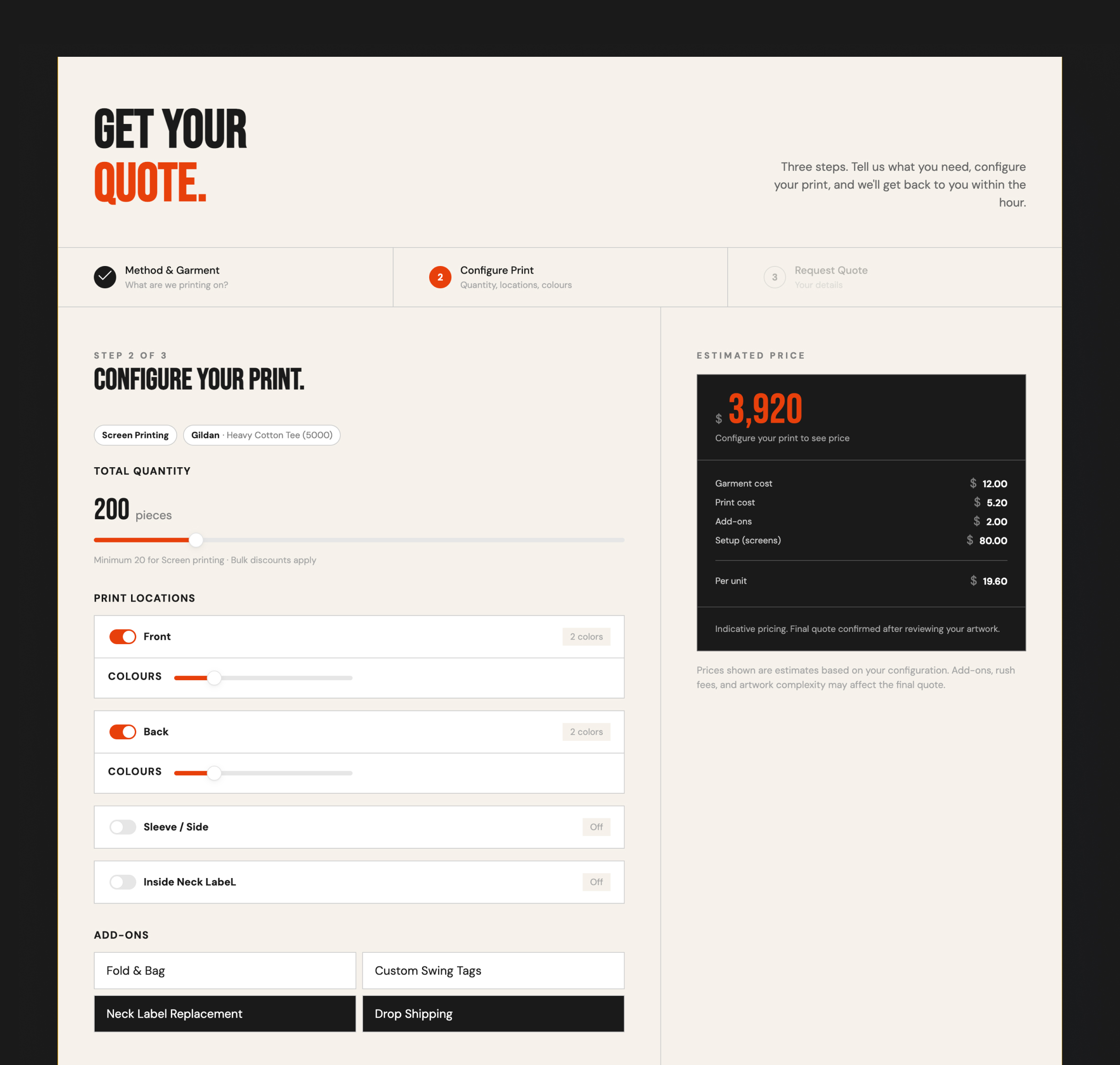
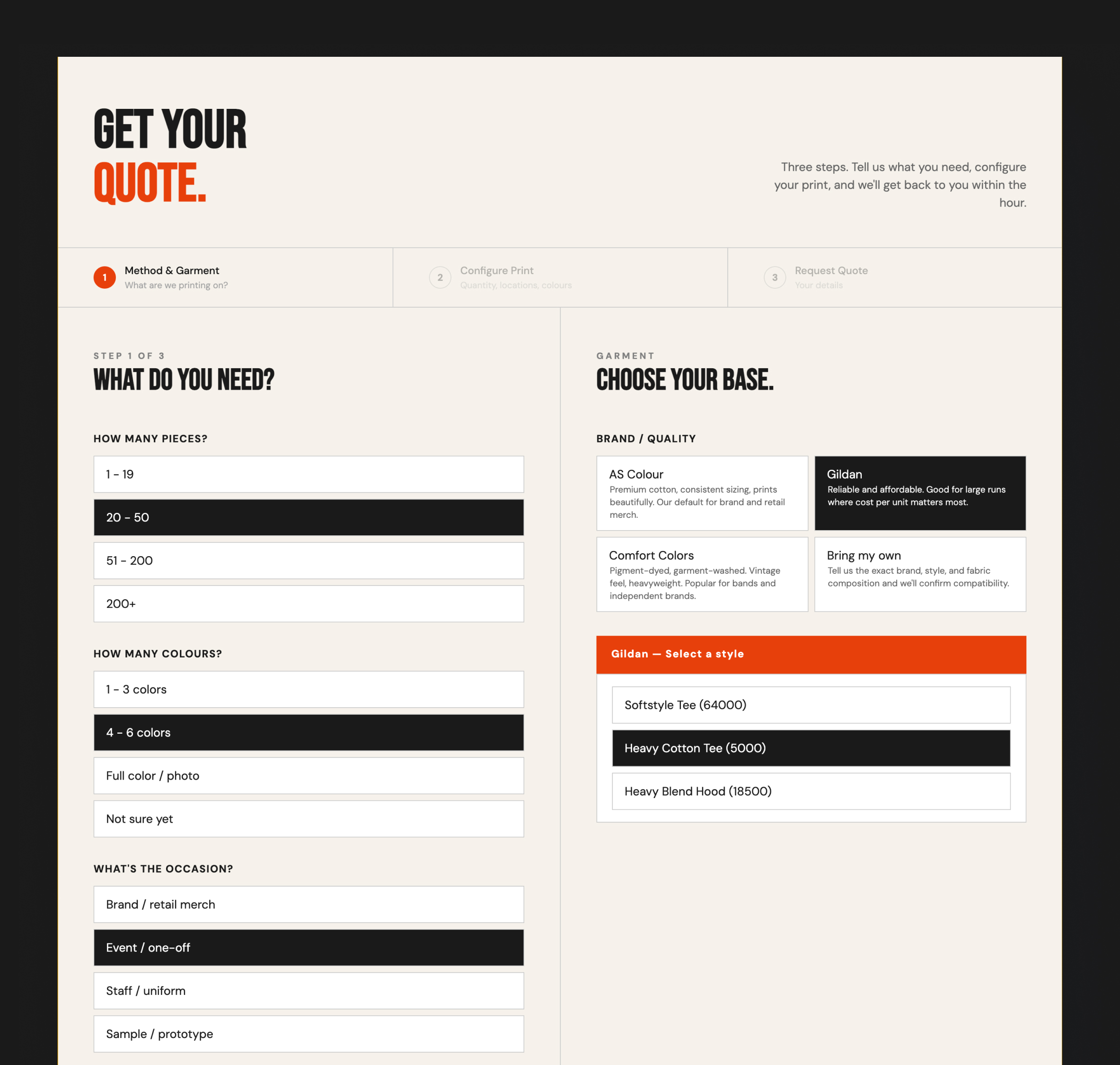
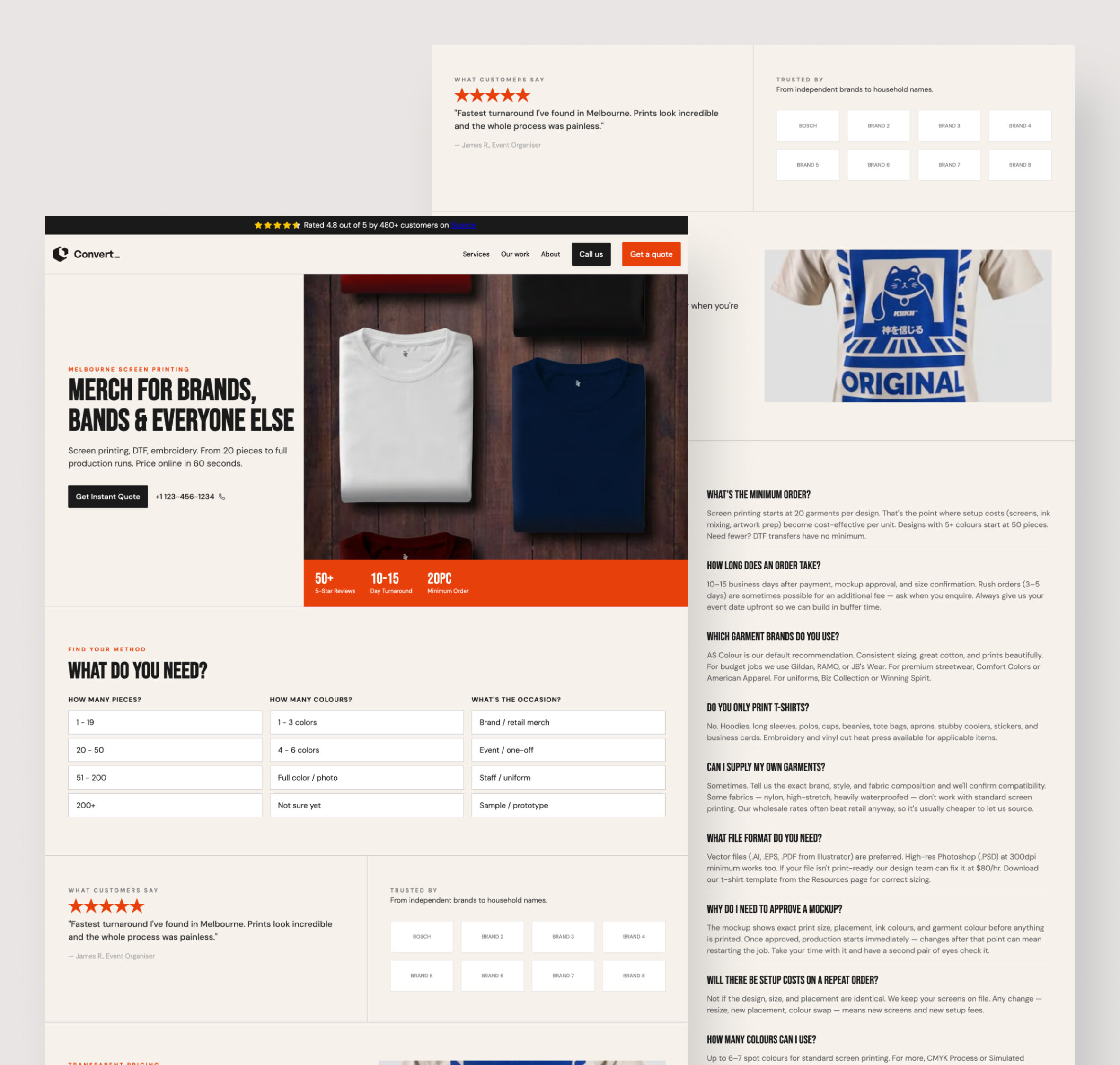
Every screen printing shop gets the same questions. How much for 50 shirts? What about 3 colors? Can I get a price for hoodies instead? What's your minimum order?
Right now you're answering those by email, by phone, or by DM — one at a time. Half of them are price shoppers who won't buy at your real price anyway. The other half are waiting on a quote while your competitor responds in minutes.
This screen printing website template solves that. Visitors select their print method, quantity, garment type, and number of colors, and get an instant personalized price right on your site. They qualify themselves before they ever reach your inbox. Serious buyers contact you already knowing what it'll cost — so the conversation starts in the right place.
This is a full website for screen printing businesses, not just a calculator widget. It includes a homepage hero section, a guided print method selector (screen printing, DTF, embroidery), customer reviews and social proof, a complete FAQ covering the questions every custom apparel shop gets asked, and a clear quote-to-contact flow throughout. Everything a t-shirt printing company needs to look professional and convert visitors automatically.
Shops like Parkway Print Shop, Cottonlab, and USA Tees already use ConvertSite to automate their quoting process. This template is how you get there without building from scratch.
Works as a standalone website or embedded in your existing site. Publish on your own domain or drop the calculator into a page you already have — both take minutes.
FAQ
What is a screen printing quote calculator? A screen printing quote calculator is an interactive tool on your website that gives visitors an instant price estimate based on their order specs — quantity, colors, print method, and garment type — without requiring them to call or email.
How do screen printing shops automate their quoting? By replacing contact forms with a quote calculator that integrates their existing pricing matrix. Visitors self-serve a price, shops receive pre-qualified leads.
What's the difference between a quote calculator and a full screen printing website? A calculator widget handles pricing only. A screen printing website template like this one includes a full homepage, social proof, FAQ, and quote flow — everything needed to convert a visitor from first impression to inquiry.
Which screen printing businesses use ConvertSite? Kong Screen Printing, Parkway Print Shop, Cottonlab, and USA Tees all use ConvertSite to automate their quoting and lead generation.
Can I use this template on my existing website? Yes. Embed the quote calculator into any existing site, or publish it as a standalone site on your own domain. Both options are available with any ConvertSite subscription.
Do I need to know how to code? No. The template is fully no-code. You update your pricing, branding, and content through the ConvertSite editor — no developer needed. When you want to update the template to suit your business, you can also use our AI assistant.