
















What you'll learn
- Quick Start: Create an Embeddable Calculator
- How to Choose the Best Embeddable Calculator for Your Site
-
- Carpet Cleaning Estimate
-
- Mortgage Calculator
-
- Solar Price Quote
Here’s how to create an embeddable calculator for your website without writing any JavaScript or code.
Increasing conversion rates by embedding a calculator widget on your website doesn’t have to be hard.
With Convert_, you can add a calculator to your website in just 3 steps, then embed it on your website or landing page.
Quick Start: Create an Embeddable Calculator
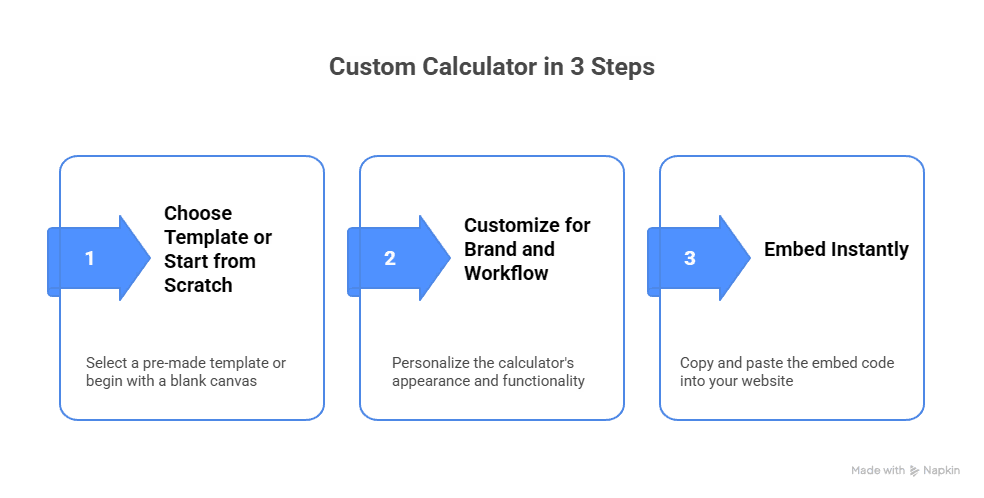
Build your custom calculator and embed it in 3 steps:
-
Choose a Ready-Made Template: Open the Convert_ builder and select a template.
-
Customize for Your Brand and Workflow: Personalize layout, size, colors, and fonts so your calculator looks and feels like an extension of your website. Edit the calculation logic, input fields, and output options to match your business (no coding needed).
-
Embed Instantly (Without Developers): Click “Add to Website,” then simply copy your unique embed code and paste it into your website or landing page.
Voila, you have a custom calculator embedded into your website.
If you’re pressed for time, Convert_ offers a concierge service. Work with experts who create and integrate your calculator for you.
How to Choose the Best Embeddable Calculator for Your Site
Selecting the best embeddable calculator for your business starts with your goals. Of course, the ideal calculator should deliver the specific calculations your customers are looking for.
A big part is choosing a calculator that meets your needs, while ensuring it’s easy for you to get it live on your site. This may mean considering features like dropdown menus, conditional logic, and customizable fields. And working with templates to simplify the building process.
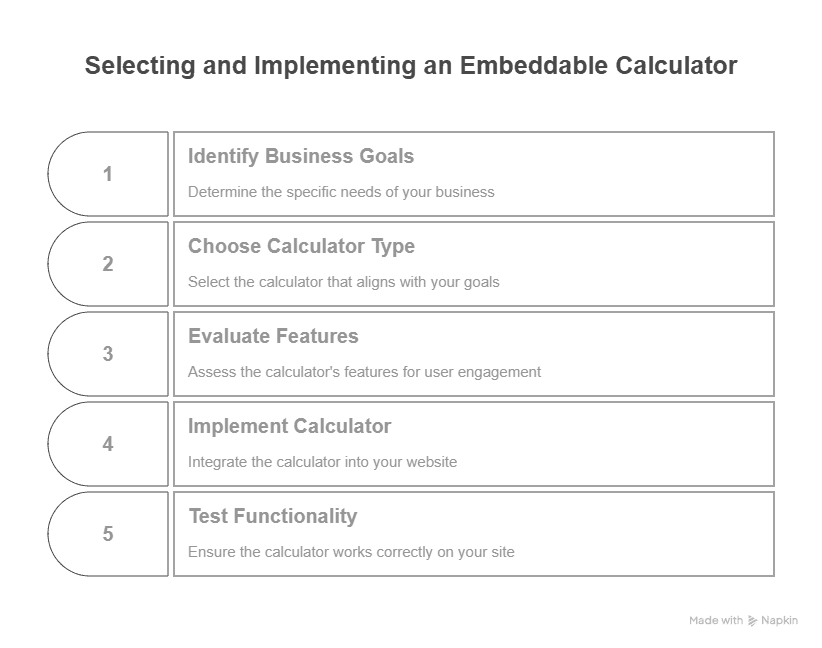
These 5 points will help guide you when selecting and implementing a calculator for your website:
-
Identify business goals
-
Choose calculator type
-
Evaluate features
-
implement calculator
-
Test functionality
These 5 points will help guide you when selecting and implementing a calculator for your website:
-
Identify business goals. Decide what you want the calculator to do first: capture leads, give instant quotes, qualify prospects, take bookings, or cut down on back-and-forth emails. This goal shapes every choice that follows, so it is worth being specific.
-
Choose calculator type. Match the calculator to that goal and to the task your customer wants to complete. An estimate calculator suits service pricing, an ROI calculator suits agencies, and a product configurator suits custom orders. Starting from a template close to your use case saves the most setup time.
-
Evaluate features. Check the calculator can do what your business actually needs. Look for conditional logic, dropdowns, multi-step flows, custom fields, the integrations you already use, and styling that matches your brand. A feature you find missing later often means rebuilding.
-
Implement calculator. Set the calculation logic, inputs, and outputs, then embed the calculator on the page where it belongs. A no-code builder lets you do all of this yourself, with no developer and no custom code.
-
Test functionality. Before and after you publish, check the math is right, the flow works on mobile and desktop, and results land where they should, like your CRM or inbox. Run a few test entries, then watch the analytics for drop-off points and improve from there.
Templates make it even easier to select the best calculator for your website. Here are 5 popular calculator templates you can adapt to your business:
1. Carpet Cleaning Estimate
This estimate calculator isn’t only perfect for carpet cleaning businesses. If you run another service business or you’re a contractor, you can easily customize the template to suit your needs.
The calculator lets customers get instant estimates and helps you generate qualified leads.
Start with the carpet cleaning estimate template...
Carpet Cleaning Quote Calculator
2. Mortgage Calculator
If you’re involved in the real estate or finance industries, a mortgage calculator is a must-have. Potential clients need to quickly estimate their monthly mortgage payments based on their circumstances.
Start with this mortgage calculator template.
3. Solar Price Quote
Run a solar company? This price quotation calculator lets your potential customers instantly generate custom quotes based on selected services or features. It helps you generate and qualify serious leads.
You can customize this calculator for different services. So it’s helpful even if you’re not in the solar business.
Start with the solar price quote calculator...
4. Website ROI Calculator
This ROI calculator works well for agencies or freelancers offering sales and marketing services. It helps potential customers get insights into the current ROI of their website and see the value your services deliver.
Customizing the template across services is easy, and it’s also useful for consultants and even SaaS companies.
Start with the website ROI calculator...
5. Pool Estimate Calculator
Pool builders, installers, and retailers get tons of value from this calculator. And personally, it’s one of my favorites. Your potential customers get instant pricing on selections such as pool size, features, finishes, and more.
The visualization is one of the factors I love. Users can imagine themselves relaxing by the pool, so the calculator is persuasive and practical.
Start with the pool estimate calculator...
Home Renovation & Construction Estimator
How to Configure and Customize an Embeddable Calculator
Once you’ve selected your calculator, you’ll want to configure and customize it. This lets you change the inputs and outputs to match your business (such as services and pricing).
With Convert_, you can adjust everything in the template, from the color scheme and font to the layout and calculation logic.
-
Set the calculator to perform calculations related to your business logic and based on the data users provide.
-
Customize your calculator to match your website’s style and branding.
Configuring and customizing your calculator lets you deliver a user experience that feels intuitive and professional. And you get useful data specific to users’ needs and preferences.
Using a no-code builder like Convert_ makes it easy to set up your calculator.
How to Embed a Calculator Into Your Website
When you create a calculator with Convert_, it embeds into any website. The process is slightly different, depending on your CMS.
Here, we’ll show you how to embed into popular platforms: WordPress, Framer, and Wix. You first need to have a published calculator and a “Calculator ID” for the embed.
How to Embed a calculator on a WordPress website
Preferred method...
The plugin is optimized for the native WordPress Gutenberg editor and the Elementor page builder:
-
In your website's admin area, navigate to plugins, and click on the "Add new" button.
-
Search for the plugin "ConvertCalculator", click on "Install now," and when it's installed, click on "Activate".
-
On the page where you want to display the calculator, add the ConvertCalculator widget.
-
Paste in your “Calculator ID” into the input field (in the left margin under “content”).
Manual method...
-
Go to the editor of the calculator you want to embed onLog in to ConvertSite.
-
Navigate to the “Install Tab” via the menu on the top-right of the screen.
-
Select "Other" for a platform.
-
Copy/paste the iframe embed code that appears on the screen.
-
Go to the page or post on your WordPress website via the WP Admin.
-
Find the "Custom HTML" option and paste the embed code where you want the calculator to appear.
NB. If you already have the ConvertCalculator plugin installed, disable it before you manually embed the calculator.
How to Embed a Calculator on a Framer website
The Framer plugin makes embedding your calculator easy:
-
Navigate to the Convert_ app, and open your calculator.
-
Go to Share → Embed, and copy your Calculator ID.
-
Open the plugin window within Framer and search for “Convert: Custom Calculators” or add the plugin to your website from the Framer Marketplace.
-
Paste in the Calculator ID.
-
Give the Embed component the desired width and height, so the embedded calculator works according to your responsive design. We advise placing your calculator within a Stack and giving the Embed component a width of 1fr and a height of fit.
How to Embed a Calculator on a Wix website
This Wix plugin makes embedding your calculator easy:
-
Navigate to the Convert_ app, and open your calculator.
-
Go to Share → Embed, and copy your Calculator ID.
-
Open the “Add Apps” window within Wix and search for “Convert: Calcs & Configurators”, or add the plugin to your website from the Wix Marketplace.
-
Paste in the Calculator ID.
-
Give the Embed component the desired width and height, so the embedded calculator works according to your responsive design. Be sure to update the width and height of your calculator in the Wix mobile breakpoint to ensure your calculator also works as expected on mobile devices.
Where to Embed a Calculator on Your Site
The placement of your calculator is just as important as its design.
Best calculator embed Practices for Maximum Impact:
-
Key product and service pages: Place the calculator near the top of the page, or trigger it as a popup, so visitors see it straight away. Nielsen Norman Group eyetracking research found people spend 57% of their viewing time above the fold, so a calculator lower down the page is one many visitors never reach.
-
Dedicated landing pages: Build a focused page around the calculator for ad campaigns and promotions — our landing page builder hosts the page and the calculator together, so there's nothing to embed. Interactive content also tends to convert better than a static page. Research from Demand Metric and Kapost found interactive content is rated an effective converter 70% of the time, compared with 36% for static content.
-
Email follow-ups: Bring cold leads back with a direct link to the calculator, and remind them of the value it gives them.
-
E-commerce and product selectors: Help buyers work out the true cost of complex or custom orders right on your product pages.
Pro tip: Test different placements and track which one converts best. The built-in analytics make this easy.
What else can a Calculator Automate?
An embeddable calculator widget isn’t just for quoting. They help you automate processes across your business (from custom pricing, bookings, payments, trade orders, reviews, and more).
-
Exceptional Speed: Go from idea to live, automated solution in minutes, not weeks. Launch powerful tools without IT delays.
-
Powerful Flexibility: Automate everything from quoting and product configuration to lead intake, bookings, and secure payments. Adapt to any business logic or workflow.
-
Automated Workflows: Integrate your calculators with popular CRMs, email tools, analytics, and project management platforms. Build full, automated workflows that eliminate manual data entry, reduce errors, and save hours every week.
In this video, we demo how to build a loan calculator:
Embedded Calculator Outcomes
What can you do with Convert_?
Convert_ is a no-code tool for building interactive calculators and automating quoting, lead qualification, and pricing workflows. It fits business teams of any size, from solo founders to growing companies, who want to create and update these tools themselves without involving a developer.
The features below cover the calculation logic, automation, and publishing options most teams use day to day.
Feature | What it does for you |
|---|---|
Formula and logic engine | Build pricing, quotes, and assessments with multi-step logic and conditional rules |
Question-level calculator control | Show or hide live calculations on specific questions or whole assessments |
Integrations and automation | Send results to your CRM, email, analytics, and ops tools automatically |
Responsive design | Calculators display correctly on phones, tablets, and desktops |
Analytics dashboard | See usage, drop-off points, and conversion rates in one place |
Embedding | Add a calculator to almost any website in a few clicks |
How flexible is the calculation logic?
The formula and logic engine handles far more than a spreadsheet can. You can build unlimited calculation steps, conditional flows, tiered pricing, and custom business rules in one place.
This means complex quoting and assessment logic stays inside a single tool, instead of being split across formulas, hidden cells, and manual workarounds.
Can you turn the calculator on or off for specific questions?
Yes. You can enable or disable the live calculation for individual questions or for an entire assessment.
This is useful when some questions should feed the final result and others are there to collect information without affecting the number a visitor sees.
What can Convert_ connect to?
Calculators can pass data automatically to your CRM, email platform, analytics tools, and operations apps. Native integrations and Zapier cover most common destinations.
Because results move on their own, follow-ups, notifications, and lead routing happen without anyone copying data by hand.
Does it work on mobile?
Every calculator is responsive, so it adjusts to phones, tablets, and desktops without separate versions. Visitors get the same experience regardless of the device they use, which matters because a large share of web traffic now comes from mobile.
What can you measure?
The analytics dashboard tracks how people interact with each calculator. You can see usage volume, where visitors drop off, and how often they convert.
Drop-off data is the most actionable part here, since it shows which question causes people to leave and where the experience needs work.
Where can you embed a calculator?
You can embed a calculator on most website platforms, including WordPress, Shopify, Squarespace, Webflow, and plain HTML sites. Setup takes a few clicks and does not require editing code.
Developer Vs. No-Code
What Are Embedded Calculators?
Custom embedded calculators are interactive tools you can add to your website or landing pages. They let visitors perform calculations, such as cost estimates, savings, or ROI, directly on your site.
Also known as calculator widgets, they're designed to improve the user experience by providing instant, relevant information.
Whether you want users to calculate the cost of a service, estimate potential savings, or understand pricing options, an embeddable calculator widget makes it easy and engaging.

Integrating an embeddable calculator makes your website more interactive and converts more visitors into qualified leads. Calculators can be fully customized to match your website’s look and feel.
From finance and real estate to e-commerce and professional services, embedded calculators have become essential for businesses. They provide value, build trust, and drive more leads from your website.
Add an Embedded Calculator to Your Site
An embedded calculator keeps working once it is live on your site. It can collect leads, give accurate quotes around the clock, and take bookings online without anyone on your team chasing each request.
That means faster replies, fewer hours lost to manual quoting, and more qualified leads from the traffic you already have.
To see how a calculator would fit your business, book a demo. Or build one for free and have it live on your site today.
Carpet Cleaning Quote Calculator
FAQ
Frequently asked questions answered








Use cases
