
Add custom fonts to your workspace
Custom fonts used to require head-code setup on each individual site. The Builder now has one workspace font library: add font files or hosted font code once, and every workspace member can use those fonts on any site in the workspace.
Saving fonts to the Brand library requires workspace access. As a normal member you also need a verified email address.
Open the Fonts picker
You reach the workspace font library through any Font family field in the Style inspector or the Typography controls.
Open a Font family field in the Style inspector or the Typography section of a component's styling controls.
The picker is labeled Fonts. Use the All and Brand library tabs to switch between built-in fonts and your workspace's custom fonts, or type in Search fonts to find one by name.
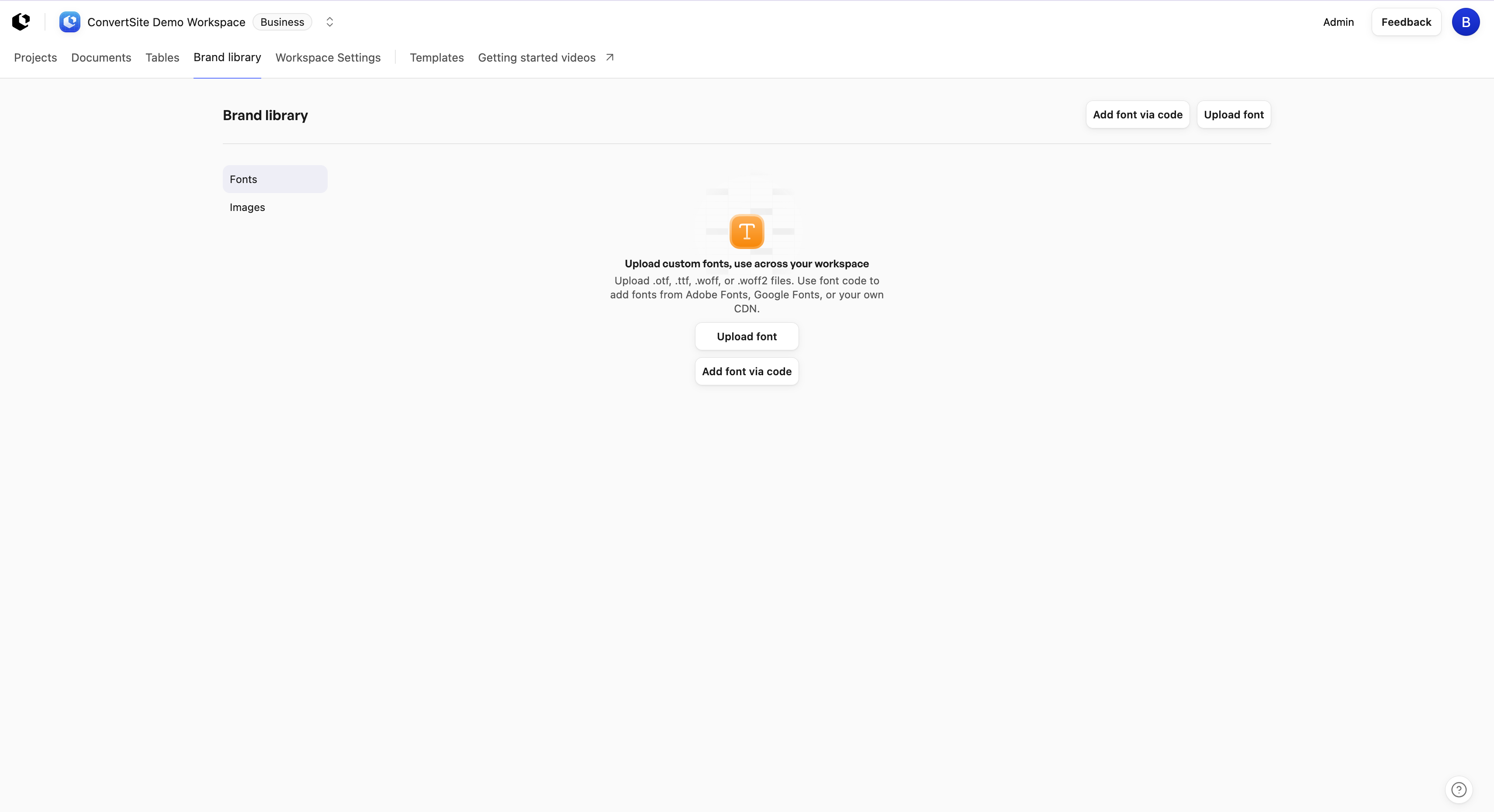
The Brand library's empty state says Upload custom fonts, use across your workspace and offers two actions: Upload font and Add font via code. Families you save appear in the picker immediately, without a browser refresh.
Upload font files
The Upload font action accepts .otf, .ttf, .woff, and .woff2 files. A batch is limited to 32 files, 10 MB per file, and 30 MB in total.
In the Fonts picker, switch to the Brand library tab and click Upload font.
Select your font files: up to 32 files per batch, each up to 10 MB, and no more than 30 MB for the whole batch.
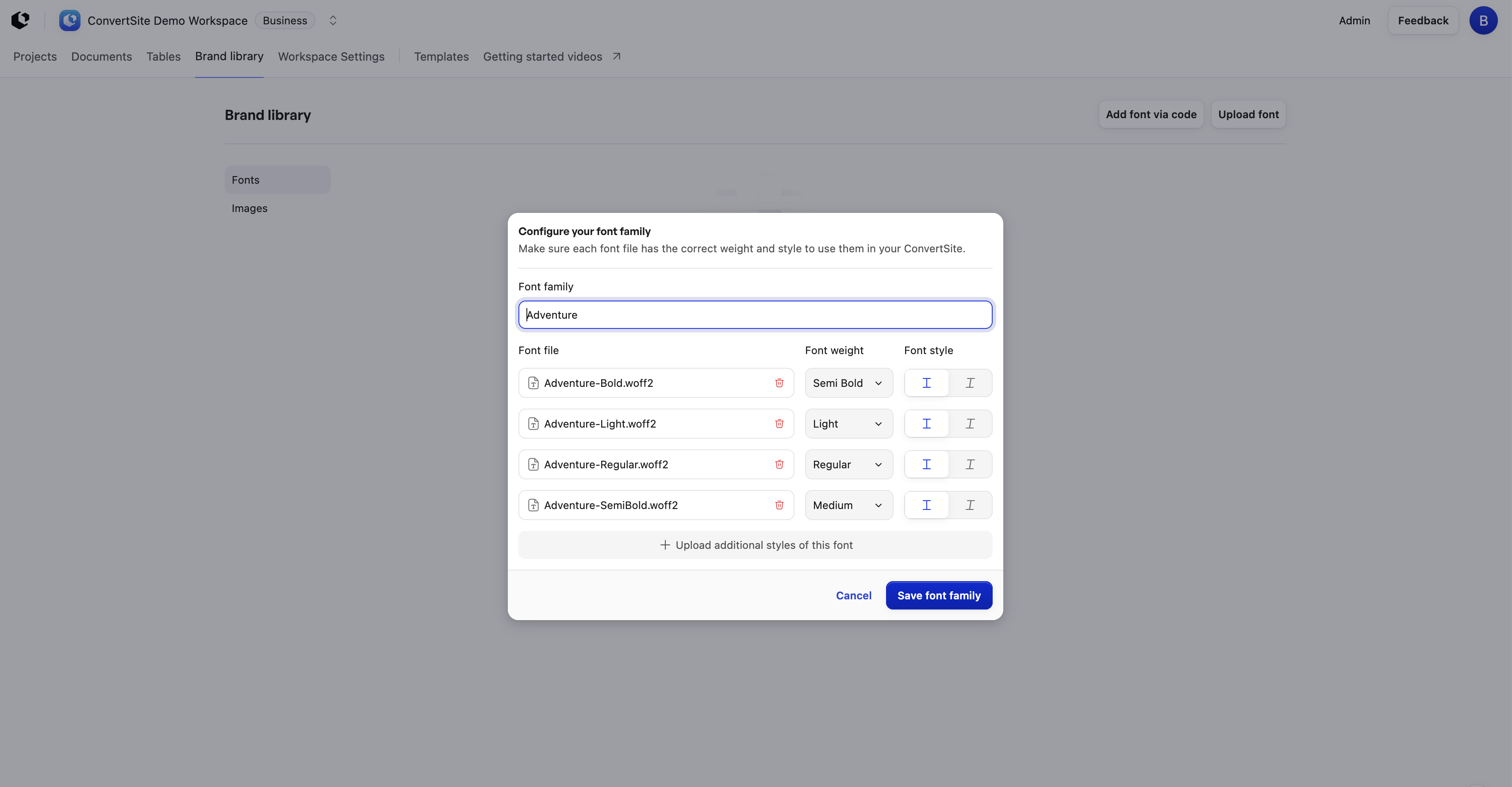
Configure the font family name (1 to 128 characters) and the weight and style mapping (weights are 1 to 1000).
Add additional styles for the family if you need them, for example separate weights or italic.
Save the fonts. They appear in the Fonts picker right away.
For variable fonts, the available weight ranges are detected automatically, so you don't set them by hand.
Add font via code
Add font via code takes supported font markup you paste from Adobe Fonts, Google Fonts, or your own CDN. The code is added to the head of every site in the workspace, so the fonts are available everywhere without per-site setup.

In the Fonts picker, switch to the Brand library tab and click Add font via code.
Paste your provider's font code. Only supported link and style font markup is accepted; JavaScript is rejected. Stylesheet URLs must be public HTTPS URLs.
Save. The embedded families appear in the Fonts picker right away.
Removing saved font code resets affected draft text to the fallback fonts: Manrope for headings and Inter for body text. Publish each site to apply the change live.
Use workspace fonts
Once a font is saved, any workspace member can pick it from the Fonts picker for their text and headings. The weight options are filtered to the weights available for the selected family, using standard labels such as Thin, Regular, Semi Bold, and Bold. If a text element already uses a numeric weight the font doesn't offer, that option stays visible but disabled.
Saved workspace fonts show up in editor previews and draft site previews, so you can check your typography before publishing.
Publish to apply fonts to your live site
A live site keeps the font snapshot from its last publish until you publish it again. After adding, changing, or removing workspace fonts, publish each affected site to make the change live. For the steps, see Preview and publish your website.
Related articles
Style variables: reusable design values, including font family, you can connect to component styles.