
Track conversions and events with a click action
The Conversion and events click action sends the click as an event to the ad platforms connected to your workspace, such as Meta or Google Ads, and can track the value of the conversion. Add it to any element that has a click action group, such as a button, link, box, or image.
Before you start
Ad platforms are connected at workspace level, not per action. Connect Meta or Google Ads first in Connect integrations. When no ad platform is connected, the conversion options described below do not appear in the action.
Add the Conversion and events action
Select the element that fires the event, such as the button a visitor clicks to submit a quote request.
Open its click action group in the inspector, for example Button click action.
Click Add an action.
Pick Conversion and events in the action picker.
The action's panel opens with its two switches.
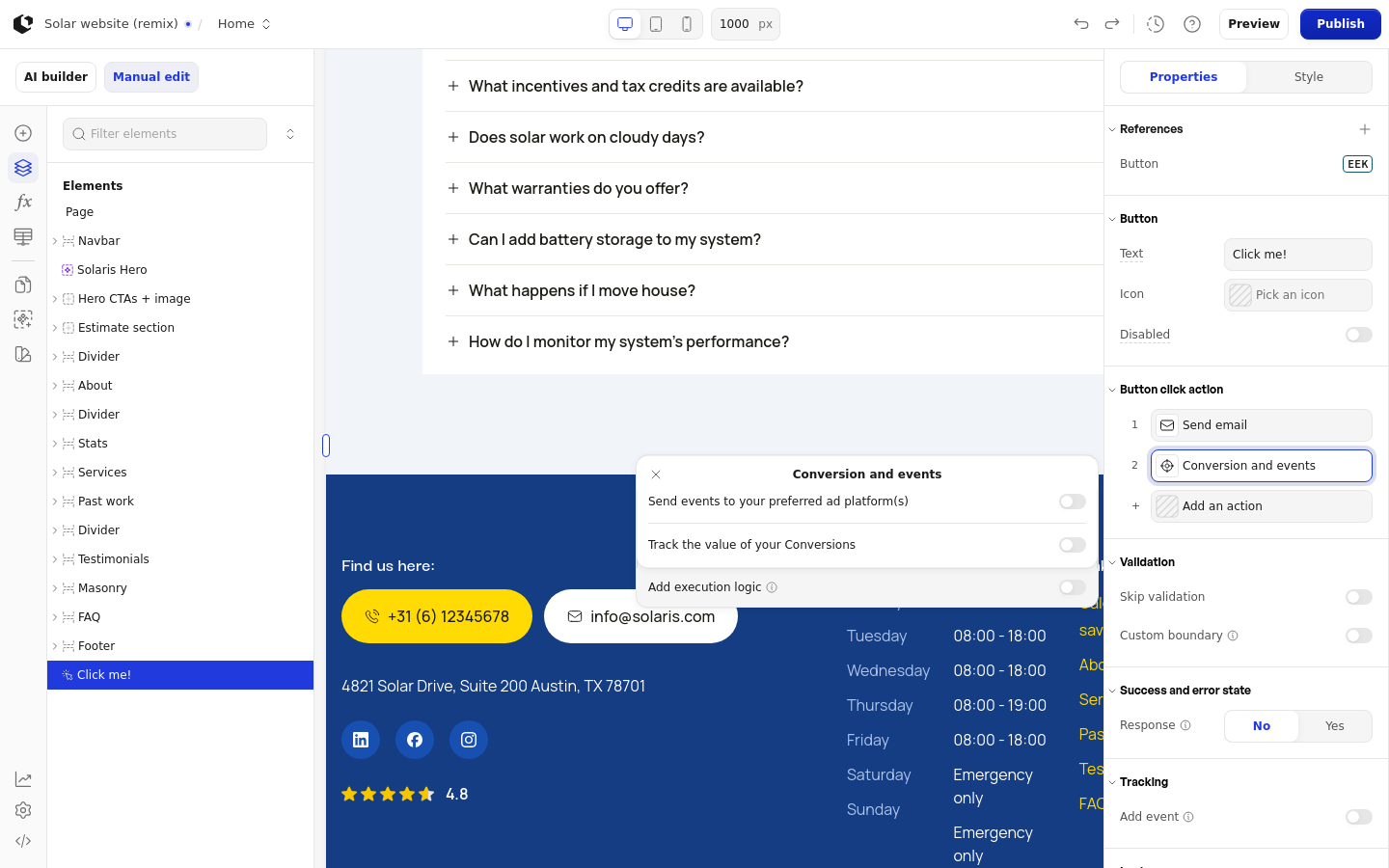
Send events to your ad platforms
Turn on Send events to your preferred ad platform(s) to send the click as an event to your connected platforms. When Meta or Google Ads is connected to your workspace, the panel shows a conversion option for each connected platform: Send conversions to Meta and Send conversions to Google Ads. Turn on the ones you want this click to fire.
Track the value of your conversions
Turn on Track the value of your Conversions when each conversion carries a value, such as an order total. The action then tracks the value alongside the event. How to set the value with a variable is covered in Set up conversion value.
Validation
The action shows a Validation group with two switches: Skip validation runs the action without validating the form, and Custom boundary uses a custom boundary for the action.
Conversions not arriving?
If a conversion shows as Failed or never reaches your ad account, follow the symptoms and fixes in Fix conversion tracking and delivery.