
KvK
The KvK element lets visitors search for a Dutch company and returns that company's data. Use it in a business lead or registration flow where you need a verified company, for example a quote or signup form for business customers. It is part of the Special inputs family and is available in the Site editor only.
Properties
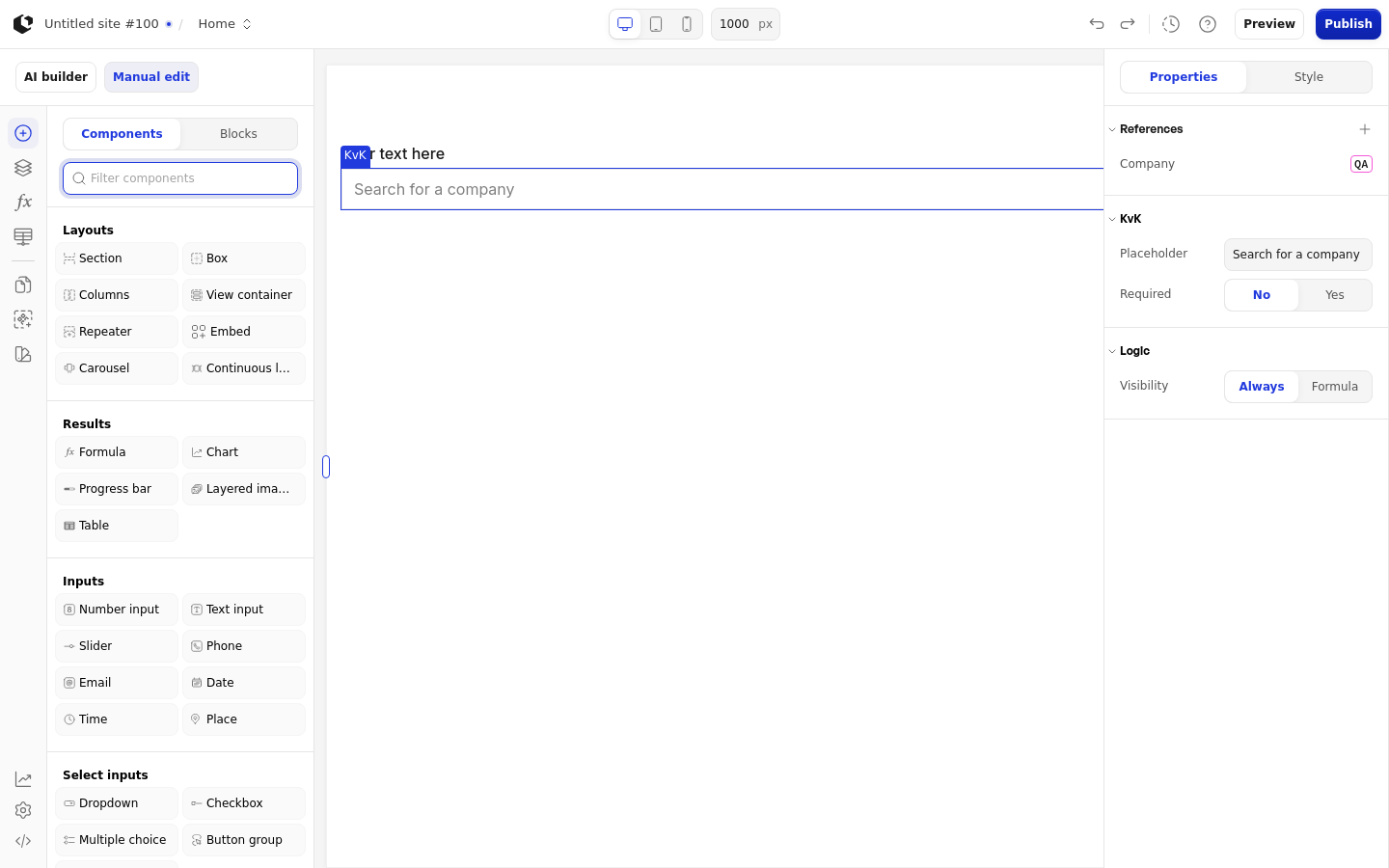
The properties live in the inspector under the KvK group.
Property | What it does | Default |
|---|---|---|
Placeholder | Text shown in the input before the visitor types | Search for a company |
Required | Makes the field mandatory before the visitor can continue | False |
Logic | Controls when the element is visible | None |
The Placeholder field's own placeholder is "Add placeholder". Required accepts a Boolean or a Formula.
References
References expose the selected company's data as values you can use in formulas and other elements. Assign a reference to store a company value in a variable. References use the question prefix Q.
Company: the company name followed by the number in parentheses.
Number: the company's registry number.
Name: the company name.
Address: the company's full address.
Country: the country from the address.
Postalcode: the postal code from the address.
City: the city from the address.
Street: the street from the address.
Housenumber: the house number from the address.
The code defines these reference names but no fuller semantic description per reference. Country, Postalcode, City, Street, and Housenumber are empty when the address does not provide them. The server-rendered menu starts empty.
Styling
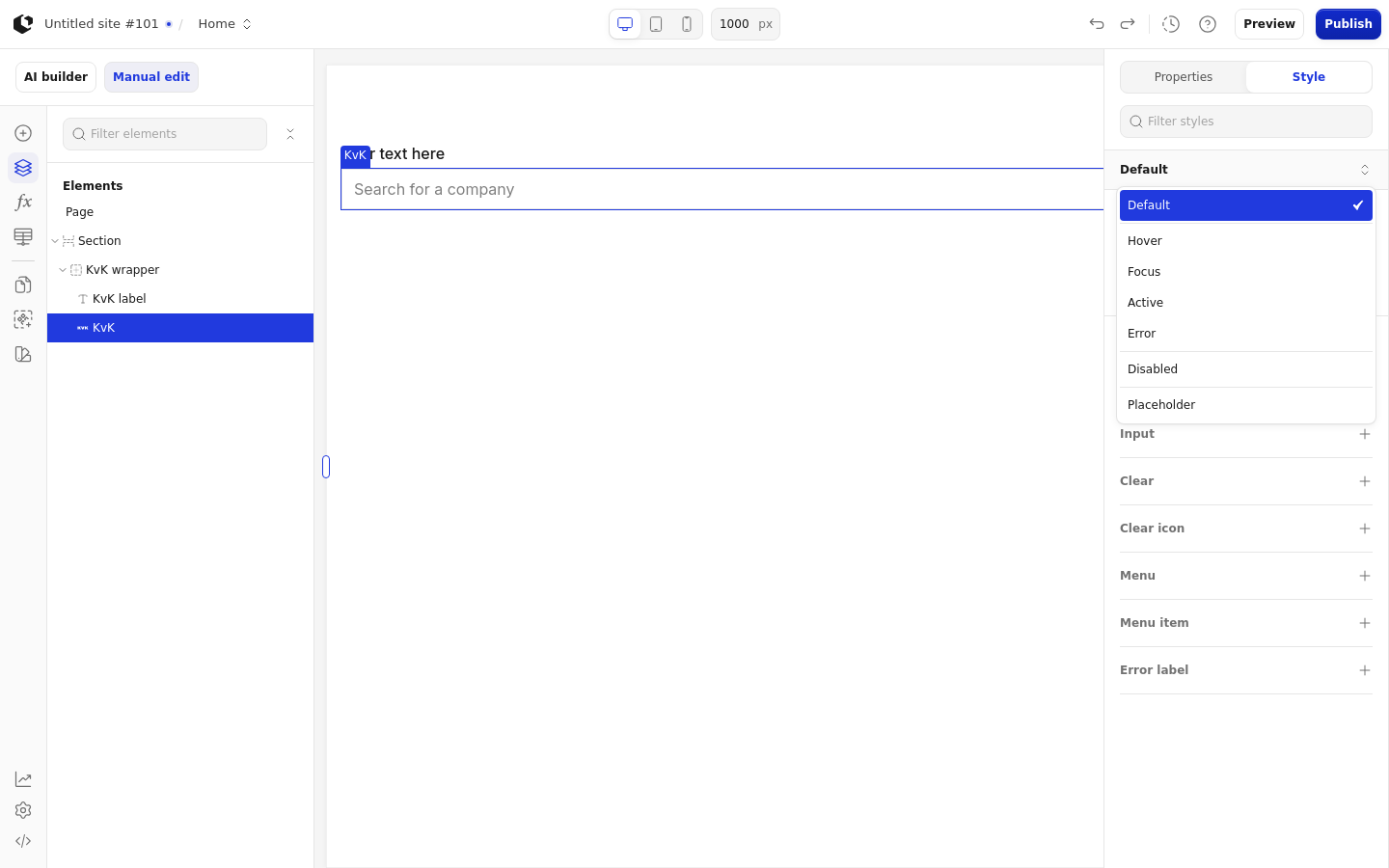
The KvK element can be styled per state and per part of the element.
Style states: Active, Default, Disabled, Error, Focus, Hover, Placeholder.
Named targets: wrapper, trigger, input, clear, clear-icon, menu, menu-item, error-label.
Named styles: KvK, KvK - brand background, KvK - underlined.
There are no quick styles for the KvK element. Apply general styling from the Style tab: style sets and CSS overrides per state and per breakpoint. See the styling reference for the full system.
Related articles
UI Elements: overview of the elements.
FormulaScript Overview: using formulas in properties.