
How click actions work
A click action runs when a visitor clicks the element it is attached to. You can attach click actions to buttons, boxes, links, and images, choose from 20 action types, and add several actions to the same element. This page shows where click actions live, how to add one, and which action type does what, with a deeper guide linked for each group of actions.
Where you can attach a click action
Each element that supports click actions has its own group in the inspector, named after the element:
Button:
Button click actionBox:
Box click actionLink:
Link click actionImage:
Image click action
The Box and Image groups are not available on document-type apps. A State button has no click action group.
The page itself has Page load actions, which run when the page loads instead of when the visitor clicks. It uses the same action picker as the element groups.
Add a click action
You add a click action from the inspector, on the element you selected in the builder.
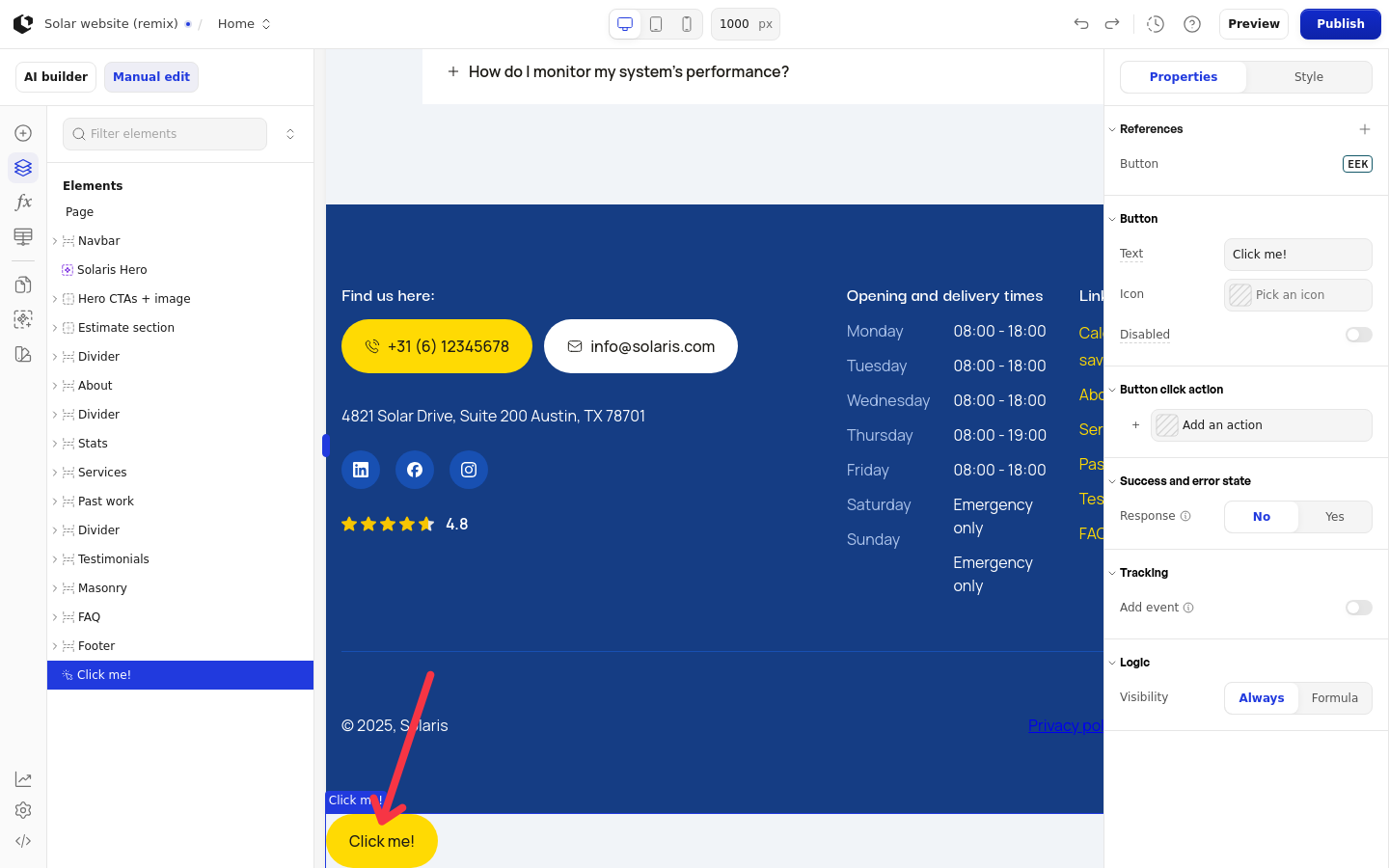
Select the element on the canvas.
In the inspector, scroll to the click action group, for example
Button click action.Click Add an action.
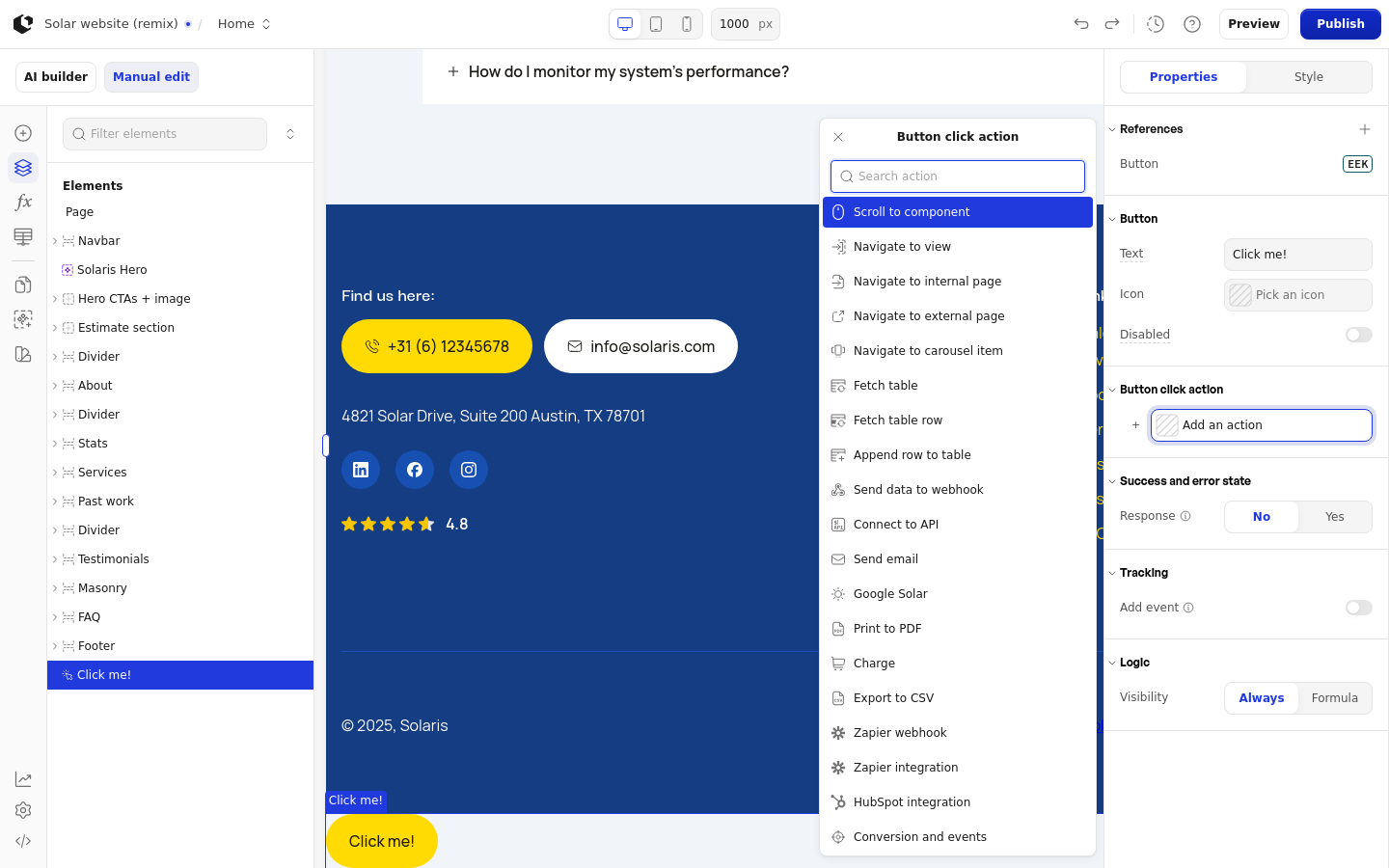
Pick an action from the picker, or type in the
Search actionfield to find it. If nothing matches your search, the picker showsNo actions found.
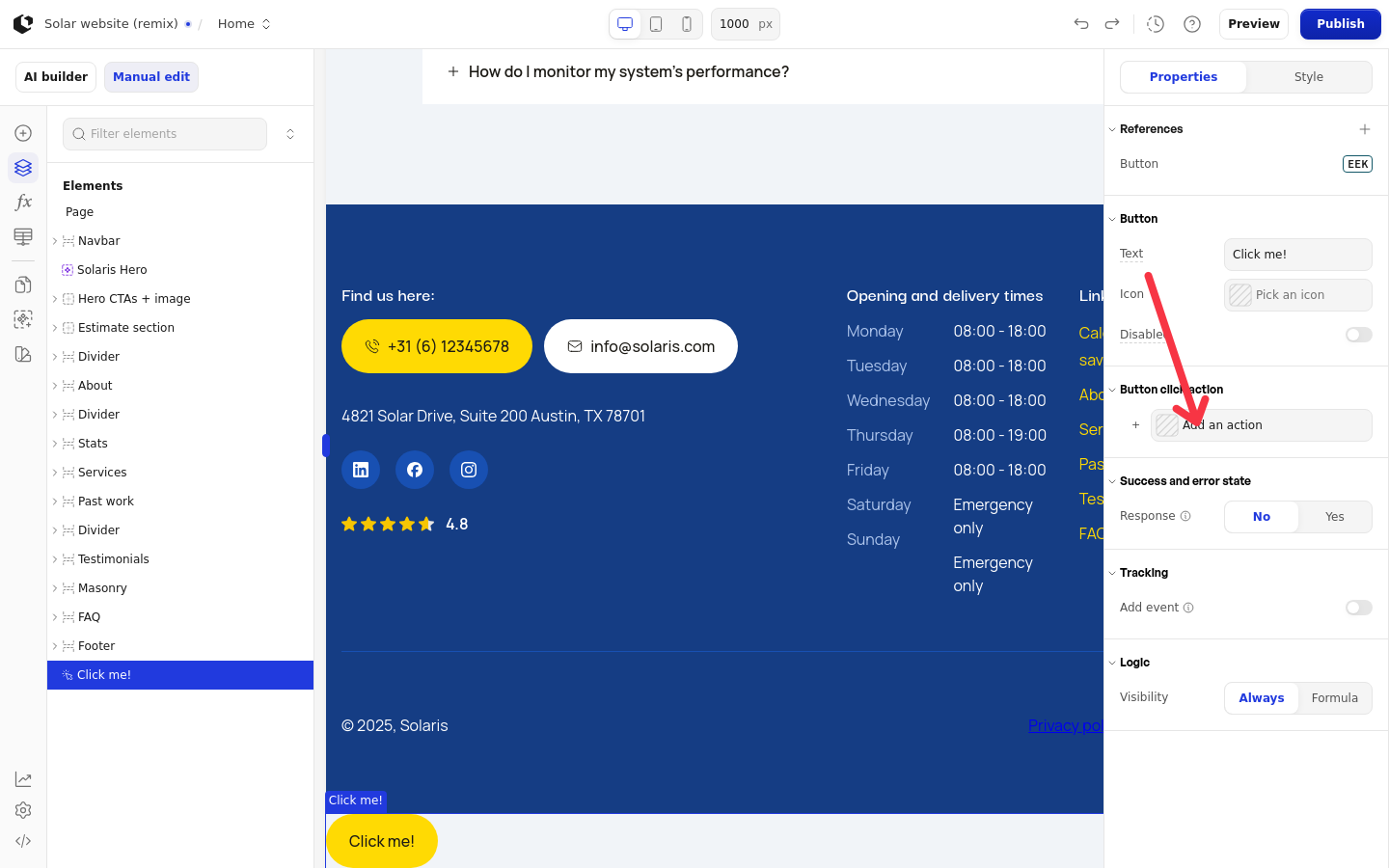
You can add more than one action to the same element: click Add an action again, and the actions appear numbered in the group (1, 2, ...).
The action types
The picker lists 20 action types in this order:
Action | What it does |
|---|---|
Scroll to component | Scrolls the page to a component you pick. |
Navigate to view | Switches a view container to its next, previous, or numbered view. |
Navigate to internal page | Sends the visitor to another page of your site. |
Navigate to external page | Sends the visitor to any URL. |
Navigate to carousel item | Steps a carousel to its previous or next item. |
Fetch table | Reads data from a table. |
Fetch table row | Reads data from a table row. |
Append row to table | Adds a row to a table. |
Send data to webhook | Sends data to an external endpoint. |
Connect to API | Sends or fetches data with an external API. |
Send email | Sends an email when the visitor clicks. |
Google Solar | Fetches Google Solar data for a location using latitude and longitude. |
Print to PDF | Lets the visitor print the page as a PDF. |
Generate document | Generates a document from your document library. We show this action in the picker only to workspace admins. |
Charge | Charges the customer through a checkout component on the page. |
Export to CSV | Downloads a data source as a CSV file. |
Zapier webhook | Sends fields to a Zapier webhook URL. |
Zapier integration | Runs a Zap using your ConvertSite API key. |
HubSpot integration | Sends fields to a HubSpot form. |
Conversion and events | Sends conversion events to your connected ad platforms. |
Configure the action
Every action opens its own configuration panel, with the fields for that action type. Data actions such as Fetch table, Send data to webhook, Connect to API, Send email, and Charge also show a Validation group with Skip validation and Custom boundary switches. Every configuration panel ends with an Add execution logic toggle.
Learn more
Navigate with click actions: the navigation actions.
Fetch and update table data with click actions: Fetch table, Fetch table row, and Append row to table.
Send data to a webhook or API with click actions: Send data to webhook and Connect to API.
Generate documents and export data with click actions: Print to PDF, Generate document, and Export to CSV.
Pull product data from Shopify with API Connect: using Connect to API with Shopify.
Button: the Button element and its other properties.