
Create and reuse Blocks
A Block is a reusable Box or Section. Save one from the Navigator, then add it to any page as a linked instance that stays in sync with the main block or as an independent copy.
Create a block from the Navigator
Turn any Box or Section into a reusable block. The option is available only when the component is a Box or Section, is not already a block instance, the editor is not in block-edit mode, and the app is not a Document.
Right-click a Box or Section in the Navigator. This opens its context menu without changing the currently selected component.
Choose Create block.
In the Create new block popover, enter a name in the Name field.
Leave Available across workspace on to share the block with other sites, or turn it off to keep it in the current site. It is on by default.
Click Create.
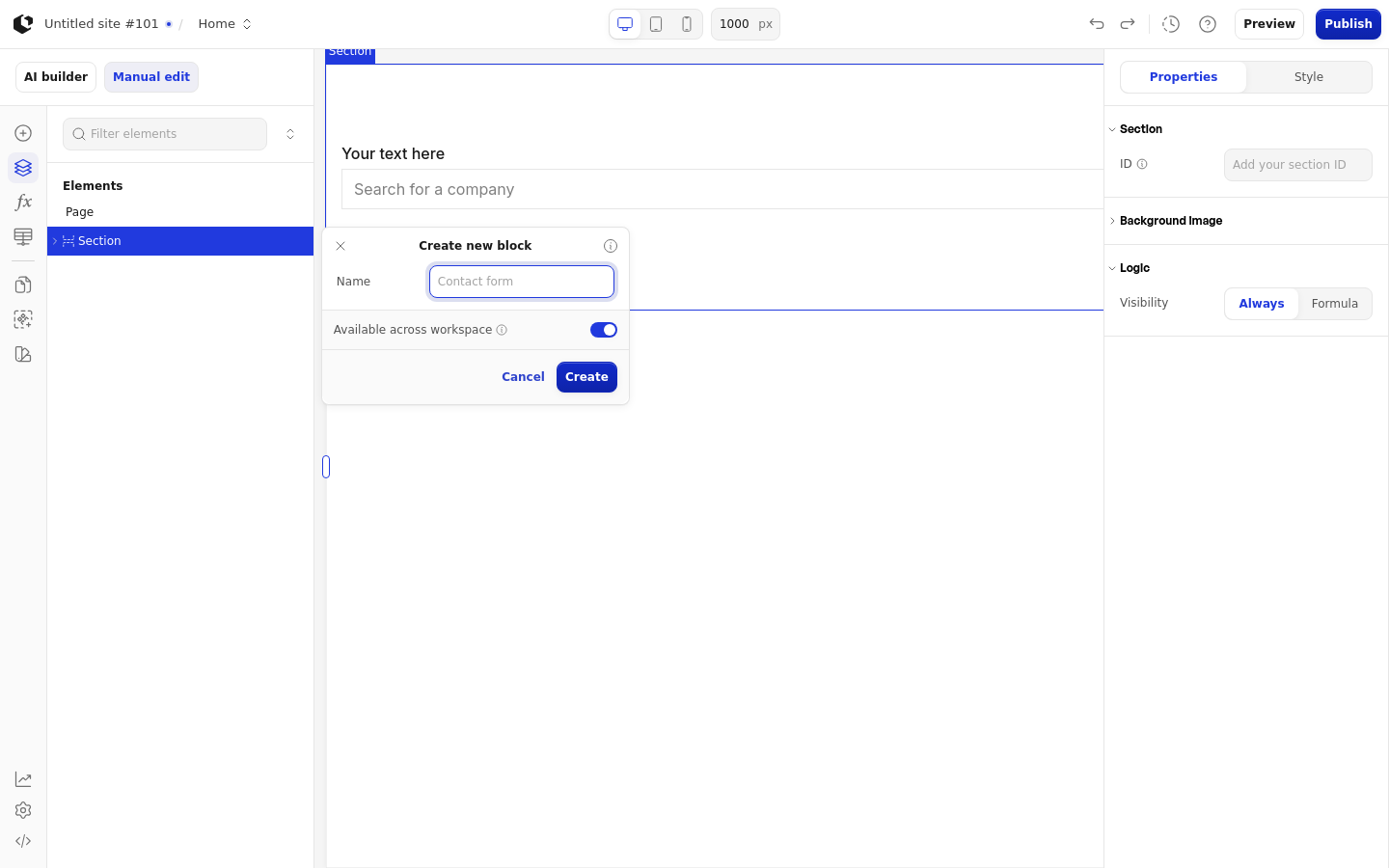
An empty or whitespace-only name fails with the error "Block name cannot be empty".
Creating a block replaces that component's subtree with a block instance. The instance takes over the needed actions, variables, and datasources and returns at the same parent and position as the original content.
Add a block to a page
Add an existing block from the Blocks panel as either a synced instance or a standalone starter copy.
Open the Blocks panel and hover over the block you want.
Choose Synced to add a linked instance that updates whenever the main block changes.
Choose Starter to insert an independent copy of the block's content as regular components.
Edit a block
Edit a block to change its structure and content at the source, which updates every linked instance. The Edit block option appears only when the block is in use, because the block content must be loaded.
Open the block's context menu and choose Edit block.
The block opens in the Navigator as the current tree source.
The breadcrumb shows the page and the block name. Click the page name in the breadcrumb to leave block-edit mode.
Change a block's name and availability
Rename a block or change whether it is shared across the workspace.
Open the block's context menu and choose Edit name and availability.
In the Edit block popover, update the Name field.
Toggle Available across workspace. The switch is hidden when the block is already workspace-wide; in that case the popover shows "Block is available across workspace."
Click Update.
Duplicate a block
Duplicate a block definition when you want a full copy of its content to edit independently.
Open the block's context menu and choose Duplicate.
Duplicating creates a new block definition with the full content copied under new component and action IDs. The copy inherits the availability scope and keeps the same name. It does not place a new instance on the page.
Detach an instance from the main block
Detach a block instance to turn it into standalone content that no longer updates with the main block.
Open the block instance's context menu and choose Detach from main block. The option is available on an instance that is not the current block source.
Detaching inserts the block content as standalone components at the same parent and position, then removes the block instance.