
What are Blocks and Synced vs Starter
A Block is a reusable set of components you can drop into any page. ConvertSite has three kinds of blocks: custom blocks you build from your own content, built-in blocks supplied in the panel, and complete page templates you start from. This article explains what a Block is and how the three kinds differ.
What a Block is
A Block bundles components into a reusable unit. Build a component set once, insert it in multiple pages, and any change you make to the main block is reflected on every instance that uses it.
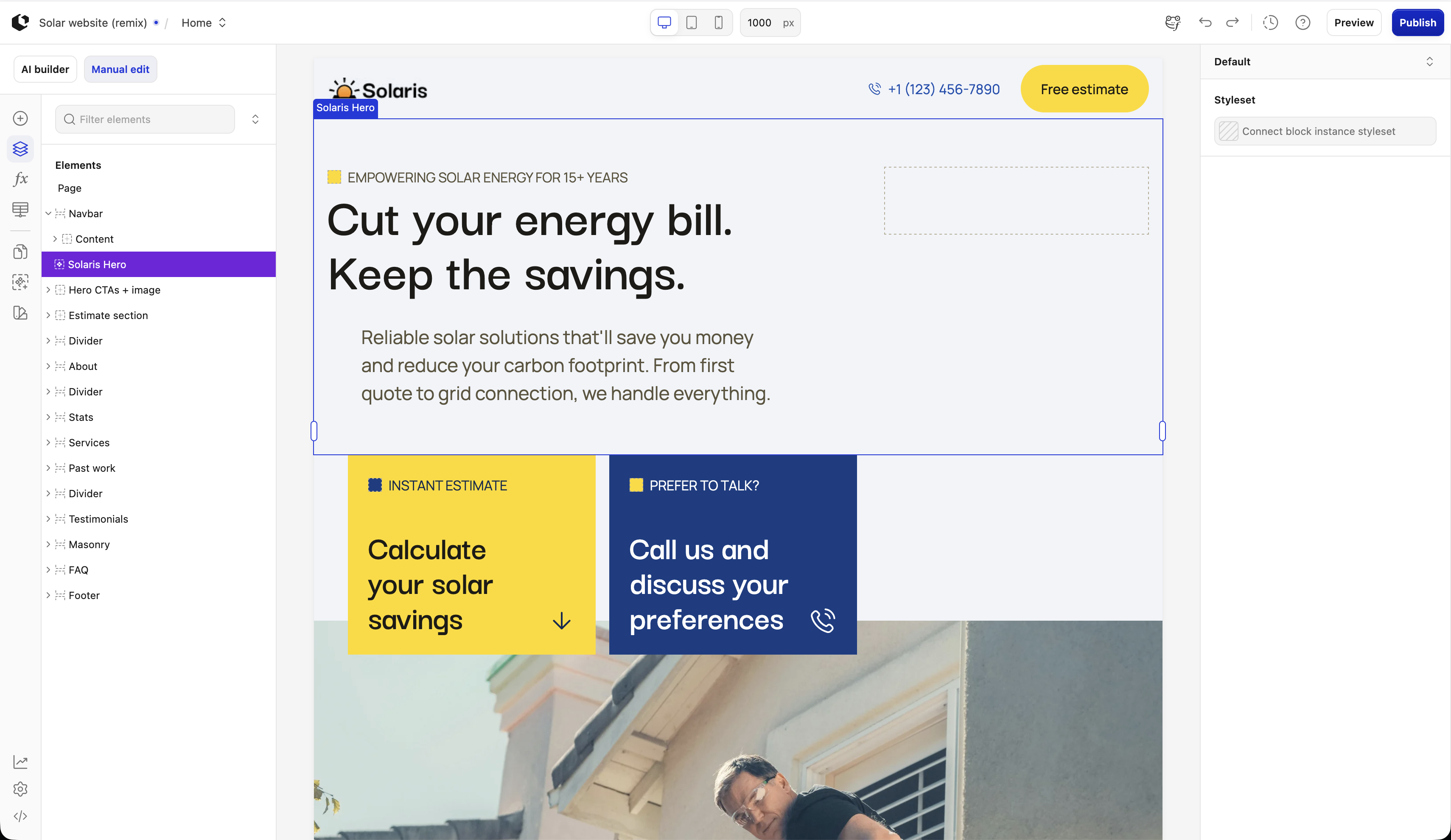
Blocks are how a finished page is assembled. The page below is a real ConvertSite template open in the builder. In the Navigator, its self-contained areas — Solaris Hero, Estimate section, About, Stats, Services, Past work, Testimonials, FAQ, and Footer — are the components you build once as a reusable Block or Section and reuse across pages.
Custom blocks you build
Custom blocks are reusable blocks you create from content already on a page. Select a Box or Section in the Navigator, open its context menu, and choose Create block. The block is saved to the Blocks panel and can be inserted as a Synced or Starter copy. See Create and reuse Blocks for the full workflow.
The Blocks panel
The Blocks panel is where you manage the custom blocks you've built. It is available in Site and Embed apps — Site apps show Pages, Blocks, and Style panels, while Embed apps show Blocks and Style. From the panel you can filter your blocks, insert them, and edit their names and availability.
Built-in blocks
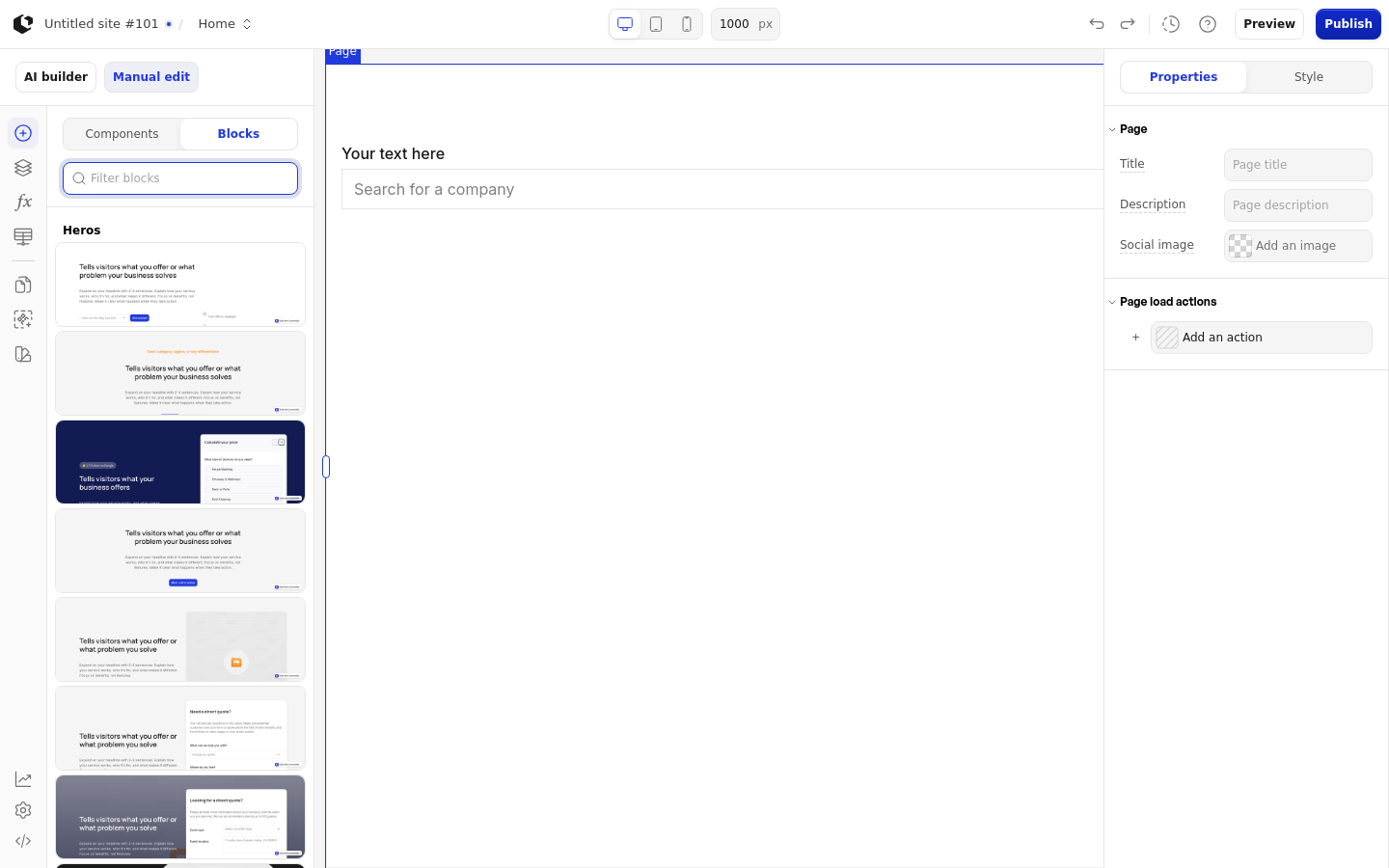
Built-in blocks are prebuilt component sets ConvertSite supplies in the panel. They live in the Components panel under the Blocks tab, where you filter them with Filter blocks and add one with Add block. Unlike custom blocks, built-in blocks are always inserted as independent components rather than as synced instances, and they don't offer rename or availability controls.
Page templates
A page template is a complete, ready-to-edit page you start from rather than a single block. Templates are duplicated in full — pages, component trees, actions, datasources, and styles — and open in a new editor. Browse them from the Templates page in your workspace or the public marketplace.
Synced vs Starter
When you add a custom Block to a page you choose how it behaves. Adding a Block as Synced inserts a linked instance: changes you make to the main block are reflected on every synced instance. Adding a Block as Starter inserts an independent copy as regular components, so it no longer updates when the main block changes. Use Synced when you want one source of truth, and Starter when you want a one-off copy you can edit freely.
Available across workspace
Blocks are available across your workspace by default, so they can be used in all apps in your workspace. You can turn this off to limit a Block to the current app only. The availability switch reads: Blocks can be used across all apps in your workspace; turn off to limit use to this app only.
Related articles
Create and reuse Blocks — build a Block and insert it in your apps.
Blocks reference — look up the Blocks panel options and settings.
Section — the Section component you can turn into a Block.