
Connectors lives under Customize in the left sidebar. The + button > Connectors in the message box only turns connectors on or off for the current conversation; it does not add new ones. On Team and Enterprise, an owner may need to allow or add the connector first.
Connect ConvertSite MCP to Claude
Connect Claude to ConvertSite through the MCP server to build and edit projects directly in ConvertSite. The MCP server lives at https://convertsite.com/mcp and connects through OAuth: after adding the server, Claude sends you to your browser to sign in to your ConvertSite account.
Two separate things decide how well this works:
ConvertSite access (the connector, or the plugin once it is available) determines whether Claude can read and change your project.
Browser or computer access determines whether Claude can open the rendered preview, look at it, and iterate on its own.
That is why this guide recommends Cowork in the Claude Desktop app: it has both. In a hurry? Skip the background and jump straight to Step 1: Add the MCP server to Claude.
Choose the right Claude environment
Anthropic's product naming makes it easy to assume that every version of Claude offers the same capabilities. It does not. Two dimensions are easy to confuse:
Claude experience: Chat, Cowork, and Claude Code. This is the AI experience that does the work.
Surface: claude.ai on the web, the mobile apps, the Claude Desktop app, and Claude in Chrome. This is where you use it.
"claude.ai" is not a fourth experience: it is the place where Chat and Cowork run. The Claude Desktop app has three tabs, Chat, Cowork, and Code, and its built-in browser lives there. Anthropic is merging Chat and Cowork into one conversation, starting with Pro and Max plans: if you still see Chat and Cowork options in the message box you have the previous experience, and if those options are gone you have the new one. Availability can depend on your plan, rollout, and organization settings.
Comparison at a glance
Environment | ConvertSite access | Can inspect the rendered preview itself? | Autonomous build → inspect → iterate loop | Recommended for ConvertSite |
|---|---|---|---|---|
Chat on claude.ai web or mobile | Connector (plugin when available) | No interactive browser | No, not independently | Limited use |
Chat tab in Claude Desktop | Connector (plugin when available) | Only with Claude in Chrome enabled for that chat* | Limited | Limited use |
Cowork in Claude Desktop** | Connector (plugin when available) | Yes, built-in browser or Claude in Chrome | Yes | Recommended |
Cowork on web or mobile** | Connector (plugin when available) | Only through your Claude Desktop app or Claude in Chrome*** | Only when Desktop or Chrome is connected | For starting or following up on tasks |
Code tab (Claude Code) in Claude Desktop | Connector or direct MCP | Yes, Browser pane | Yes | Recommended for developers |
claude.ai (web) | Interface for Chat and Cowork | Depends on the selected experience | Depends on the selected experience | Do not treat as a separate agent |
* Claude in Chrome requires a paid plan.
** Cowork requires a paid plan. On Team and Enterprise, an owner controls availability. In the newer Claude experience (rolling out, starting with Pro and Max), any conversation works like Cowork.
*** Claude has no cloud browser. Browser tasks from web or mobile run through your Claude Desktop app (open and online) or Claude in Chrome.
On the Free plan you can connect ConvertSite (one custom connector) and use it in Chat, but Cowork, Claude Code, Claude in Chrome, and plugins require a paid plan.
Web search is not the same capability as an interactive browser. Claude can search the web in a plain chat, but that is different from a browser that opens your preview, clicks and types in it, inspects what is rendered, and verifies its own work.
Why Cowork is the current recommendation
The recommended setup is Cowork in the Claude Desktop app with the ConvertSite connector, or any conversation in the newer Claude experience where Chat and Cowork are merged: Claude gets read and write access to ConvertSite plus a built-in browser, or Claude in Chrome, to inspect the rendered desktop and mobile result and iterate on what it sees. For developers, or anyone who wants local files, repositories, or more control, the Code tab in Claude Desktop does the same with its Browser pane.
Keep Claude Desktop open while a task runs: the browser lives in the desktop app.
The first time Claude opens a ConvertSite preview, approve the site. ConvertSite gives Claude the preview link and its PIN, so it can open the preview itself.
Ask for the check explicitly, for example: "After building, open the preview and check it on desktop, tablet and mobile, then fix what breaks."
Once the ConvertSite plugin is available
Once Anthropic approves the ConvertSite plugin, you have two particularly useful options:
Cowork: the plugin installs the connector together with ConvertSite-specific build skills in one step, so Claude follows ConvertSite's best practices without extra setup. Best for most users.
Code tab: best if you want local files, repositories, developer tools, or more control over the build process.
Plugins are available on paid plans and work in chat on the web, in the Desktop Chat tab, and in Cowork; they are also available in Claude Code when you are signed in with the same account. The plugin does not change which surfaces have a browser, so the recommendations above stay the same. If you already connected the connector, you lose nothing.
Ordinary Chat is not the default ConvertSite experience. It is fine for smaller one-shot actions, but plain Chat on claude.ai web or mobile has no browser, so it cannot run the visual loop on its own. You can inspect the result yourself and send screenshots or feedback, but that is manual checking, not autonomous iteration.
Connector and plugin: what each one does
These two terms are related but different:
ConvertSite connector: the connection that exposes ConvertSite's tools and data to Claude, through ConvertSite's MCP server at
https://convertsite.com/mcp. You add it from the Connectors Directory. In the Code tab it is available automatically, and in Claude Code you can also add the MCP server directly.ConvertSite plugin (under review by Anthropic): packages the connector together with ConvertSite skills, so it can be installed in one step in supported Claude environments. It uses the same MCP server underneath.
The connector or plugin gives Claude access to ConvertSite. The environment gives Claude additional capabilities such as a browser, local files, or developer tools, so the same ConvertSite capabilities can behave differently depending on where you use them.
The MCP connection also serves the three ConvertSite skills directly: a client that supports the MCP Skills extension receives them from the connection, so you do not need to install the ConvertSite plugin for that purpose. See ConvertSite skills over MCP.
Why browser access matters
The MCP exposes your project's structure, components, styles, formulas, settings, and actions. That is not the same thing as seeing the final rendered page, and many visual issues cannot be identified from the structure alone.
After creating a website or calculator, Claude with browser access can check things like:
Whether the layout actually looks right.
Desktop, tablet, and mobile rendering.
Spacing, alignment, and visual hierarchy.
Whether elements overflow or overlap.
Whether conditional states render correctly.
Whether interactions behave as expected.
Whether calculation results display correctly.
Whether buttons, forms, and conversion actions work as intended.
Without browser access, Claude can still read the structure and make changes through the connector, but it cannot run this visual check on its own. Computer use, Anthropic's beta feature that lets Claude operate your computer, is not needed for this loop: a browser is enough.
Step 1: Add the MCP server to Claude
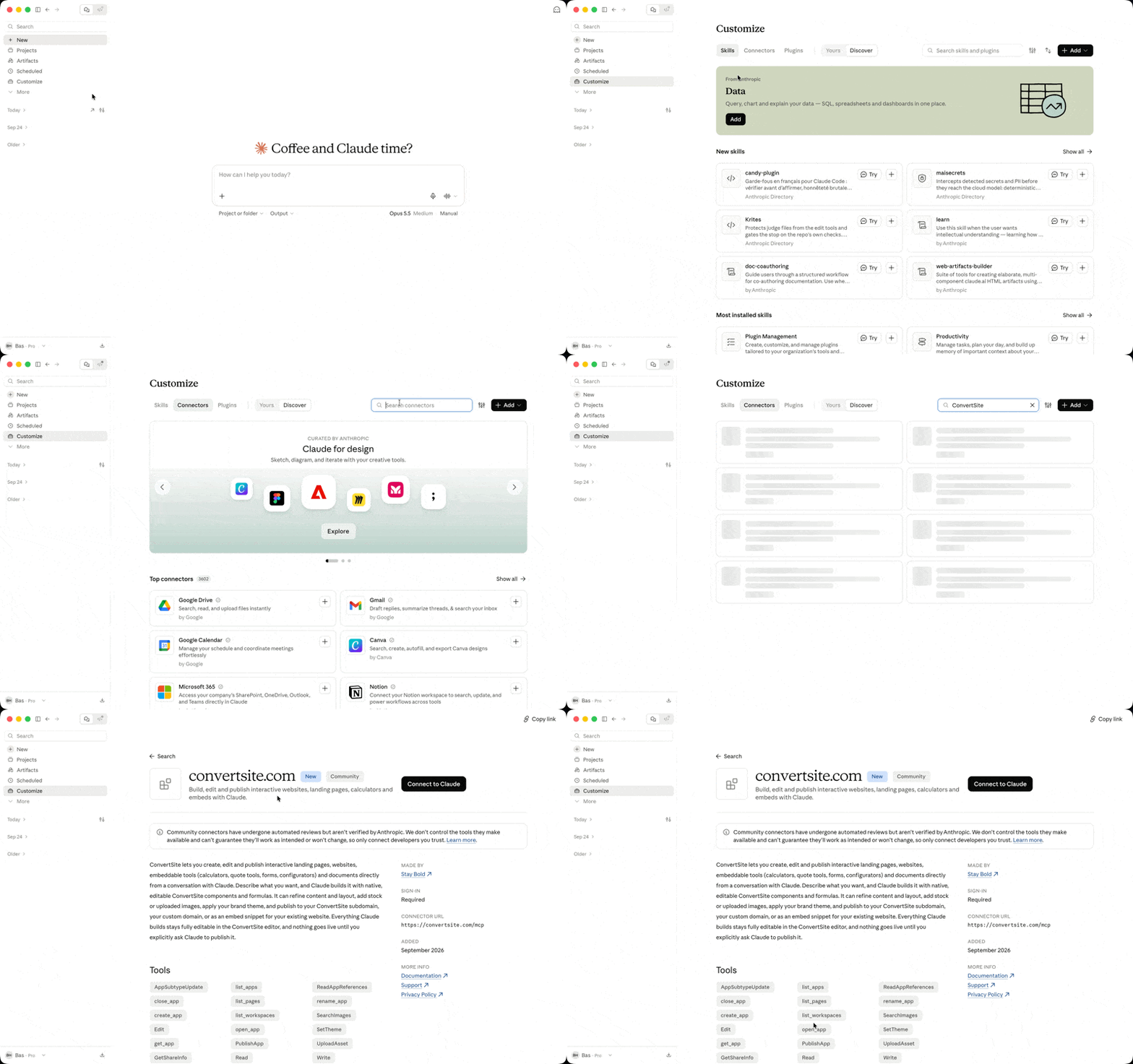
The Connectors Directory is the fastest way to add ConvertSite:
In the left sidebar, click Customize and open Connectors. In the Desktop app, you can also click your initials in the bottom-left and go to Settings > Connectors.
Browse or search for ConvertSite. The directory lists it as convertsite.com.
Click Connect to Claude and complete the OAuth sign-in (Step 2).
The listing is labeled Community: it has passed Anthropic's automated review but is not verified by Anthropic, so Claude shows a warning on it.
Can't find Connectors?
Add a custom connector (fallback)
If the directory listing does not appear, for example because of organization restrictions, add the connector by URL:
Go to Customize > Connectors.
Click + and select Add custom connector.
Enter the server URL
https://convertsite.com/mcp.Click Add.
On Team and Enterprise, an Owner or Primary Owner first adds the connector under Organization settings > Connectors > Add > Custom > Web. Members then go to Customize > Connectors, find ConvertSite, and click Connect.
Free plans can add one custom connector. Add the connector once and it is available in Chat, Cowork, and the Code tab (local sessions) for the same account.
Step 2: Authenticate your ConvertSite account
Claude starts an OAuth flow that opens your browser. Sign in with the email address of your ConvertSite account and approve the requested access.
The connection grants read access to your apps (convert:apps.read) and write access to change or publish them (convert:apps.write).
OAuth is tied to your ConvertSite account, not to one workspace: the connection works for every workspace you belong to, and joining or leaving a workspace takes effect without reconnecting.
Use the connector in a conversation
Connectors are enabled per conversation. Click the + button, select Connectors, and turn on ConvertSite.
Check the connection
On claude.ai and in Cowork, ConvertSite shows as connected in Customize > Connectors, and you can toggle it on for a conversation under + > Connectors. In Claude Code, type /mcp to see active servers.
Use ConvertSite in Claude Code
In the Desktop Code tab, a ConvertSite connector added in Customize > Connectors is available automatically in local sessions: enable it under + > Connectors. Connectors are not available in cloud sessions.
In the CLI or IDE extension, add the server directly:
claude mcp add --transport http convertsite https://convertsite.com/mcpThen run /mcp to authenticate and check the connection. You can also paste this prompt and let Claude Code set the server up:
1. Add MCP server with the following MCP server url:

https://convertsite.com/mcp

2. Prompt the user to authenticate their ConvertSite account through oAuth
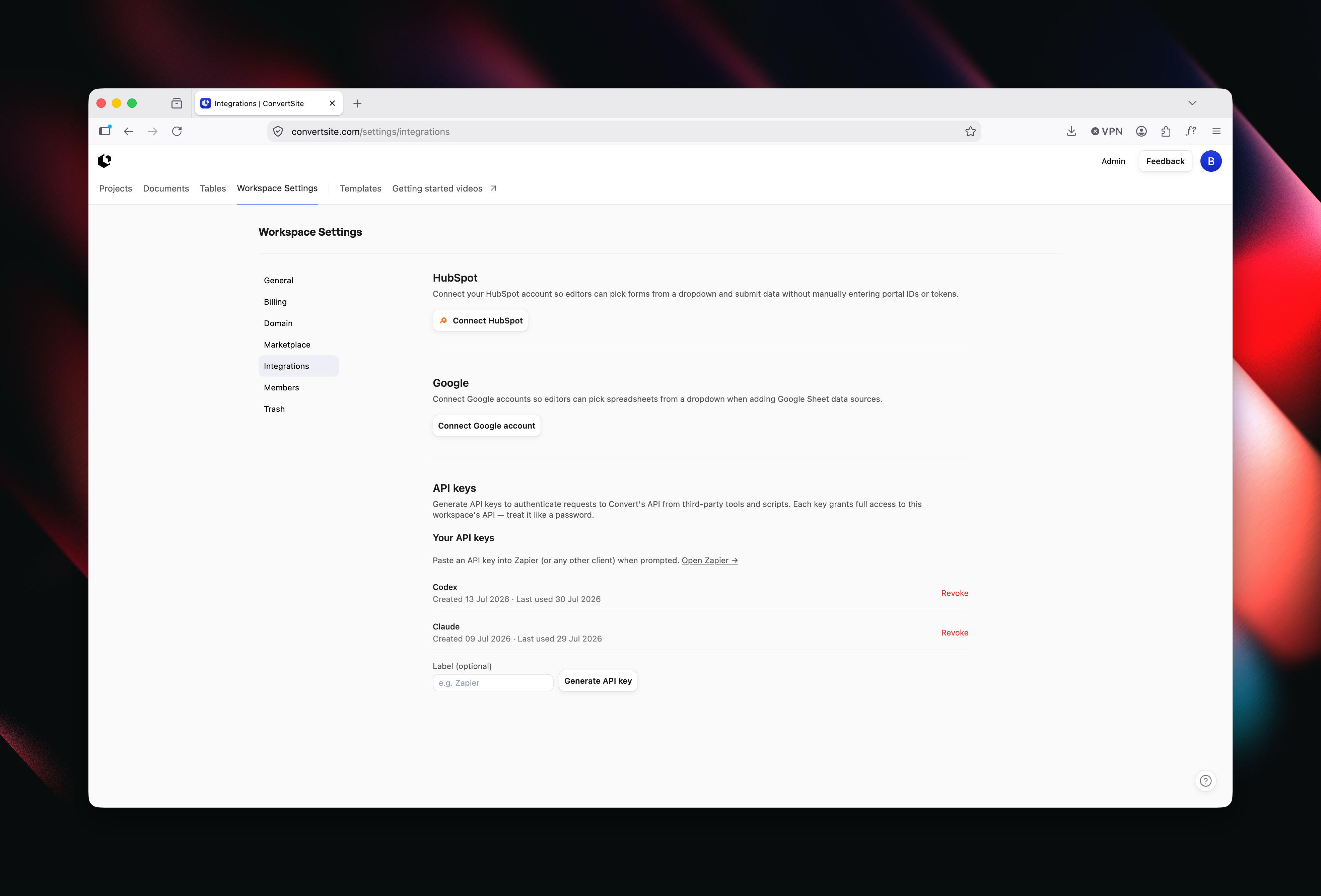
You can still connect with an API key instead of OAuth. Generate one in Workspace Settings → Integrations and add it as a custom header, so the CLI command becomes claude mcp add --transport http convertsite https://convertsite.com/mcp --header "Authorization: Bearer YOUR_API_KEY". The custom connector form on claude.ai has no field for a custom Authorization header, so this fallback applies to Claude Code.
The Code tab has a built-in Browser pane, so Claude can open and check your preview there. In the CLI, use Claude in Chrome for visual checks.
Why use the MCP over the built-in AI
ConvertSite includes a built-in AI assistant that builds sites through a chat conversation inside ConvertSite, using AI credits tied to your plan. Connecting the MCP lets you use the AI subscription you already have, such as Claude or Codex, instead of consuming ConvertSite AI credits.
Save your ConvertSite AI credits
The MCP uses your existing AI subscription instead of consuming ConvertSite AI credits. Building through the connection uses your AI account, so your AI provider's plan and usage limits apply, and your ConvertSite plan controls publishing and features.
Bring all your project context
Your AI tool can use reference files the built-in assistant cannot, such as Excel models, documents, PDFs, screenshots, and other files you upload to the chat. Depending on the AI application you use, the assistant can also research websites and current information online, and in browser-capable environments, open and check your preview.
Build directly in ConvertSite
The assistant turns your instructions and reference materials into real sites, forms, calculators, quote tools, quizzes, and configurators, without rebuilding everything manually.
Make smarter, more precise changes
The assistant can inspect your existing structure, styles, formulas, defaults, and interactions before editing. This helps it change what you asked for while preserving the rest of your site.
Check and improve the result
What Claude can check on its own depends on the environment you use, not on the ConvertSite connection alone.
From a browser-capable environment such as Cowork in the Claude Desktop app or the Code tab, Claude can open the preview, review desktop and mobile layouts, calculations, interactions, conditional states, and conversion actions, and fix issues it finds. From an environment without browser access, such as plain Chat on the web or mobile, Claude can still make changes through the connector, but you inspect the result yourself and send screenshots or feedback instead.
Why connect before starting
Connecting the MCP before you start building lets the assistant use your source material and the real ConvertSite structure from the beginning. This reduces duplicate work and makes validation part of the build process rather than an afterthought.
After connecting
Return to your AI assistant and describe what you want to build. The assistant will use the ConvertSite MCP to create and edit your project directly. You can also ask it to improve an existing ConvertSite project or start from a template, without rebuilding everything.
Your project stays editable outside the conversation: open it in the ConvertSite visual builder to edit its styling, components, formulas, and actions yourself, or describe the next revision to your connected AI.
Your published site keeps running when you close the conversation: it runs on ConvertSite, so its pages and calculations keep working.
Create table-backed CMS pages through the MCP
A connected assistant can create, update, and remove table-backed CMS pages directly through MCP page content, without opening the editor. The Write app content and Edit app content tools set, change, and clear the table backing that makes a page display a record from a linked table, one record per URL.
The backing is expressed with three optional attributes in the page content: backing_table_id, backing_column_id, and backing_reference. The rules:
Table and Column: a backed page must use a table that already exists in the app, and the matching column must be a String or Slug column. When the assistant names the table but leaves out the column, ConvertSite picks a suitable column automatically. The assistant takes the table and column IDs from the app table information.
Path prefix: the page path is written as a prefix, for example /blog, and ConvertSite adds the /:value segment that matches individual records automatically. A backed page cannot also have an explicit path parameter; such a request is rejected.
Reference: the optional backing_reference gives formulas access to the matching record when a visitor opens the URL of a matched record. When it is left out, the reference defaults to the table name.
A complete Write app content, or an exact page replacement with Edit app content, that leaves out all three attributes removes existing backing. Your normal workspace, app, page, and table permissions apply. To bind a page to a table by hand instead, use the page settings in the editor: see Manage pages in the website builder.
Using Codex instead? See Connect ConvertSite MCP to Codex.
Once connected, Claude can change table data directly: it uses the TableRows tool to insert, update, or delete only the rows you name, instead of replacing the whole table. See Edit table rows with the AI assistant.
Was this helpful?
Was this helpful?