
Manage workspace members
Workspace Settings > Members (/settings/members) manages who can collaborate on your workspace. You invite people with an email-specific invite link that you share yourself, and you remove members who should no longer have access. Members requires you to be signed in and applies to the workspace you're currently in. See the Workspace Settings overview for the full list of sections.
Invite a member
Only the workspace owner can create invitations. When there are no members yet, the section shows "No members yet" with the note "Add members below to collaborate on this workspace".
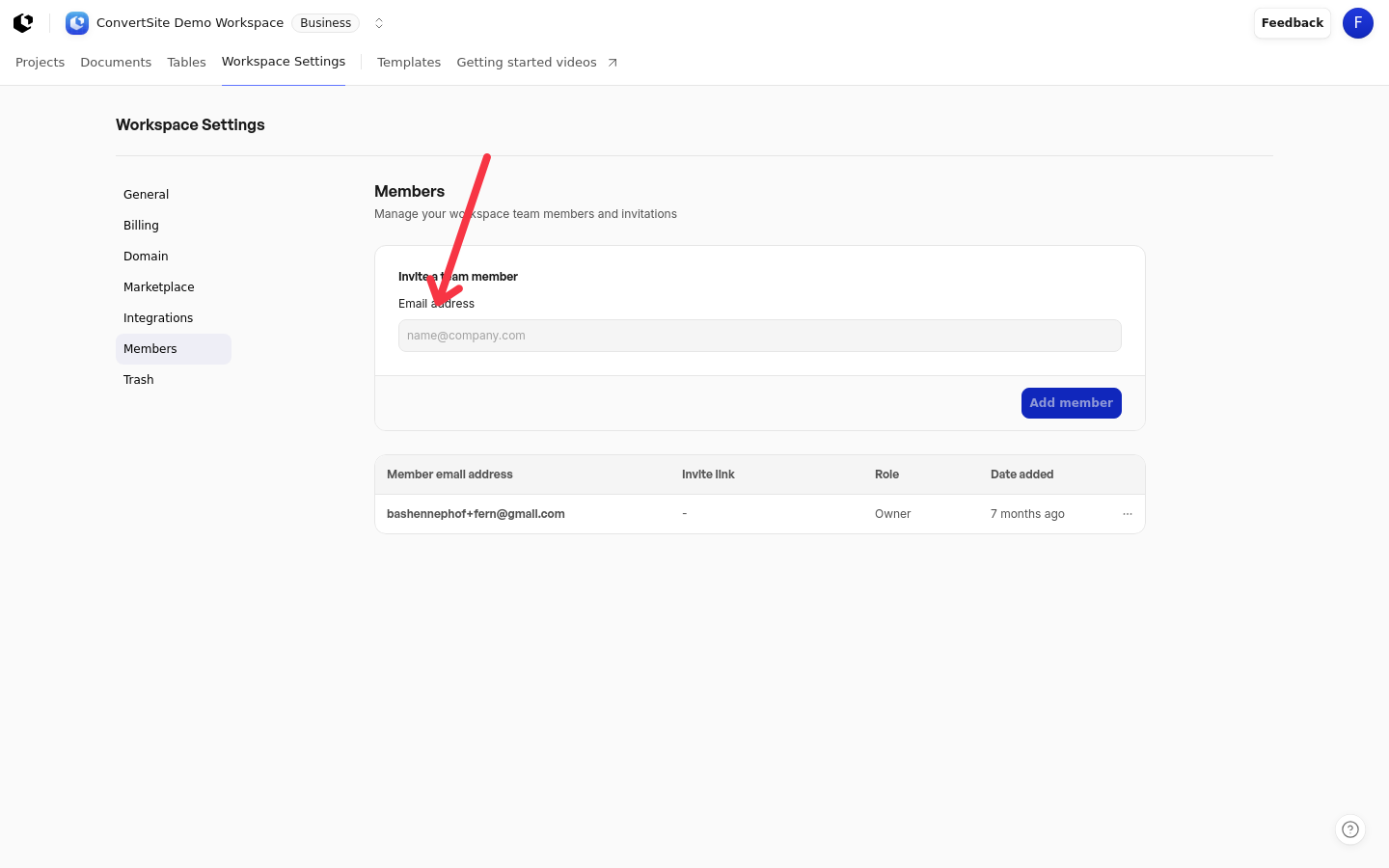
Open Workspace Settings > Members.
In the Invite a team member section, enter the person's email address in the Email address field (placeholder
[email protected]).Click Add member.
You see "Invitation created" when the invitation is made. ConvertSite does not send an invitation email: creating an invitation copies a message to your clipboard that you send to the person yourself.
The copied message reads "{inviter email} invited you to join {workspace name} on ConvertSite." followed by "Join the workspace:" and a link to the invitation page. Send the whole message, or just the link, to the person you invited.
If the person is already in the workspace, you see "Already a member". If an invitation for that email is already waiting, you see "Invitation already pending" and the existing invitation is reused instead of a second one being created.
If the workspace is restricted, inviting and accepting invitations is blocked, and the Invite a team member section and Add member button are hidden. See Restricted workspaces.
Share the invite link
Each invitation belongs to one email address, and only the account signed in with that email can accept it. Send the copied message or link directly to the person you invited, using email, chat, or whatever you normally use to reach them. The invitee opens the link, signs in, and joins the workspace; see Accept a workspace invitation for what they do.
Manage pending invitations
Pending invitations appear in the member table with a "Pending" status and an Invite link control.
Use Invite link to copy the complete invite message or link again, for example if the person says they never received it.
Click Cancel invitation and confirm to cancel a pending invitation. The invite link stops working immediately, and you can create a new invitation for that person later.
Remove a member
The member table lists each member with their name and Member since date, and marks the current user with (You). Only the workspace owner can remove other members, and owners cannot remove themselves.
Open Workspace Settings > Members.
Click Remove member on the member you want to remove.
Confirm the removal in the confirmation dialog.
The removed member immediately loses access to the workspace, including its projects, documents, and tables. Their work remains in the workspace.
What non-owners see
Creating invitations, copying invite links, canceling invitations, and removing members are owner-only actions. If you are not the owner, Members tells you to contact the workspace owner, and you can copy the owner's email address to reach them.
View member details
Open a member from the table to see their details at /settings/members/{member_id}. The Member Details view shows the member's Email, Member since date, and User ID. Use Back to members to return to the list.