
Send data to a webhook or API with click actions
ConvertSite can send data to a webhook or API when a visitor clicks an element. This article covers three click actions: Send data to webhook, Connect to API, and Zapier webhook, plus a short note on the Zapier integration action.
Add a click action
Buttons, boxes, links, and images all run actions when a visitor clicks them.
Select the element in the editor.
Open its click action group in the inspector: Button click action, Box click action, Link click action, or Image click action.
Click Add an action.
Pick the action you want in the picker.
Send data to webhook
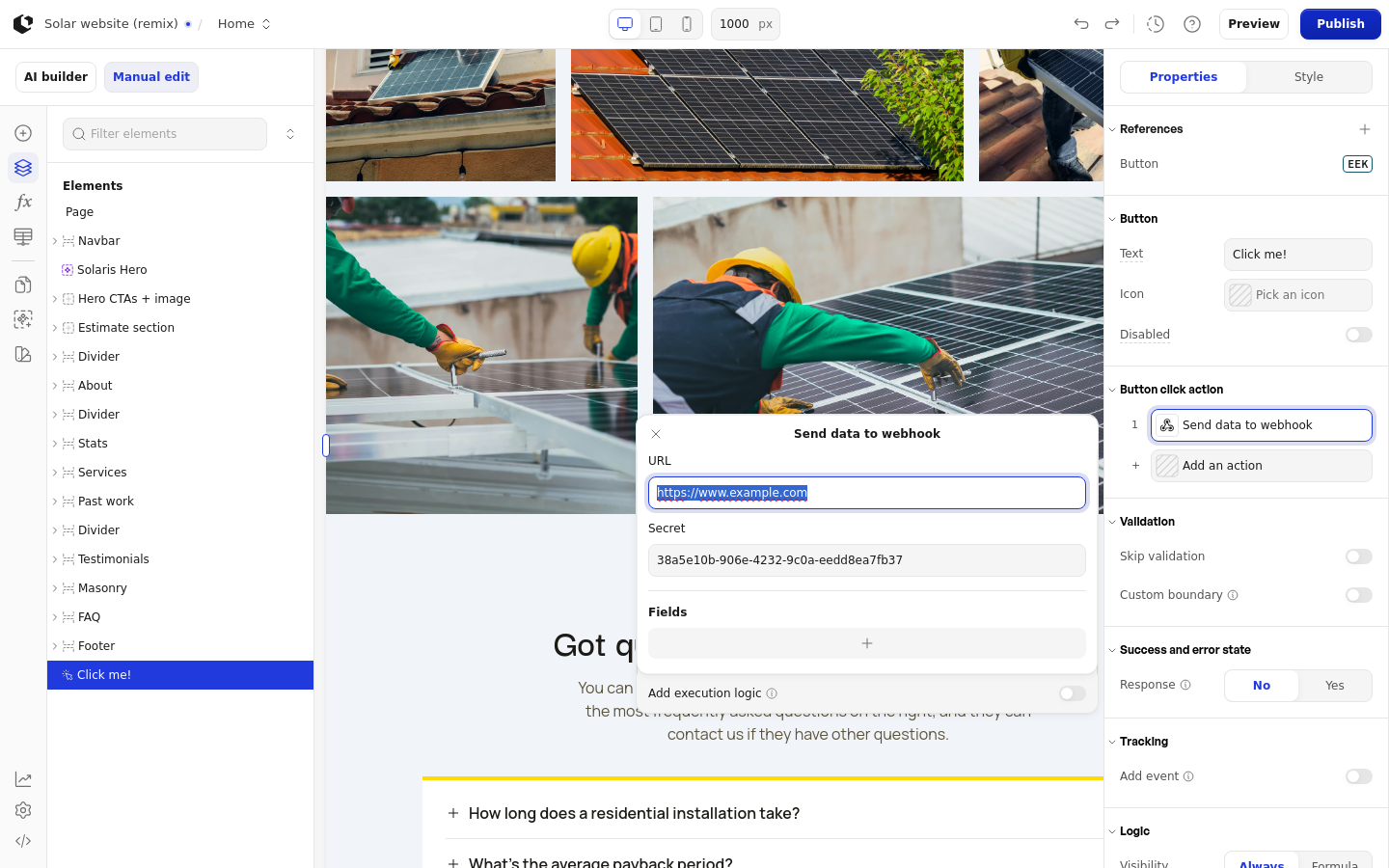
Use this action to send values to the webhook URL you provide.
Add the Send data to webhook action.
Enter your webhook endpoint in URL.
Use Fields to name each value you send: click Add field, enter the name in Field description, and the value in Field value.
The Secret field is prefilled with a secret we generate for the action. It is read-only and cannot be edited.
Connect to API
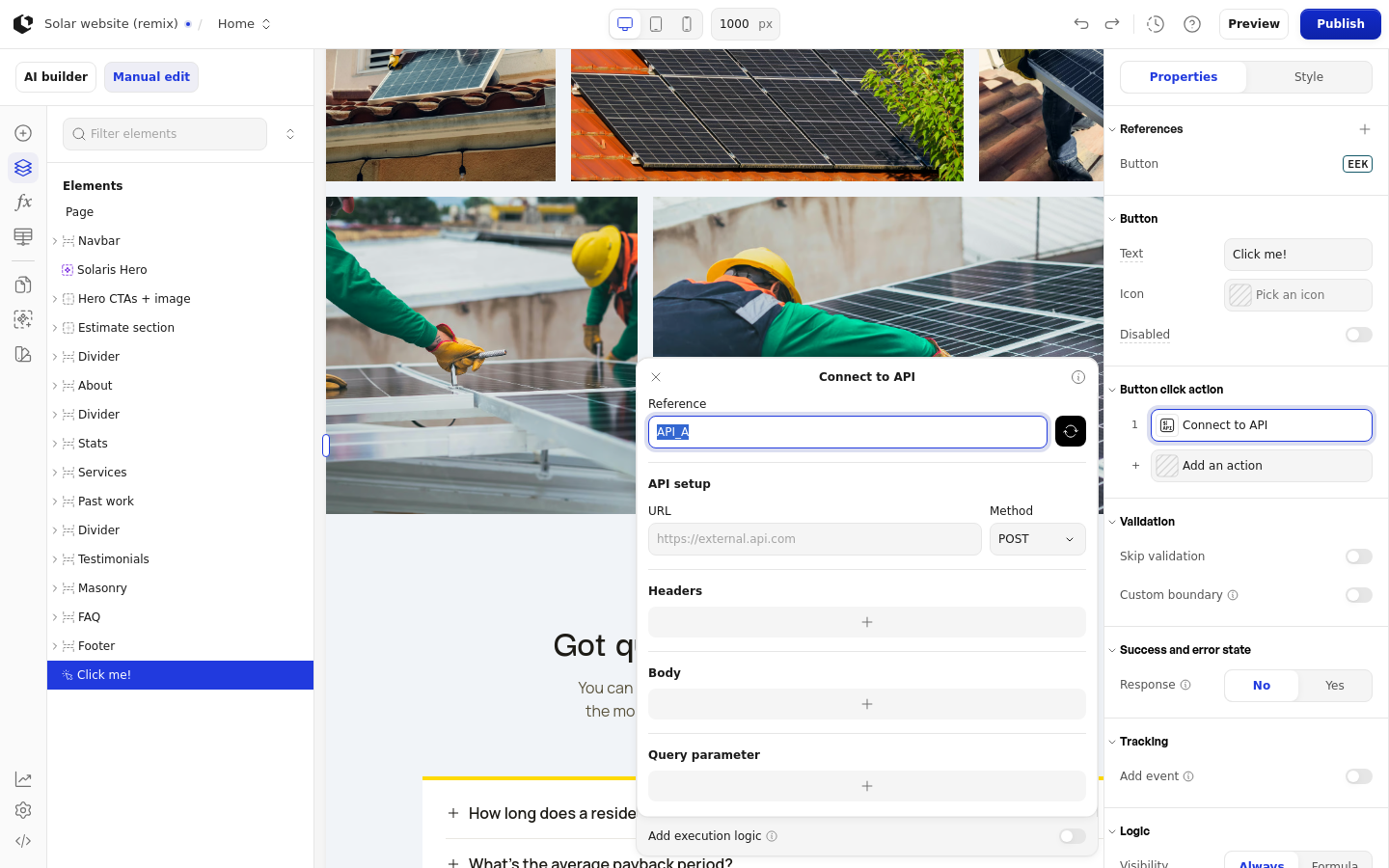
Use this action to call an API and store the response under a name that other elements and formulas can use. For a complete worked example, see Pull product data from Shopify with API Connect.
Add the Connect to API action.
In Reference, enter the name the API response is stored under.
In the API setup section, enter the request URL.
Choose the Method: GET, POST, PUT, PATCH, or DELETE.
Add key/value pairs as needed: click Add header for headers, Add body field for the body, and Add query parameter for query parameters.
Keep API keys on the server
Each query parameter row has a Keep on server (for API keys) toggle. Turn it on when the value is an API key or other secret: the value becomes plain text stored on the server, is left out of the published page HTML, and is added by the server when the request is sent. A value sent from the browser under the same query-parameter name cannot override it.
Query parameters are formula-based by default, so leave the toggle off unless the value is a secret. Headers and body fields do not have this option.
A request with saved headers or server-kept query parameters must use a fixed URL in URL, not a formula. The editor shows the warning "Headers and kept-on-server values need a fixed URL. Use a fixed URL instead of a formula, or the request will fail." and the request is rejected.
Switching a query parameter between formula and server-kept modes clears its current value. When the toggle is on, the row is labeled "Kept on server. Click to use a formula instead".
The AI assistant can mark API-key query parameters as server-kept and keeps that setting when it edits the action.
Zapier webhook
Use this action to send values to a Zapier catch hook.
Add the Zapier webhook action.
Paste your Zapier webhook URL in Zapier webhook URL, in the format
https://hooks.zapier.com/hooks/catch/{your-id}.Click Add field and map each value: the name in Field description and the value in Field value.
To trigger a Zap you built in Zapier instead of sending to a raw webhook URL, use the Zapier integration action, which requires a ConvertSite API key, an app connection in Zapier, and a complete Zap (the action panel links to Get your API key and Add an app connection).
To send form submissions to HubSpot, use the HubSpot integration action, covered in Send form submissions to HubSpot.
Validation settings
Each of these actions also shows a Validation group with two switches: Skip validation and Custom boundary.