
Manage your workspace billing
Billing is managed per workspace in Workspace Settings > Billing. You build and test for free, and you select a paid plan to publish your ConvertSite. From the Billing page you can compare plans, upgrade or change your plan, manage add-ons, update payment details, and cancel.
Plans and pricing
Four plans are available, each priced per month. Choosing a yearly plan gives you a 20% discount on the monthly price.
Plan | Monthly | Yearly (per month) |
|---|---|---|
Free | $0 | $0 |
Starter | $25 | $20 |
Builder | $50 | $40 |
Business | $100 | $80 |
Each paid plan inherits the features of the plan below it and adds its own set on top. The Billing page shows a monthly/yearly switch so you can compare both prices, and a link to the full pricing comparison on the ConvertSite website.
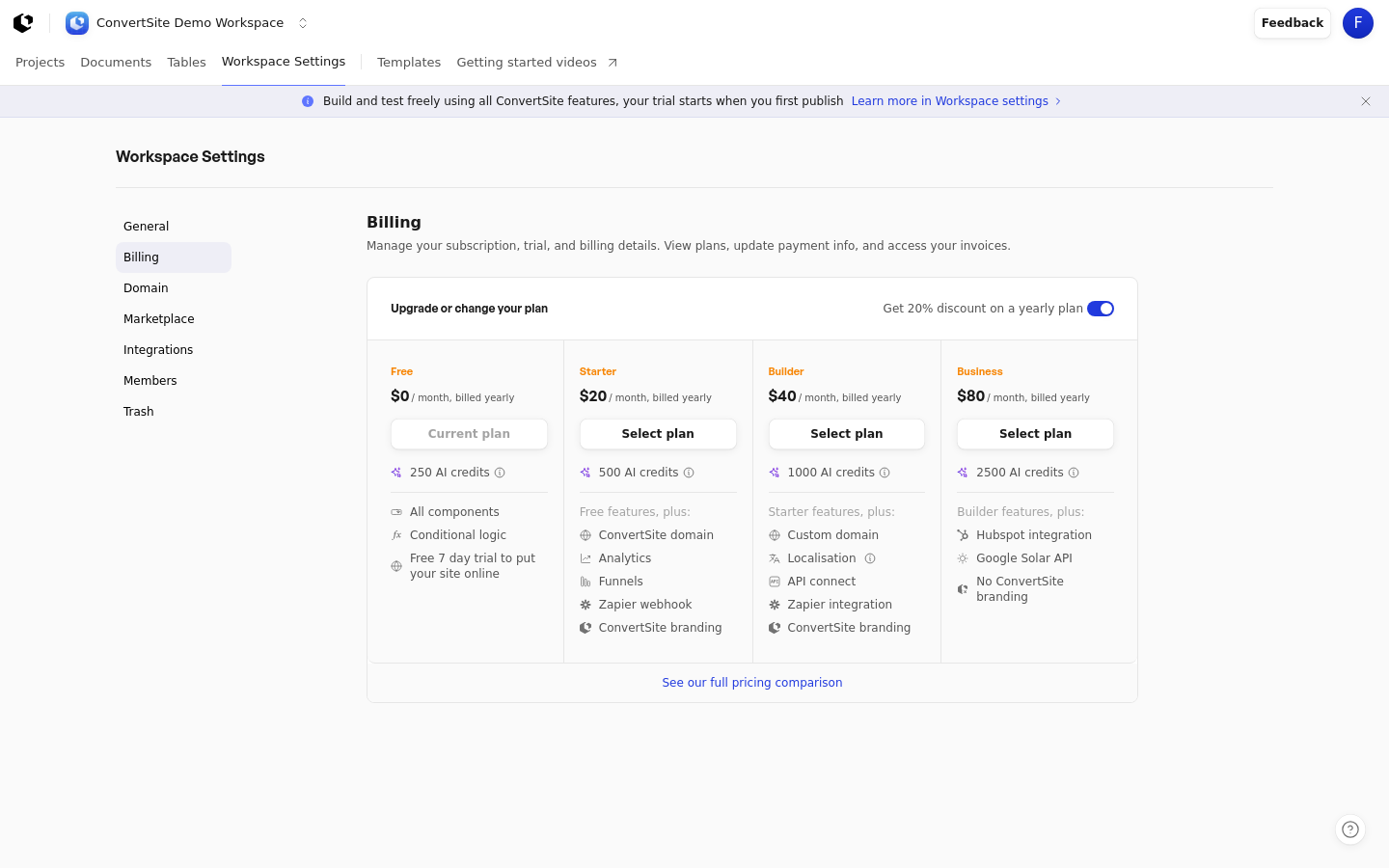
Upgrade or change your plan
Open Workspace Settings > Billing, find the plan you want, and select its action button. The button reads Select plan when you have no subscription, Upgrade for a higher tier, and Downgrade for a lower tier.
In Workspace Settings > Billing, choose monthly or yearly pricing with the duration switch.
Click Upgrade on the plan you want.
In the Upgrade your pricing plan dialog, review the details, then click Upgrade to continue to payment. Choose Maybe later to close the dialog without changing plans.
When you upgrade, your current plan is credited for the unused time left in your billing period. The payment provider applies that credit to the new tier, your new tier starts right away, and you are charged only the prorated difference for the rest of the current cycle.
Downgrade to a lower plan
Downgrading keeps your current plan active until the end of your billing cycle. The lower tier starts in the next billing cycle, and no refund is issued for the remaining time.
In Workspace Settings > Billing, click Downgrade on the lower plan.
In the Downgrade your pricing plan dialog, click Downgrade to confirm, or Maybe later to keep your current plan.
You can't downgrade to a plan while you're using features from a higher tier. The downgrade button is disabled with a message telling you to remove those features first, and it lists the blocking features. You also can't select Free if your trial has expired.
Pending plan changes
Only one plan change can be pending at a time. If you already have a scheduled plan change, the button for the plan reads Change plan and is disabled, with a message telling you to cancel the pending change before making another one.
Add-ons
Active subscriptions show an Upgrade your tier with add-ons card. Selected add-ons are billed alongside your workspace plan, whether monthly or yearly, and you can remove any add-on at any time.
Available add-ons are Layered Images ($100/month), Documents ($50/month), and User Accounts ($100/month, marked Coming soon). If your subscription already includes Advanced Analytics, it appears here so you can remove it.
In Workspace Settings > Billing, scroll to Upgrade your tier with add-ons.
Click Select add-on on the add-on you want, then confirm in the dialog.
To stop an add-on, click Remove add-on and confirm. The add-on is removed from your billing cycle immediately.
You can't remove an add-on that features in your published sites use. The Remove add-on button is disabled with a message explaining that you're using features from it. Add-ons can't be selected on an inactive subscription or a trial.
Update billing details
For an active paid subscription, click Update billing details on the Billing page. This opens the payment provider's customer portal, where you can update your payment information and access your invoices.
Cancel your plan
Cancelling stops your plan at the end of the current billing cycle. Your ConvertSites go offline automatically, and your data is kept for 30 days so you can resubscribe and reactivate them. After 30 days all data is permanently deleted, and this action can't be undone.
In Workspace Settings > Billing, scroll to the Cancel plan card and click Cancel plan.
Select a reason for cancelling, or leave it unselected, then click Next. The reason is optional and used for analytics only.
Review the cancellation summary, then click Cancel plan to confirm. Use Previous to go back.
If you're on a trial instead of a paid plan, the card reads Cancel trial. Cancelling stops the trial after its remaining days without charging you, takes your ConvertSites offline, and deletes your data after 30 days.