
Connect integrations
The Integrations page in Workspace Settings connects the external accounts your workspace uses — Meta, Stripe, Google Ads, HubSpot, and Google — and manages the API keys that authenticate requests to the workspace API. Open it from Workspace Settings > Integrations (route /settings/integrations); access requires workspace access.
In a restricted workspace, connecting Meta, Stripe, Google Ads, HubSpot, or Google is unavailable, and you cannot generate new API keys or retry failed conversion deliveries. See Restricted workspaces.
Connect Meta
Connect a Meta Pixel or Dataset to send server-side conversion events. You need the Pixel or Dataset ID and a Conversions API access token, which you generate in Meta Events Manager under your dataset's Conversions API settings.
Open Workspace Settings > Integrations.
In the Meta section, enter your Pixel or Dataset ID.
Enter your Conversions API access token.
Click Connect Meta.
Once connected, the section shows Connected with your Pixel/Dataset [id] and a Disconnect action. Disconnecting stops configured conversion events from being delivered.
When Meta is connected, a Conversion and events action that sends to Meta can use a custom event name instead of one of Meta's standard events. In the action's Meta settings, choose Create custom event under Event type, then enter a name in the Custom event name field (for example, WatchTrailer). The name is saved with the conversion configuration and reopens in custom-event mode the next time you edit the action. Choose a standard event from Event type at any time to go back to the standard event list.
Connect Stripe
Connect a Stripe account so Checkout components and Charge actions can take payments for this workspace's apps. You enter Stripe's test and live secret and publishable keys, found under Developers > API keys in the Stripe dashboard. Secret keys are verified with Stripe and must match the same account.
Open Workspace Settings > Integrations.
In the Stripe section, enter your Test secret key (
sk_test_...).Enter your Test publishable key (
pk_test_...).Enter your Live secret key (
sk_live_...).Enter your Live publishable key (
pk_live_...).Click Connect Stripe.
Once connected, the section shows Connected with your Account [account id] and a Disconnect action. Disconnecting stops Checkout components and Charge actions from working.
Connect Google Ads
Connect an advertiser account to send conversions through Google's Data Manager API. You enter the Google Ads customer ID (placeholder 123-456-7890) and click Connect Google Ads. If Google OAuth is unavailable, the section shows that Google OAuth is currently unavailable.
Once connected, the section shows the connected Google account email, Customer [customer id], and a Disconnect action. Disconnecting stops configured conversions from being delivered.
Connect HubSpot
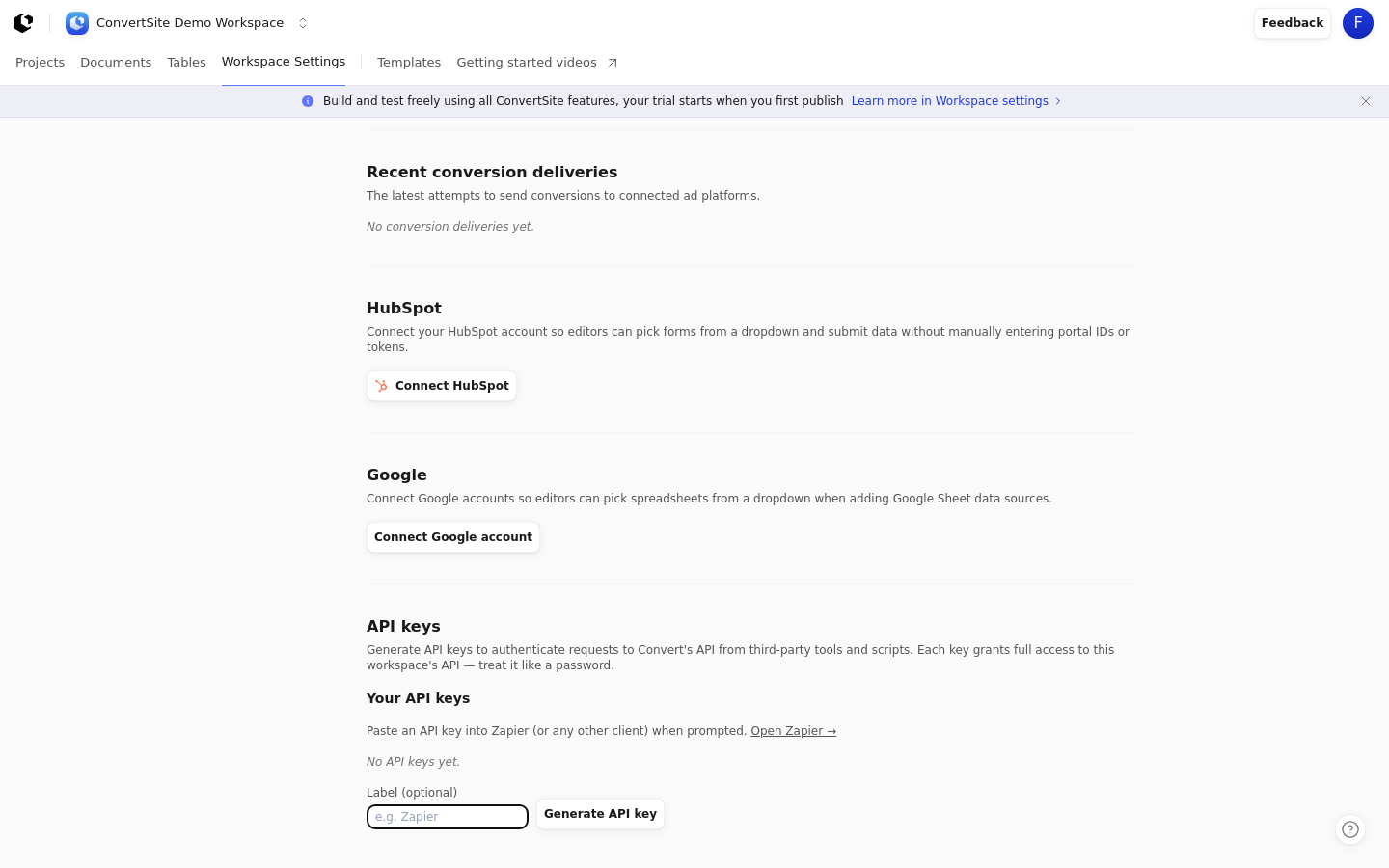
Connect your HubSpot account so editors can pick forms from a dropdown and submit data without manually entering portal IDs or tokens. Click Connect HubSpot. If the HubSpot integration is unavailable, the section shows that it is currently unavailable.
Once connected, the section shows Connected with your Portal [portal id] and a Disconnect action. Disconnecting stops actions that use the workspace connection from working. See Send form submissions to HubSpot for how the connection is used.
Connect Google
Connect Google accounts so editors can pick spreadsheets from a dropdown when adding Google Sheet data sources. Click Connect Google account, or Connect another Google account to add more than one. If the Google integration is unavailable, the section shows that it is currently unavailable.
Each connected row shows the Google account email and a Disconnect action. Disconnecting an account stops any data sources still pointing at it from loading until they're pointed to a different account.
Manage API keys
Generate API keys to authenticate requests to Convert's API from third-party tools and scripts. Each key grants full access to this workspace's API, so treat it like a password.
Open Workspace Settings > Integrations and scroll to the API keys section.
Optionally enter a label in the Label (optional) field (placeholder
e.g. Zapier) so you can tell which key belongs to which tool.Click Generate API key.
Copy the key from the notice "Your new API key - copy it now, it won't be shown again:" with Copy. The key is shown only once.
Existing keys are listed under Your API keys and show the API Key, Created [date], and Last used [date] or Never used. Click Revoke to invalidate a key immediately. When no keys exist, the section shows No API keys yet.
For how API keys are used, see Convert Zapier API, Connect ConvertSite MCP to Claude, and Connect ConvertSite MCP to Codex.
Check recent conversion deliveries
Recent conversion deliveries lists the latest attempts to send conversions to connected ad platforms, with a status of Delivered, Failed, or Pending. When no deliveries exist, it shows No conversion deliveries yet.
Failed rows show the stored error and a Retry action, which requires owner permission. Retrying sets the delivery back to Pending so it is processed again. For the full list of causes and fixes, see Fix conversion tracking and delivery.