
Create and publish a PDF document
A document is a PDF template you build in the document builder and publish so visitors can download it. You create, configure, preview, and publish it from the Documents page. A document must be published before it can be generated or selected as an email attachment.
Create a document
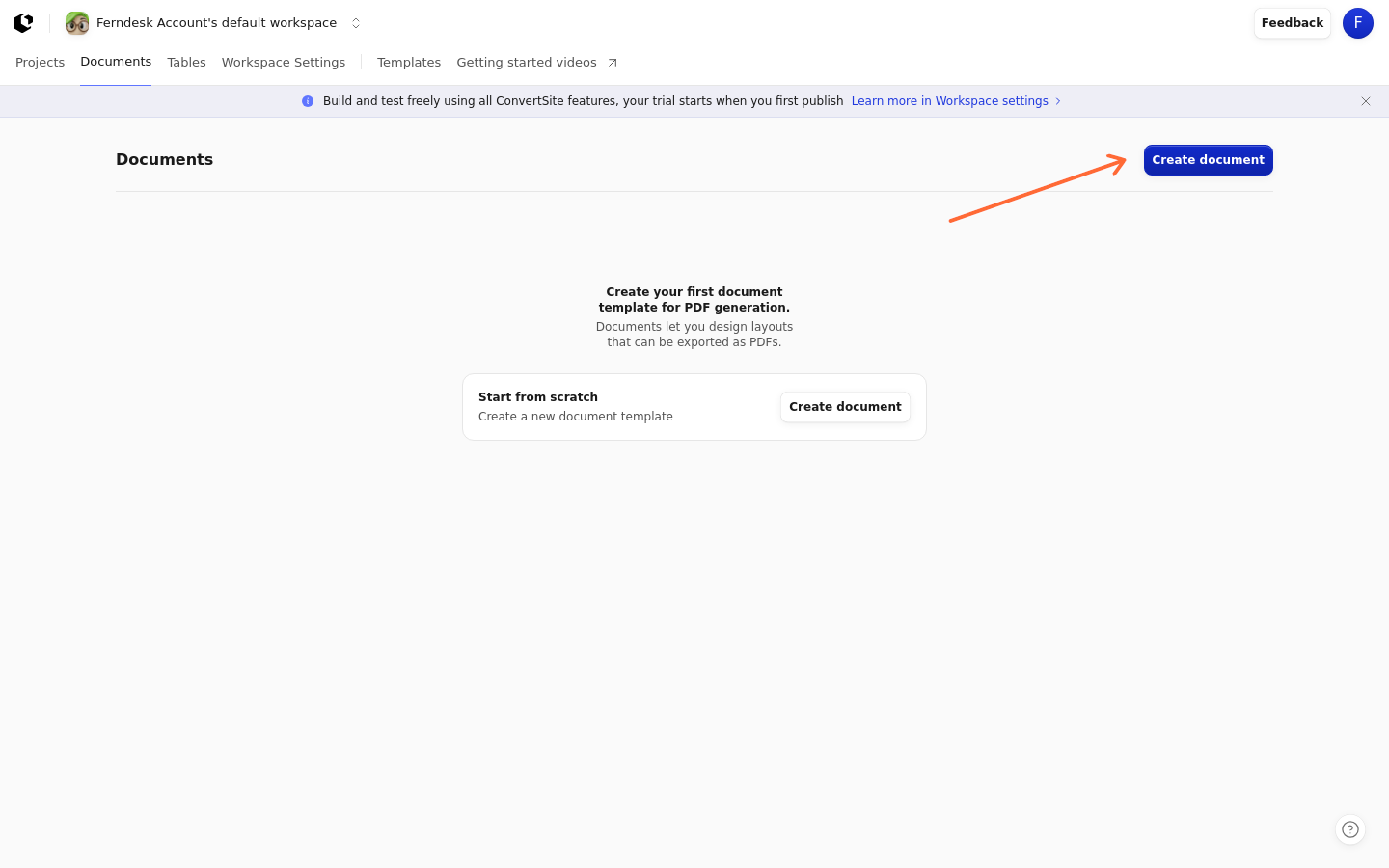
On the Documents page, click Create document. This immediately creates an empty document and opens the editor — there is no separate naming or template screen in this flow. New documents get the default name Untitled document #; rename it from the document's menu on the Documents page. If your workspace is restricted, the Create document control is hidden and documents cannot be created or duplicated.
Configure the page format and orientation
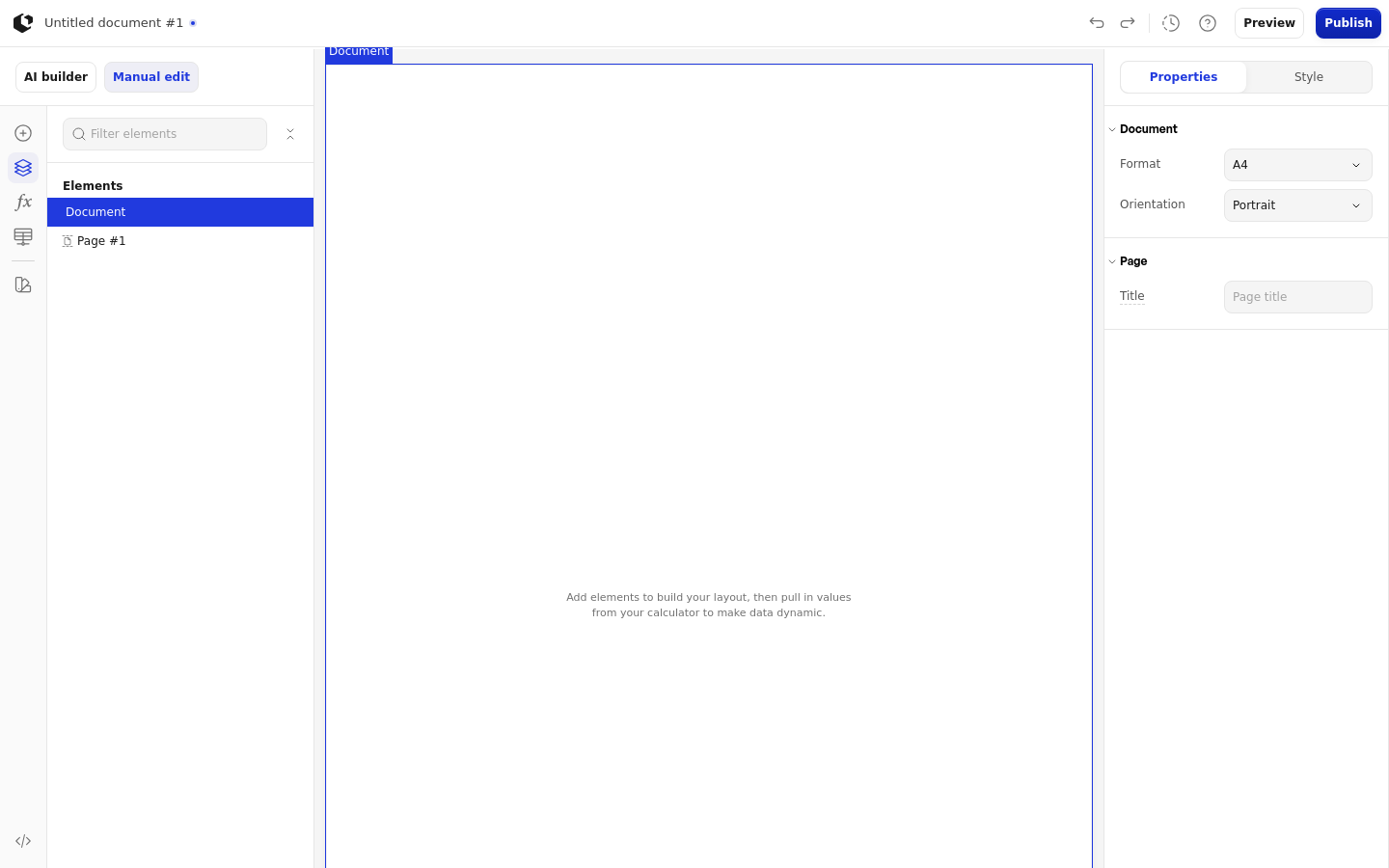
With the page selected in the editor, the inspector shows a Document group with two settings that control the printed page size.
Under Format, choose A4, Letter, or Legal.
Under Orientation, choose Portrait or Landscape. Portrait is the default.
Design the layout
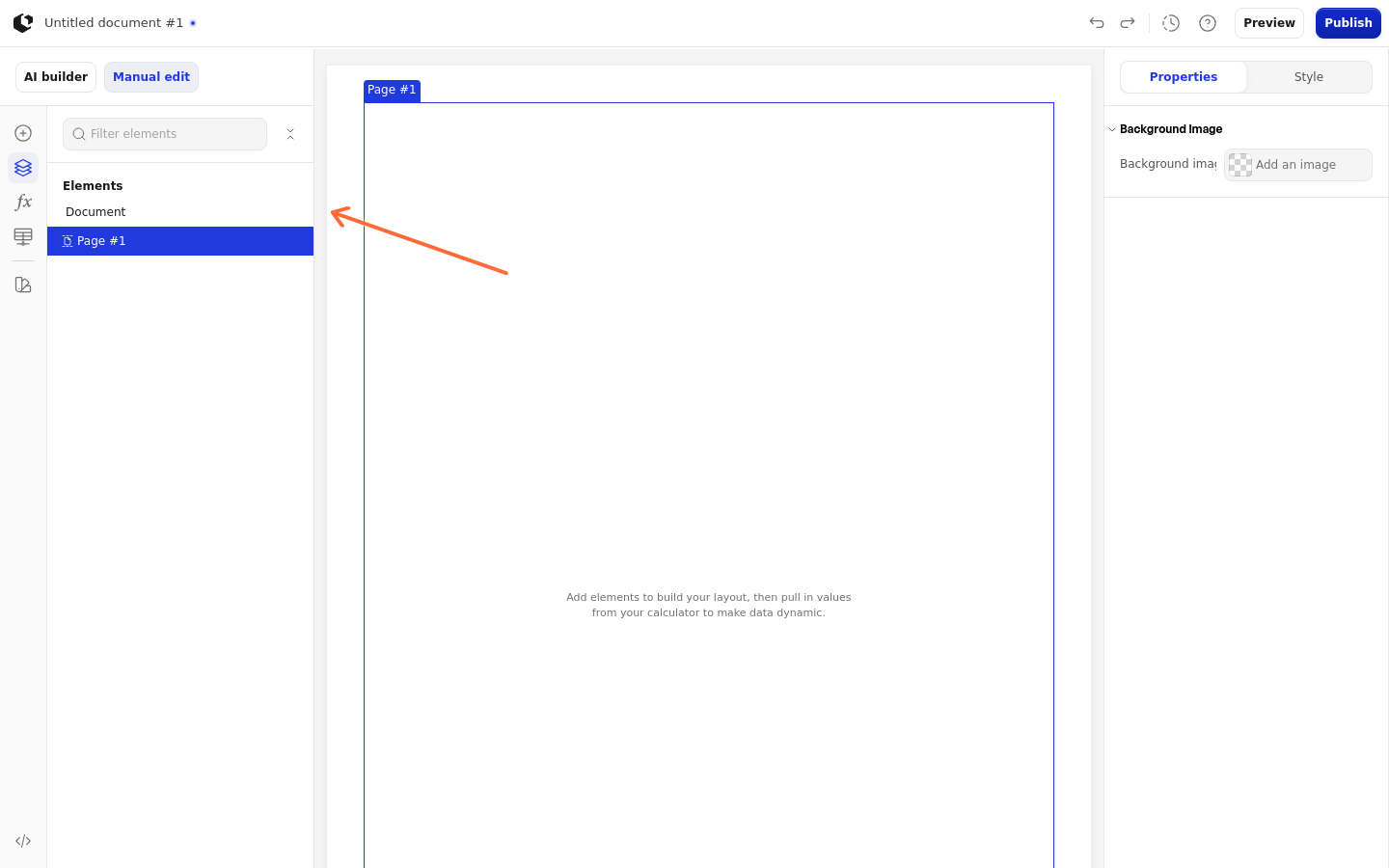
The document editor shows the Components, Navigator, Logic, Data, and Style panels. The Pages and Blocks panels are not shown for documents.
Document-specific layout options live in the inspector on the page, sheet, and box:
Margin on a sheet controls the sheet padding used for rendering and printing; its default is 40px.
Background color on a page sets the page background; if none is set, the document uses white.
Background image on a sheet lets you add an image. Documents accept images only — background videos are not supported.
Page break > Avoid page break on a box moves the element to the next page if it does not fit entirely on the current page.
Preview the PDF
The editor shows a PDF preview instead of a normal site preview. While the PDF renders, the canvas shows Rendering document.... If the preview cannot be generated, it shows Could not render the PDF preview.
Publish the document
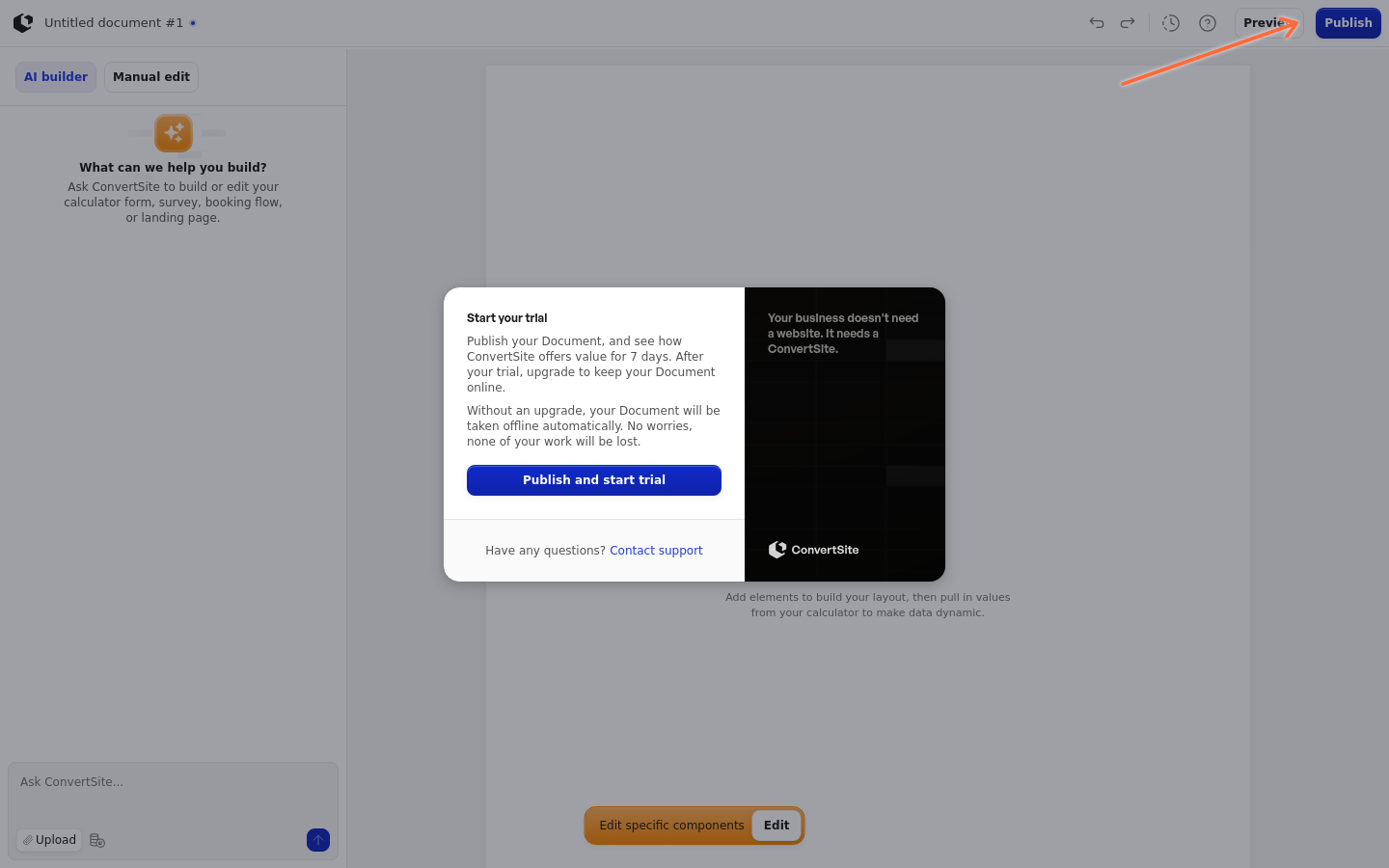
Click Publish to make the document available for download. The publish popover explains that after publishing you add a button with a Save as PDF action to your ConvertSite and select this document so visitors can download it.
Publishing can be blocked when your workspace is not approved for publishing, your subscription is cancelled, your plan does not include the feature, you have no active plan, a trial must be started before publishing, the editor lock is missing, or a recent save failed. In a restricted workspace, publishing is blocked and the editor shows "This workspace is currently not approved to publish. Contact support if you believe this is an error." See Restricted workspaces.
Manage your documents
Each document card on the Documents page has a menu with Edit document, Settings, Rename document, Duplicate document, and Delete document.
Edit document opens the document in the editor.
Settings opens the document settings.
Rename document lets you change the name.
Duplicate document creates a copy.
Delete document moves it to your trash, where it is deleted forever after 30 days.
Deleting a document is permanent after 30 days, so confirm that you no longer need it before you delete.