
Send email with a click action
The Send email click action sends an email when a visitor clicks an element such as a button. You set the recipients, subject, and message in the element's click action group, and you can attach a PDF document from your document library.
Add the Send email action
You can add the action to a Button, Box, Link, or Image. The steps below use a button.
Select the element on the canvas.
In the inspector, open its click action group (for a button, Button click action).
Click Add an action and pick Send email in the picker.
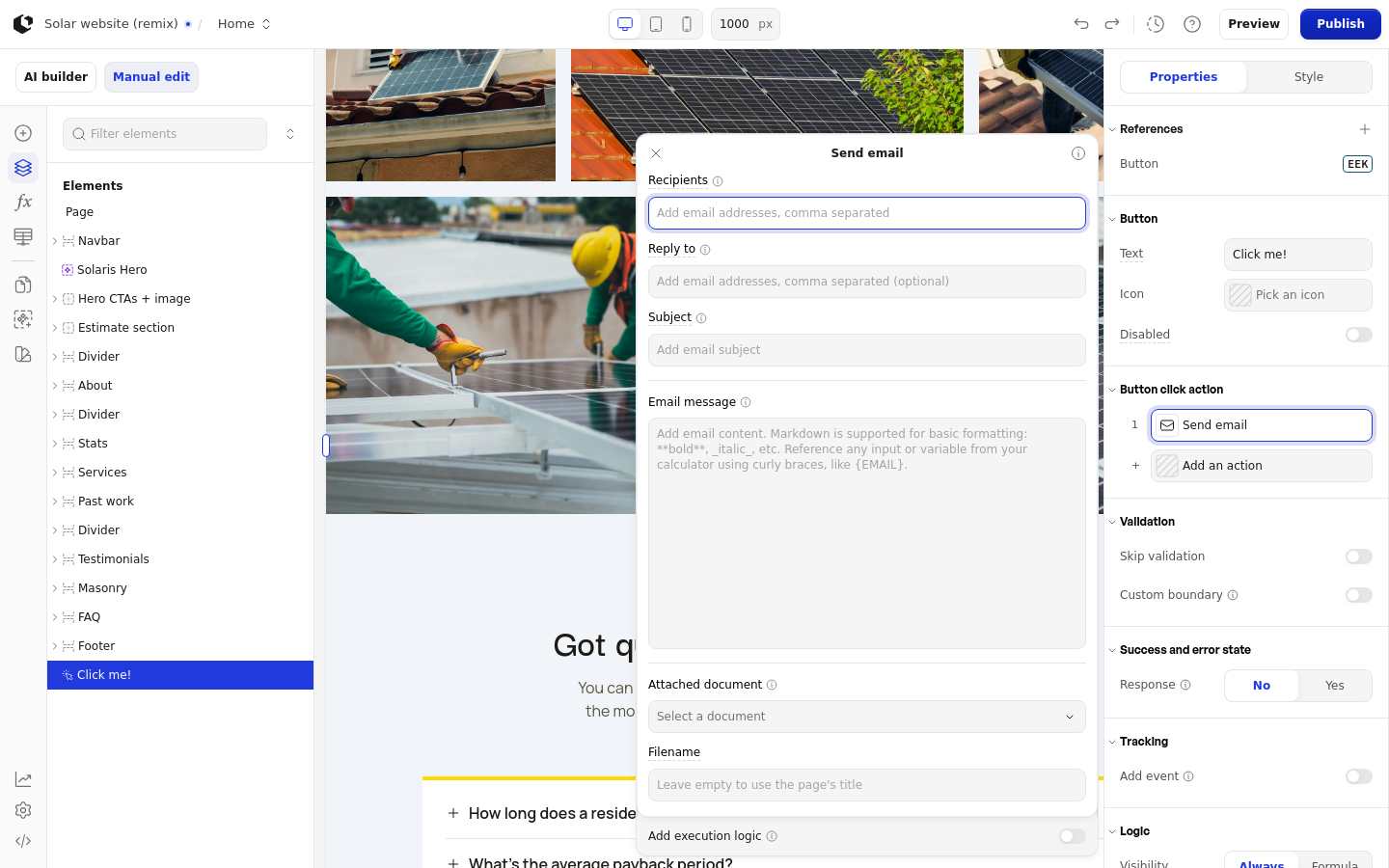
Set the recipients, subject, and message
Recipients is the only required field; the send fails without it.
In Recipients, enter the email addresses, comma separated. Click the Recipients label to switch the field to a Formula that resolves to the addresses.
Set Reply to (optional), also comma separated. Click the label to use a Formula instead.
In Subject, write the subject line. Click the label to use a Formula.
In Email message, write the body. Markdown works for basic formatting such as bold and italic, and you can reference any input or variable from your calculator with curly braces, for example
{EMAIL}.
Attach a document and set the filename
The attachment is optional. To create a document first, see Create and publish a PDF document for a static document or Generate a dynamic PDF from a calculator to fill it with calculator values.
In Attached document, click Select a document and choose a document from your document library. Only published documents appear in the list.
Set Filename, or leave it empty to use the page's title.
Validation group
The action shows a Validation group with two switches. Turn on Skip validation to run the action without validating the form. Turn on Custom boundary to choose the boundary the action runs in.
Test the send
Email actions are disabled in the editor, so test the send in Preview mode. If you turn on Response in the element's properties, the element shows a success or error message after the send.
Who the email comes from
Every email is sent from [email protected]. There is no configurable workspace sender, and sending from your own domain is not available yet.
Related articles
Send a document as an email attachment: full walkthrough for sending a published document as a PDF attachment, including what to do when the send fails.