
Charge customers with the Charge action
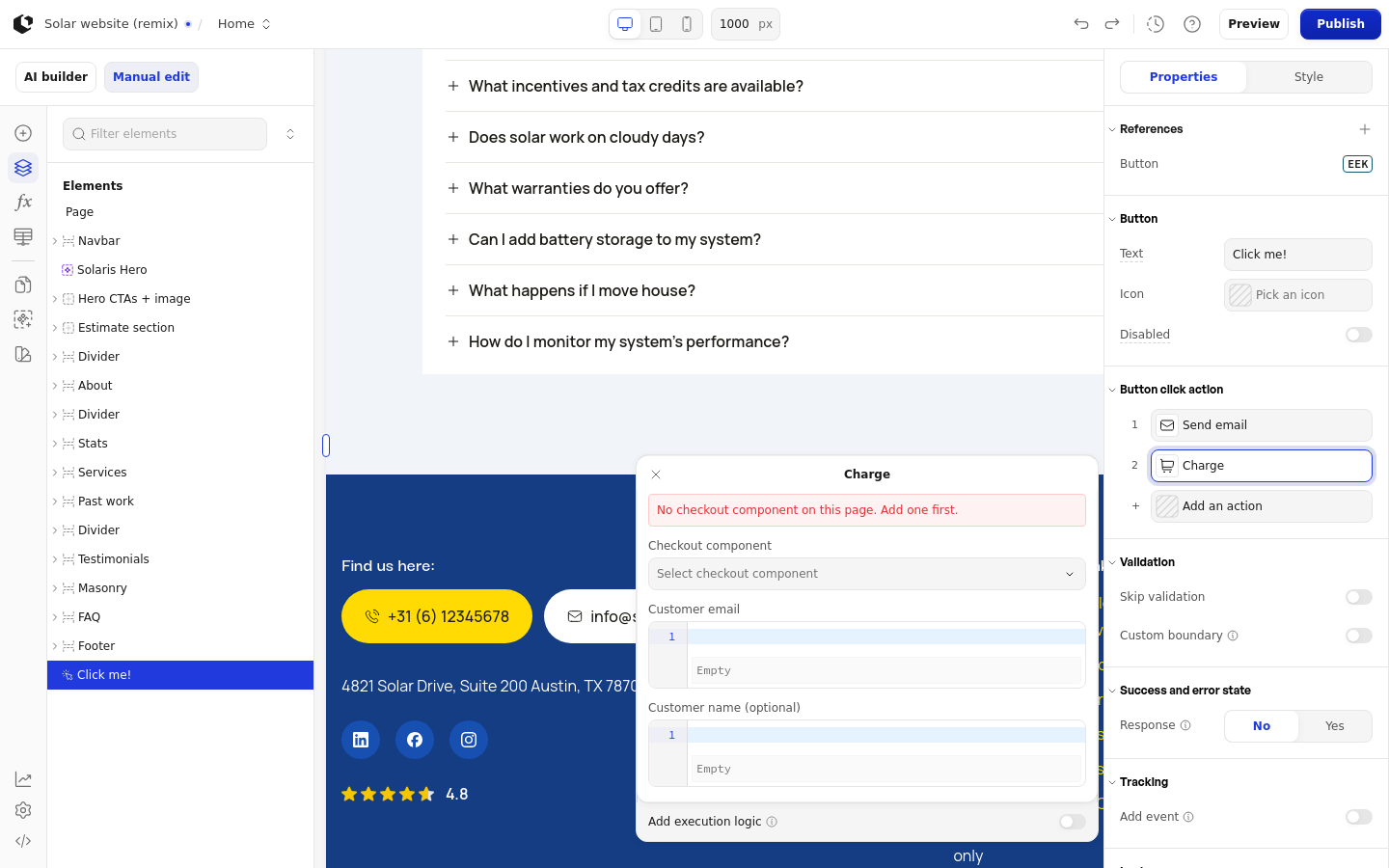
The Charge action charges a customer through a checkout component on the page when the visitor clicks the element you attach it to. This page needs a checkout component and a connected Stripe account before the action can take payments.
Add the Charge action
You add Charge the same way as any other click action. You can attach it to a button, box, link, or image; a button uses the group named Button click action.
Select the element that should trigger the charge.
In the inspector, open its click action group, for example
Button click action.Click
Add an action.Pick
Chargein the action picker.
Requirements: a checkout component on the page
The Charge action runs through a Checkout element on the same page. If the page has none, the Charge panel shows the message No checkout component on this page. Add one first.
Payments go through the Stripe account connected to the workspace. Connect one in Connect integrations if you have not already.
Configure the Charge action
The Charge panel has three fields:
Checkout component: a dropdown that lists the checkout components on the page. Pick the one that should process this charge.
Customer email: the email the customer is charged under. Accepts a formula, so you can pull it from a field the visitor filled in.
Customer name (optional): the customer's name. Also accepts a formula.
Validation settings
The element's settings also show a Validation group with the Skip validation and Custom boundary switches. Use Skip validation to run the Charge action without validating the page's inputs first. When you turn on Custom boundary, a Boundary dropdown appears so you can pick a specific boundary to validate before the action runs.