
Fetch and update table data with click actions
Three click actions let a button, box, link, or image work with the data in your tables: Fetch table loads a whole table, Fetch table row finds a single row, and Append row to table adds a new row. You configure values in these actions with FormulaScript formulas; see the FormulaScript Overview.
Add a table click action
You add these actions like any click action: select the element, open its click action group in the inspector, and pick the action. Table actions can also run on page load through Page load actions.
Select the element on the canvas. Button, Box, Link, and Image each have a click action group.
In the inspector, open the click action group, for example Button click action.
Click Add an action.
Pick Fetch table, Fetch table row, or Append row to table in the action picker.
Fetch table
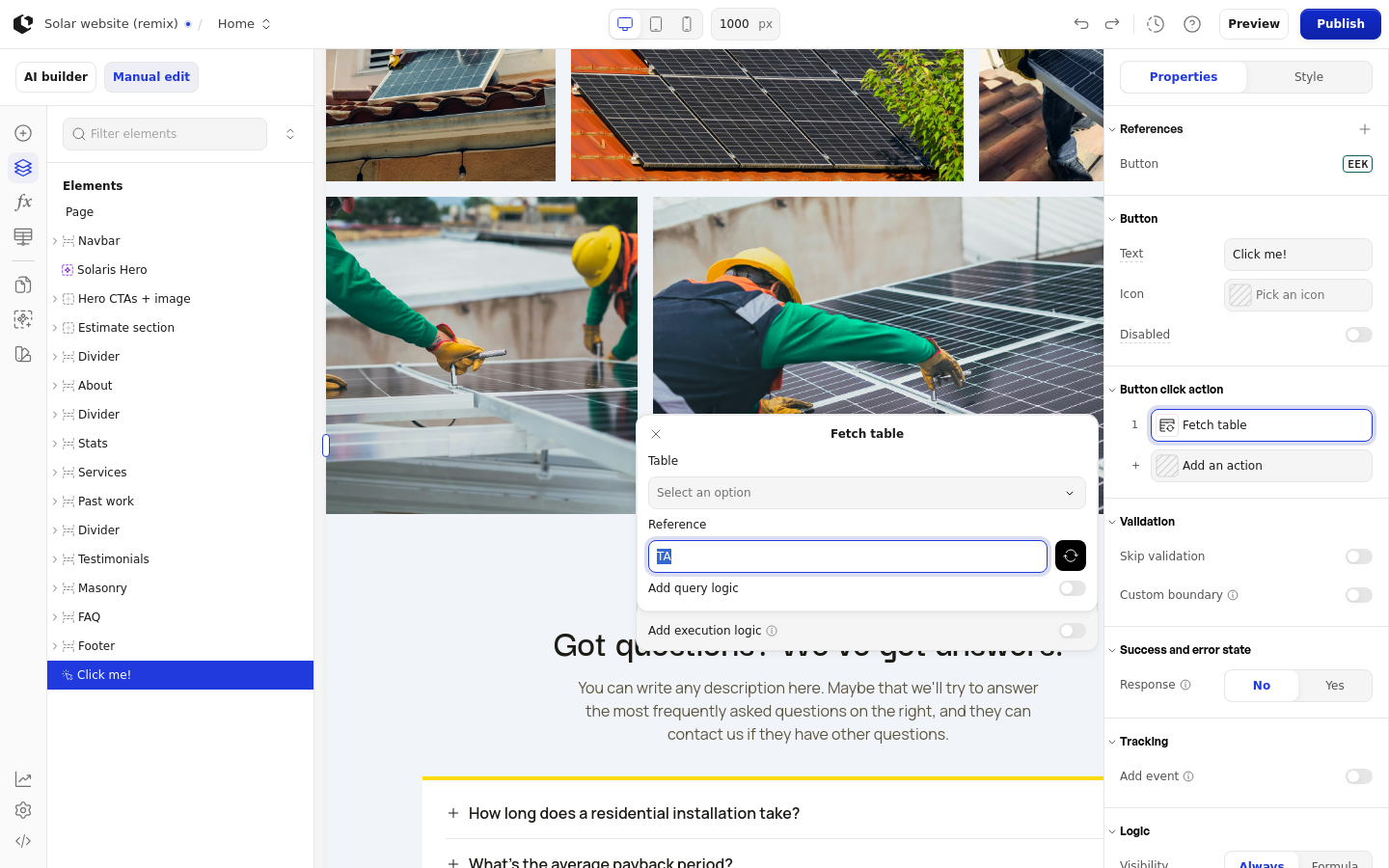
Fetch table loads every row of a table and stores the result under the name you enter in Reference, so formulas and other elements can use the data.
In Table, pick the table from the dropdown. It shows Select an option until you choose one.
In Reference, enter the name for the fetched data. Use this name in formulas and on other elements to read the result.
Turn on Add query logic to filter or reshape the fetched table. A Query logic formula field appears; the fetched table is placed under the Reference name, and the query's result is what the action returns.
Fetch table row
Fetch table row returns the first row whose value in one column matches the value your formula produces. Its fields appear in this order: Reference, Table, Column, Formula.
In Reference, enter the name for the fetched row.
In Table, pick the table from the dropdown.
In Column, pick the column to match on. Each column is listed by letter and name, for example A - column name or B - column name.
In Formula, enter the value to match against that column. The action returns the first row that matches; if no row matches, the result is empty.
Append row to table
Append row to table adds one new row to a table. You pick the table first, then supply each column's value with its own formula.
In Table, pick the table from the dropdown.
Fill in one field per table column. Each field is labeled with the column letter and name, for example A - column name, and holds the formula that supplies that column's value.
Changing the Table resets the column fields to the newly selected table's columns. A column you leave without a formula becomes an empty cell in the new row. For dropdown columns, enter the option name.
Validation
Each of the three actions shows a Validation group with two switches: Skip validation and Custom boundary.