
Navigate with click actions
ConvertSite has five navigation click actions: Scroll to component, Navigate to view, Navigate to internal page, Navigate to external page, and Navigate to carousel item. You add them like any other click action, on a button, box, link, or image. Each section below lists the fields the action shows in the inspector.
Add a navigation action
Select the element on the canvas and open its click action group in the inspector: Button click action, Box click action, Link click action, or Image click action.
Click Add an action.
Pick the action in the picker. Use Search action to find it quickly.
Scroll to component
Scroll to component moves the visitor to another part of the same page when they click. You can pick any component on the page as the destination.
Select component: the component to scroll to.
Behavior: how the scroll happens: Auto, Instant, or Smooth.
Navigate to view
Navigate to view switches a view container to another view, for example to move through a multi-step flow on one page. The target must be a view container component on the same page. When you pick Index, views are counted from 0, so the first view is index 0.
View container: the view container to navigate in.
Kind: Next, Previous, or Index.
Index: the view number to show. This field appears only when Kind is Index.
Navigate to internal page
Navigate to internal page sends the visitor to another page on your site. The Path Params field appears only when the target page has path parameters.
Page: the page to open.
Path Params: values for the target page's path parameters; appears only when the target page has them.
Query Params: key and value rows for query parameters. Click Add query param to add another row.
Draft pages show up in the page list as Page title (draft) and are disabled, so you cannot select them until you publish the page.
Navigate to external page
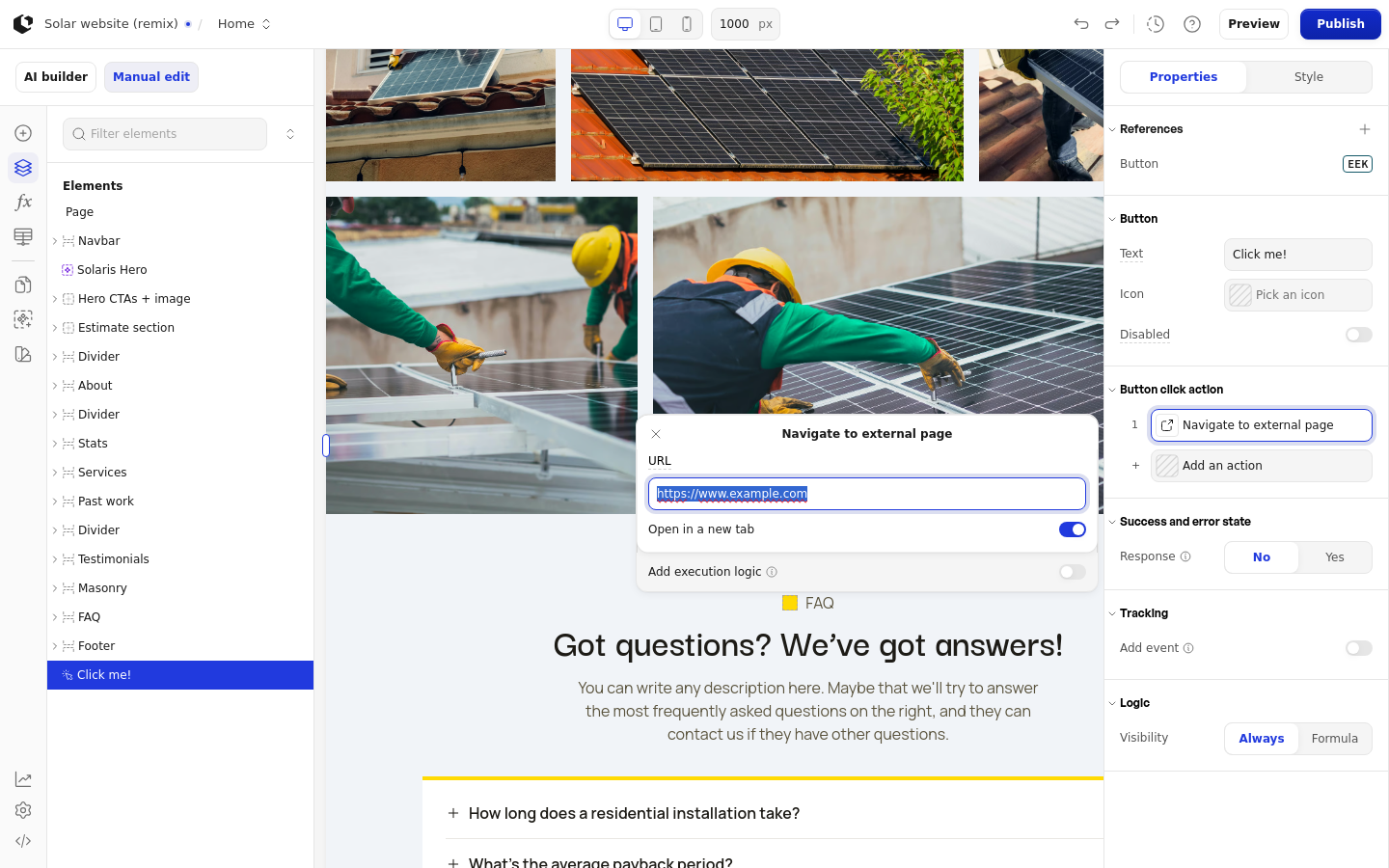
Navigate to external page sends the visitor to a URL outside your site.
URL: the web address to open.
Open in a new tab: opens the URL in a new browser tab when on.
Navigate to carousel item
Navigate to carousel item moves a carousel to the previous or next item when the visitor clicks. The target must be a carousel component on the same page.
Carousel: the carousel to move.
Direction: Previous or Next.
Related articles
View container: setting up the views Navigate to view switches between.
Carousel: setting up the carousel Navigate to carousel item moves through.