
How the Brand library works
The Brand library is a workspace-level area that holds the fonts and images shared across your workspace's sites. Upload a font or image once and it is available to every site in the workspace, so your branding stays consistent without re-uploading assets per site.
Where to find it
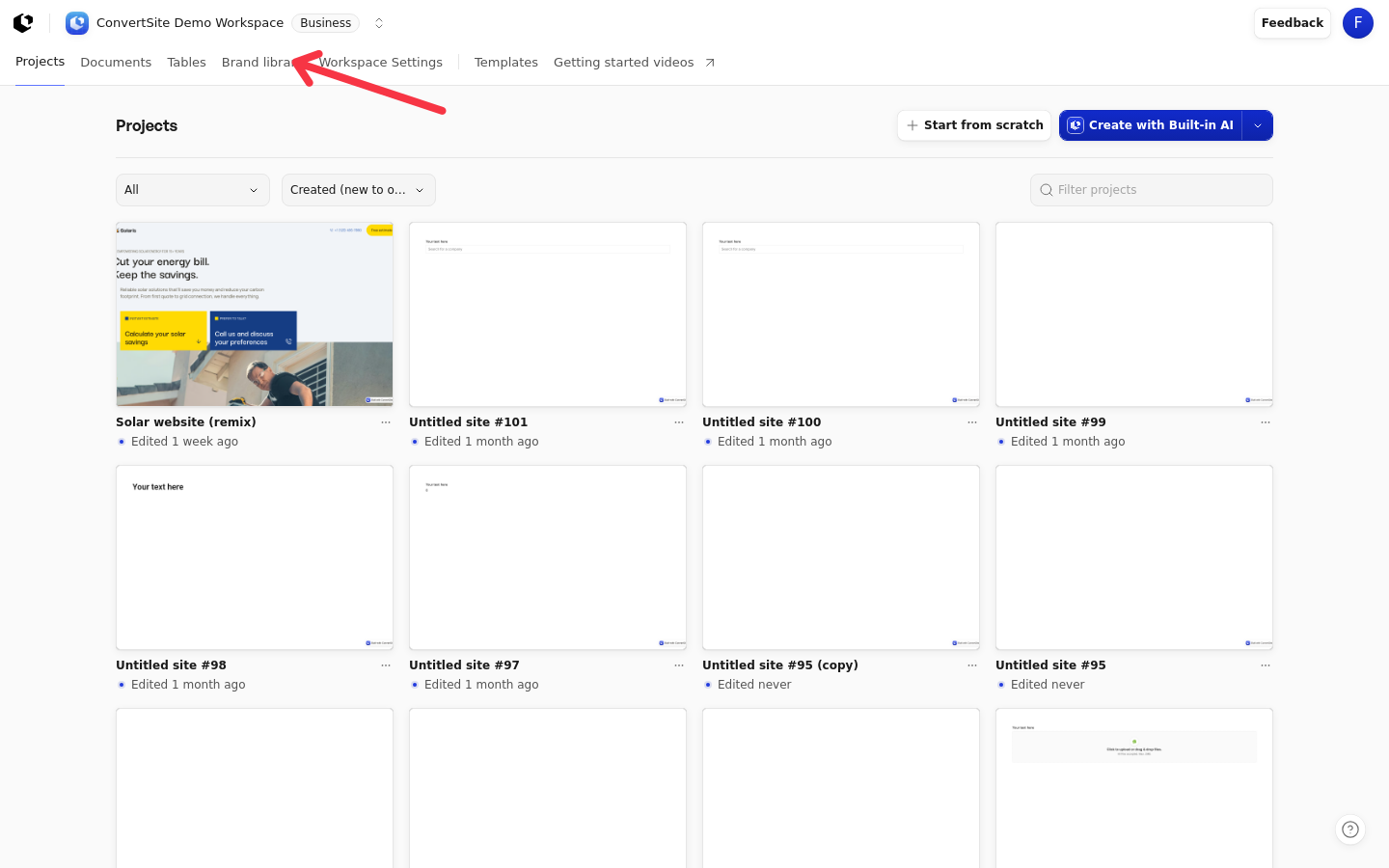
Open the Brand library from the Brand library entry in the top workspace navigation, where it sits between Tables and Workspace Settings.
The Fonts and Images sections
The library has two sections, shown as tabs on the left of the page: Fonts and Images.
The Fonts section holds your workspace's shared custom fonts. You can add fonts as uploaded files or as font code, edit font families, and delete them. The details are in Manage workspace fonts in the Brand library.
The Images section holds your workspace's shared images, which you upload in batches. From there they appear in the Builder's Asset picker, ready to place on any of your sites. The details are in Manage workspace images in the Brand library.
Who can use it
The Brand library is available to workspace members with a verified email. Editing controls are unavailable in disapproved workspaces.
What happens when you change an asset
Changes made in the library refresh open Brand library and Builder views, so any session you already have open picks up the change right away. When you remove an image with the Delete image action, it disappears from the Brand library and the Asset picker, but its stored file, public URL, and existing placements on your sites keep working.
Fonts follow a different rule on live sites: font changes appear in drafts and the Builder immediately, but a published site keeps its previous font snapshot until you publish changes. To bring a rename, weight change, removal, or new font code to a live site, publish the site again as described in Preview and publish your website.