
Build your first website
Build, preview, and publish your first ConvertSite website — no coding required. This guide walks you from an empty app to a published site and points you to the deeper guides for each step.
Start with the dashboard onboarding
When your workspace has no projects yet, the dashboard opens a guided onboarding flow instead of the projects view. It offers two ways to start your first build: Codex / Claude, marked RECOMMENDED, and the Built-in AI assistant.
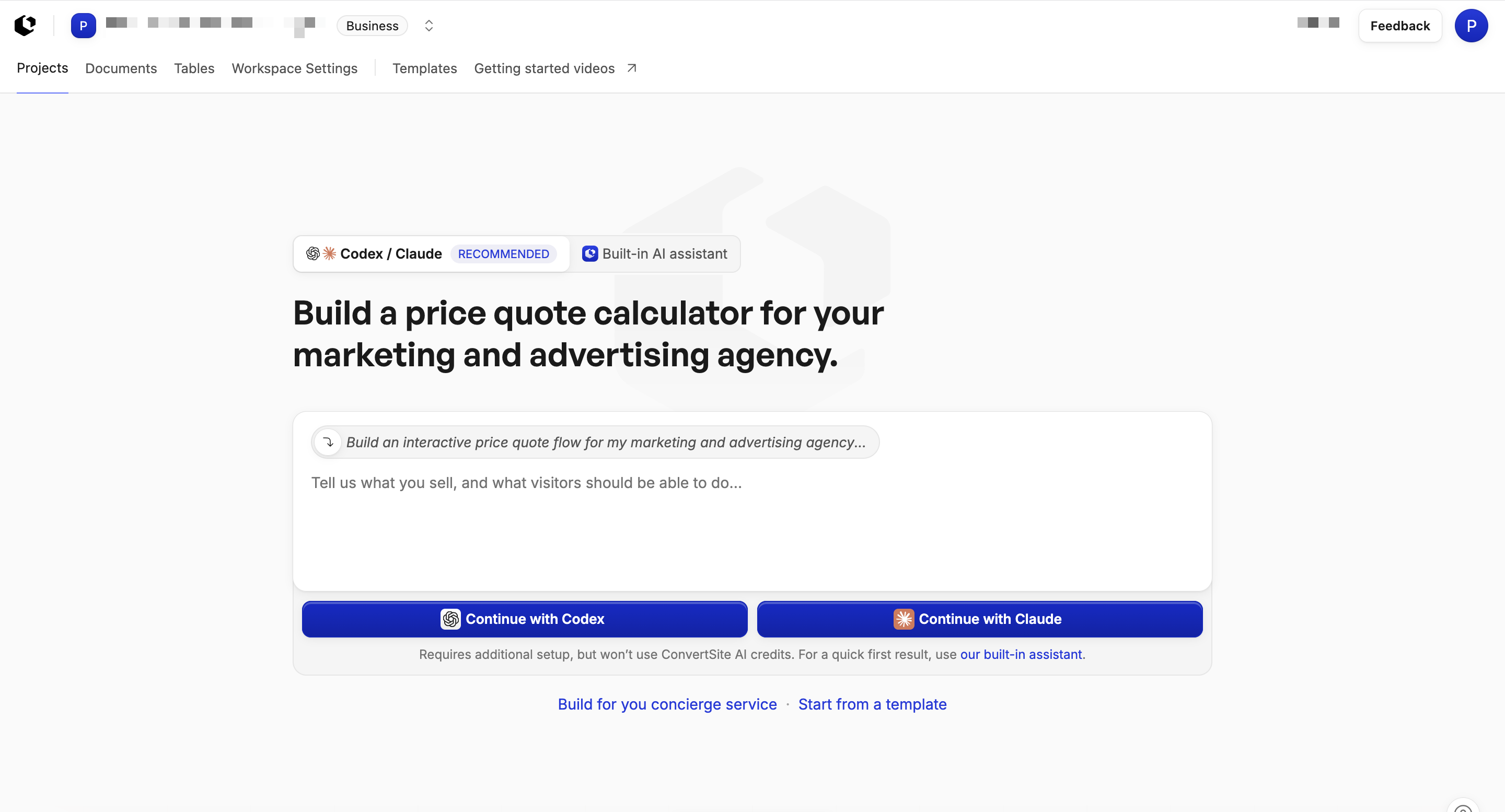
Start a build in Codex or Claude
The handoff sends your build request to the AI tool you already use: your Codex or Claude plan and limits apply instead of ConvertSite AI credits.
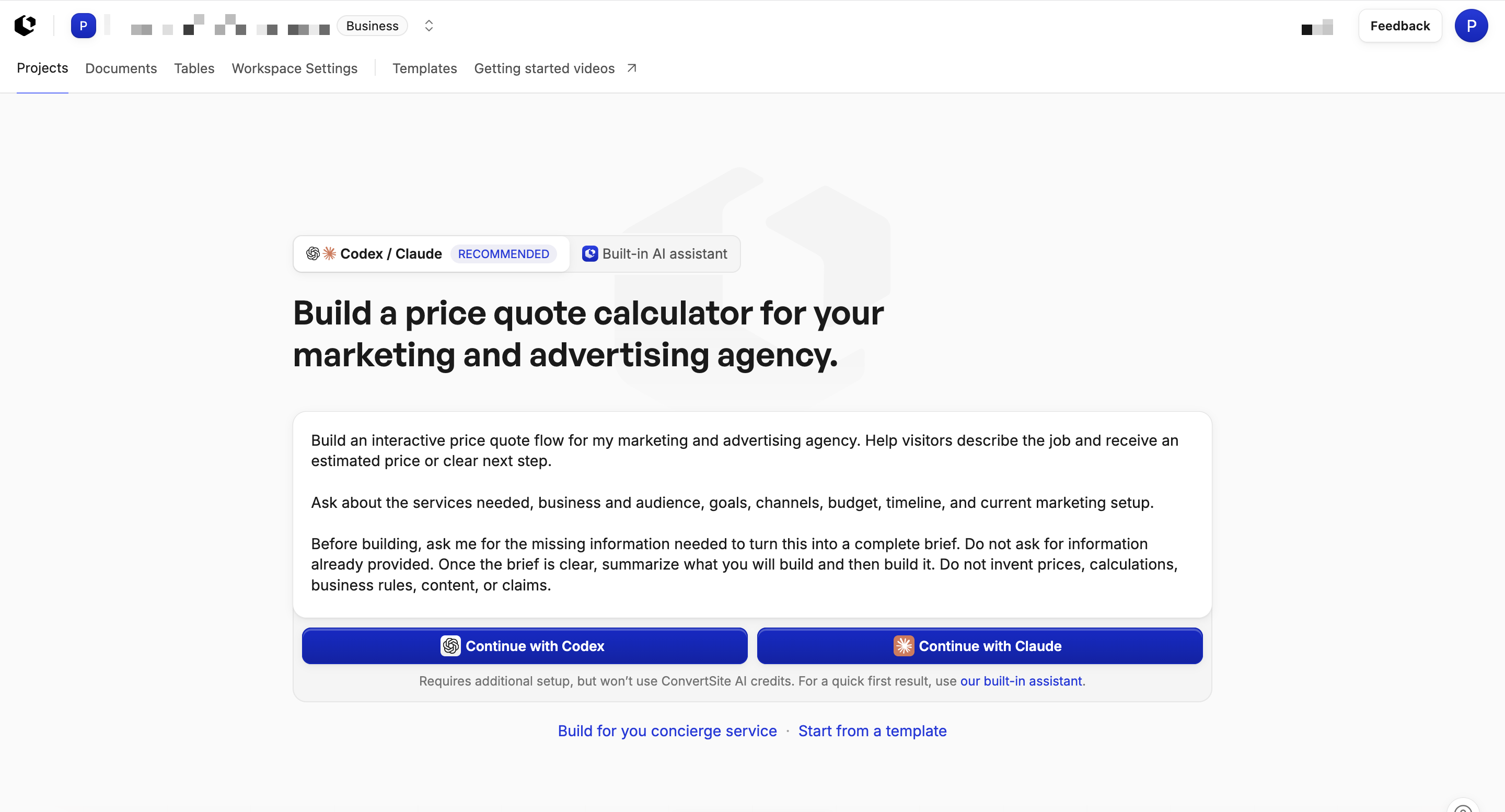
Pick Codex or Claude and copy the setup instructions ConvertSite shows. They contain your build request and the ConvertSite MCP connection details.
Open the provider you picked and follow its connection steps.
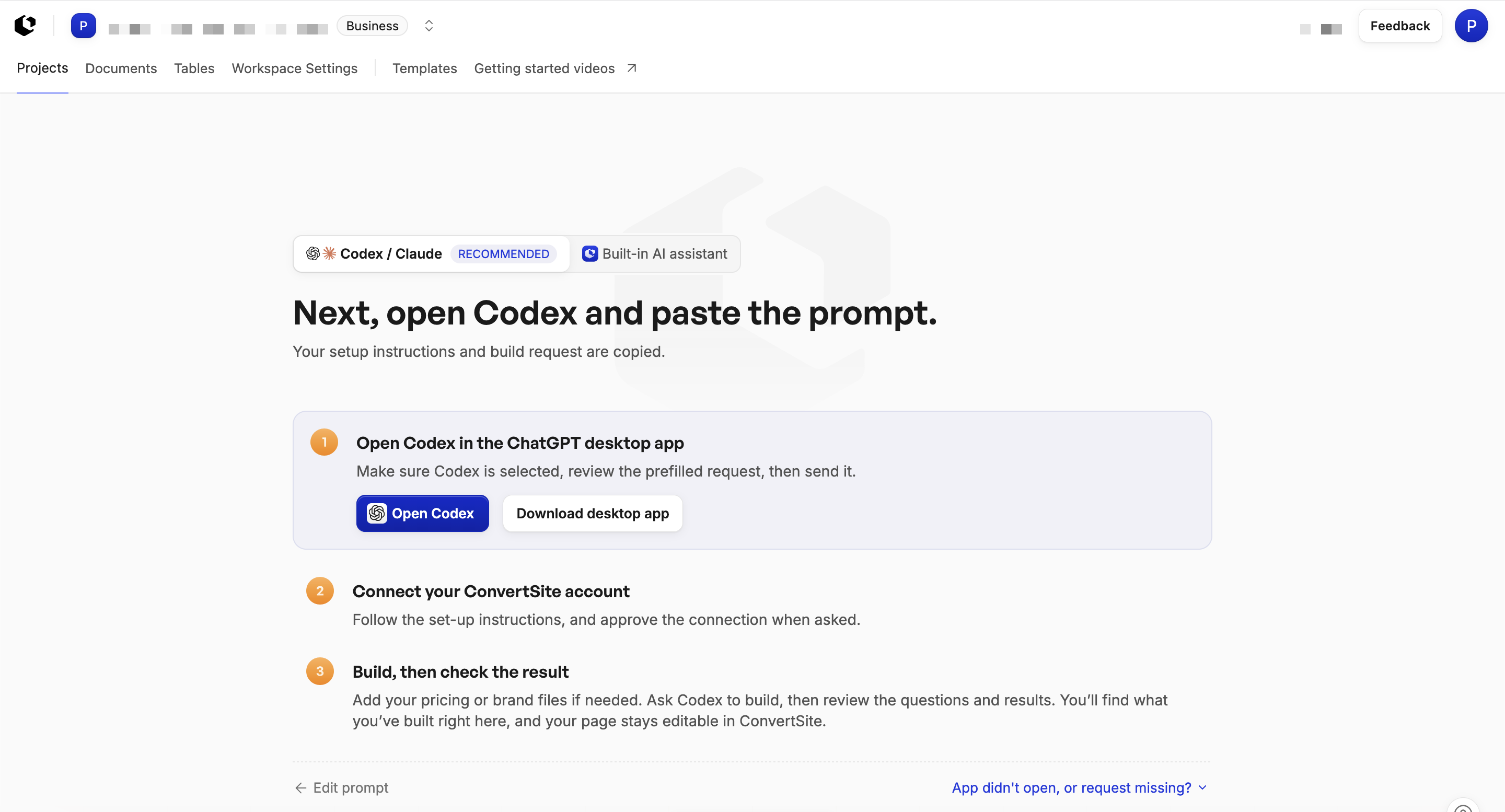
If you leave the request empty, the copied instructions ask the agent to find out what you want to build in ConvertSite. For the full connection steps, see Connect ConvertSite MCP to Codex or Connect ConvertSite MCP to Claude.
Start a build with the built-in AI assistant
The built-in assistant builds from a request you write in ConvertSite, using ConvertSite AI credits.
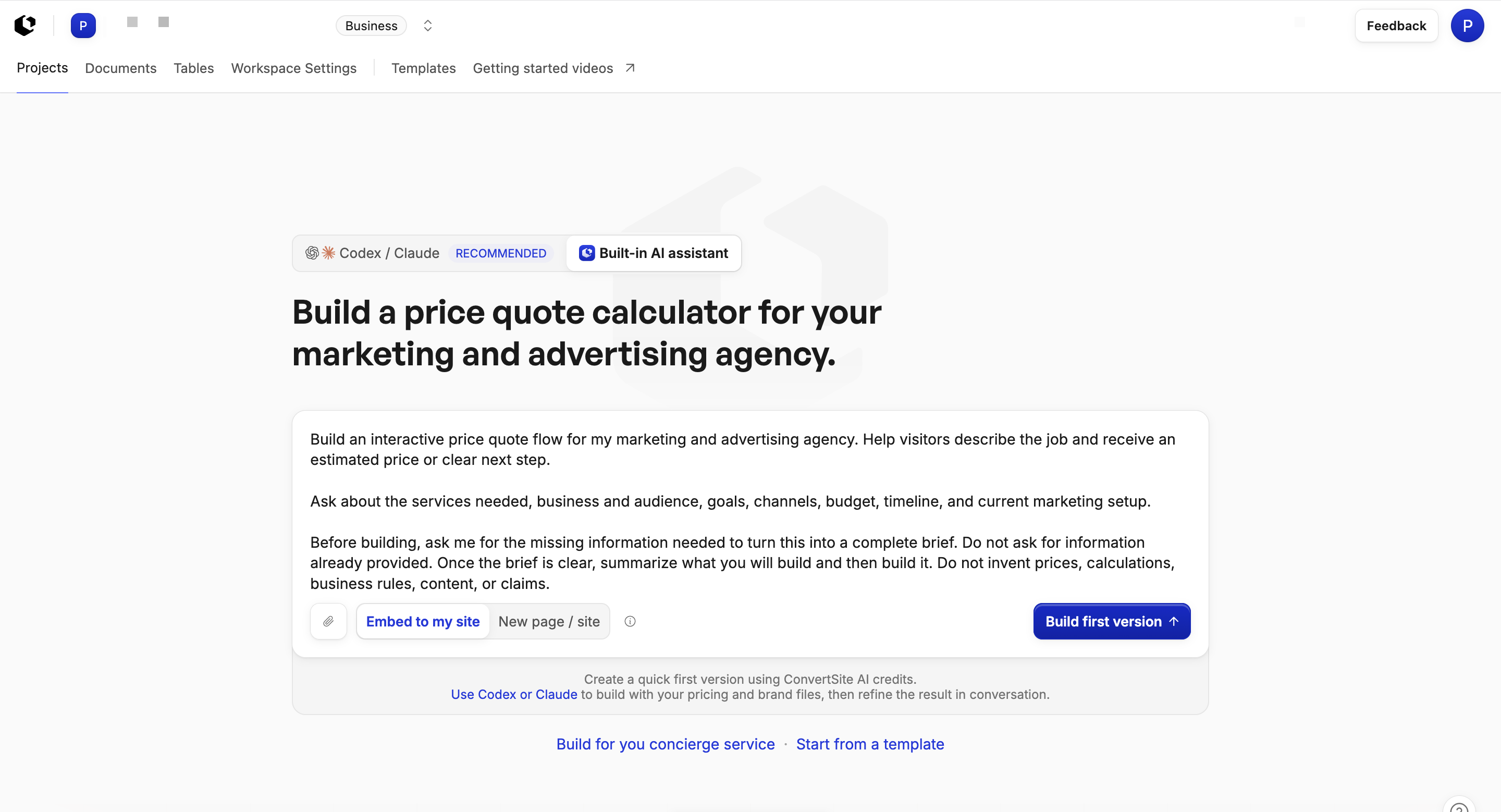
Describe what you want to build. The dashboard suggests a starter request tailored to your workspace build type and industry: select it to insert it into the request field, or start typing to replace it with your own request. The request needs at least two characters.
To add context, click Add files and attach up to five files. Documents, spreadsheets, presentations, images, and text files are supported. Selected files appear as chips you can remove before building, and selecting more than five files clears the selection.
Choose Embed to my site or New page / site. The dashboard starts on Embed to my site.
Click Build first version. Your attachments are sent with the build request.
The built-in assistant reads the formulas in .xlsx and .xlsm spreadsheets and uses them, with the cell values, to build your calculations. Very large sheets can have their formula listing cut off, and other spreadsheet formats such as .xls, .xlsb, and .ods send values only. Attachments are processed when they are uploaded, so upload a file again if you attached it before the assistant started reading formulas. When the assistant needs more from you, it asks at most three follow-up questions at a time.
ConvertSite creates the site or embed and opens it in the editor, where the rest of this guide picks up.
Create your next project from the dashboard
Once your workspace has projects, the dashboard opens the projects view, and a prompt box headed Select your preferred AI offers Built-in AI, ChatGPT, and Claude. Connected providers show actions to create or continue a project; unconnected providers show actions to connect them instead. A connected state means the provider authenticated successfully before, not that its connection is being checked right now.
Start from scratch
The Start from scratch menu offers Create standalone site and Create embed. Creation actions can be unavailable in restricted or disapproved workspaces.
Build with your chosen AI
Built-in AI builds from a prompt in ConvertSite using ConvertSite AI credits, and the composer accepts up to five file attachments on the first build request. Connected ChatGPT and Claude workflows provide setup guidance for a new project and a handoff that carries an existing project's context so you can continue it. When a built-in AI request needs to inspect an existing external website, the assistant offers a ChatGPT or Claude handoff instead of inspecting the website itself. Afterward, built-in AI work opens the assistant in the editor, while ChatGPT or Claude work opens the navigator.
Check your credit balance
In the editor assistant, the credit menu shows your remaining monthly credits, the renewal date, and, on plans with a daily allowance, your daily credits. It also offers Upgrade for more credits and actions to continue with ChatGPT or Claude. Continuing with ChatGPT or Claude runs on your provider's plan, so it does not spend ConvertSite AI credits.
Open the site editor
The site editor is where you build every page. Open it by navigating to your site's app id at /sites/{app-id} in ConvertSite.
Meet the builder panels
The editor is organized into panels that each handle one part of your site.
Components — add and place the building blocks of your pages.
Navigator — view and reorder the elements already on the page.
Logic — add conditional behavior and interactions.
Data — connect and manage the data your site uses.
Pages — create and manage the pages of your site.
Blocks — work with reusable blocks.
Style — control how your site looks.
Components, Navigator, Logic, and Data form the first panel group; Pages, Blocks, and Style form the secondary group for a Site. When the assistant is enabled, the header offers AI builder and Manual edit modes so you can switch between guided and hands-on building.
Add a component
Components are the ready-made pieces — text, buttons, forms, images, sections, and more — that make up your page.
In the Components panel, choose the component you want, such as a heading, button, or text box.
Drag it onto your page, or select a placement to add it.
Adjust it in place, then style it in the Style panel.
You can refine the look of your site with responsive editing at Desktop, Tablet, and Mobile breakpoints for Site and Embed apps.
Create a page
Use the Pages panel to add every page your site needs.
Open the Pages panel and choose to create a new page.
Name the page and add its components.
For the full workflow of adding, renaming, and organizing pages, see Manage pages in the website builder.
Preview your site
Check how your site looks before it goes live.
Click Preview in the header to view the current build.
Open the external test preview with Preview on test domain to see it as your visitors will on a test domain.
Publish
Publishing puts your site on the web. The Publish control in the header reflects your site's state: an unpublished site shows Publish your site to the web or Publish your site, and a site that has already gone live shows Publish changes.
Click the Publish control in the header.
Confirm to publish your site.
After your first publish, every later change updates the live site through Publish changes. Details on both flows live in Preview and publish your website.
Next steps
Follow the guides in this order to go further:
Manage pages in the website builder — the full page workflow.
Preview and publish your website — previewing and going live in detail.
Builder panels and responsive editing — reference for every panel and the responsive breakpoints.