
Connect a custom domain
Connect a custom domain so your ConvertSites are accessible at your own subdomain, like apps.bananastand.com, instead of the free workspace subdomain. You add the subdomain in Workspace Settings > Domain and verify a CNAME record that points to sites.convertsite.com. Setting a site's canonical URL changes metadata only; connecting a domain here is what makes your sites load on it (see Set canonical URLs for a site).
Add your domain
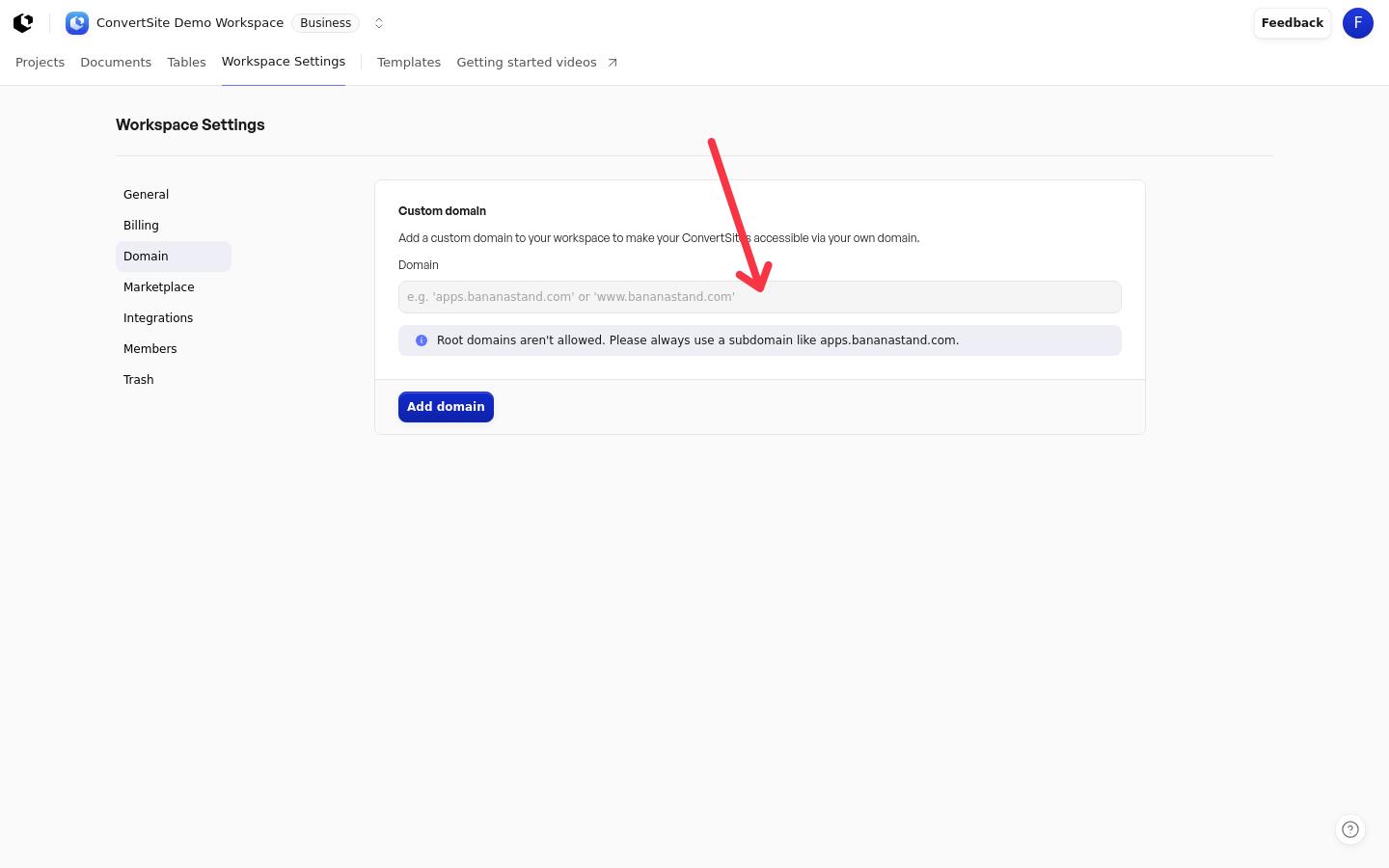
The Builder plan includes a custom domain and the Business plan supports multiple domains. Custom domains must be a subdomain: root domains aren't allowed, so use a subdomain like apps.bananastand.com or www.bananastand.com.
Open Workspace Settings > Domain.
In the Domain field, enter your subdomain.
Click Add domain.
If your workspace is restricted
In a restricted workspace, adding or verifying a custom domain is unavailable: the Domain field, Add domain, and Verify domain controls are disabled, and add or verification attempts are rejected. You can add a domain again once the restriction is lifted. See Restricted workspaces for the full list of restrictions and how to contact support.
Point the CNAME record to ConvertSite
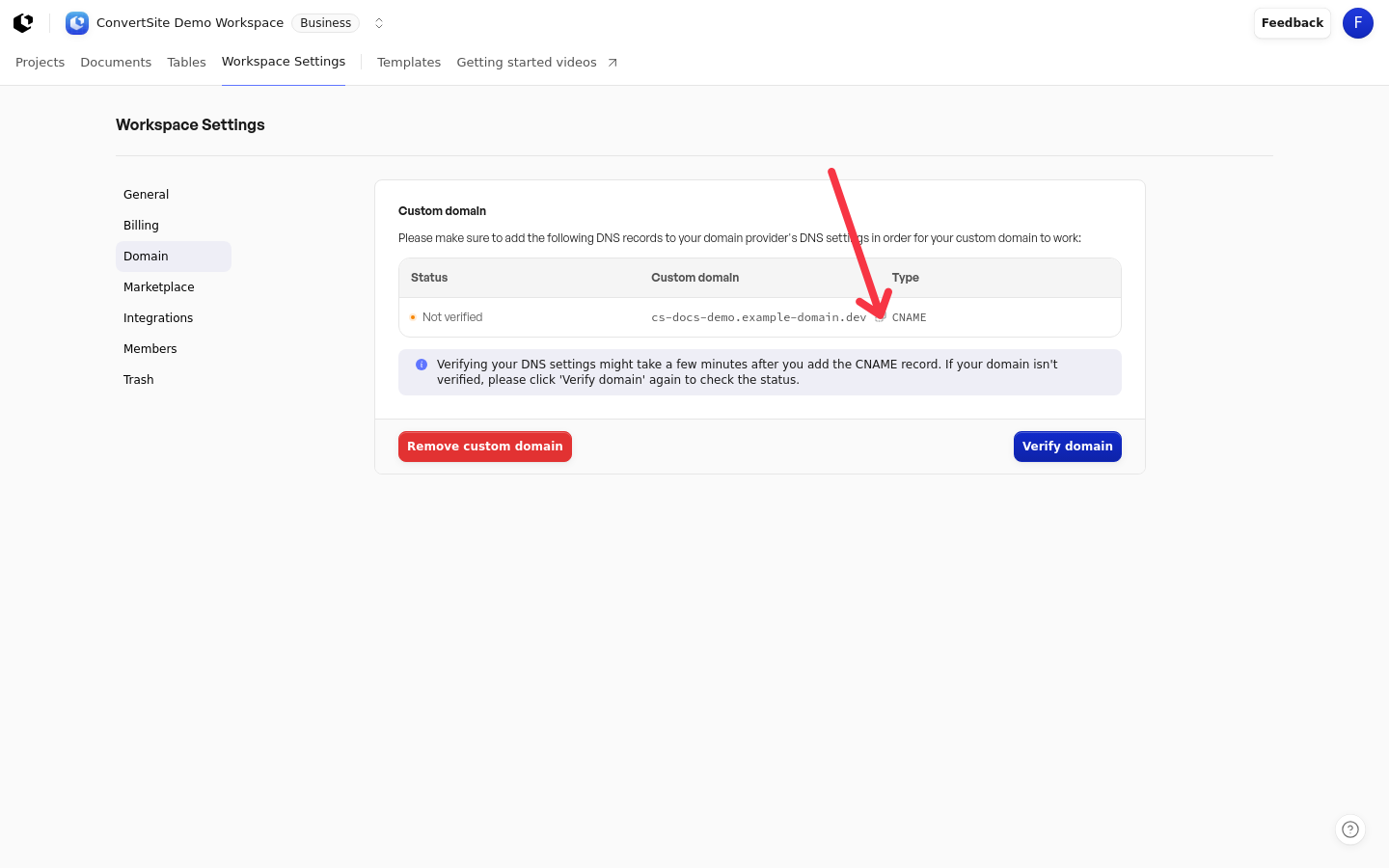
After you add the domain, the Domain Settings page shows the DNS record to create at your domain provider:
Record type | Points to |
|---|---|
CNAME |
|
The table on the page lists the record's Status, your Custom domain, and the Type.
On the Domain Settings page, click the copy control next to the target to copy
sites.convertsite.com.Open the DNS settings for your domain at your domain provider.
Create a CNAME record for the subdomain you added, with
sites.convertsite.comas the target. Providers label the record's name field differently, for example Host or Name.
Verify the domain
The status shows Not verified until the CNAME record is detected, then Verified. A missing or incorrect record shows the same Not verified status. The status is also checked every time you open the Domain settings page, so reloading the page picks up a new status.
Return to Workspace Settings > Domain.
Click Verify domain.
If the status is still Not verified, click Verify domain again to re-check.
If you see the error "Custom domains are currently unavailable. Please try again later.", wait and retry. An invalid entry shows "domain is invalid". A domain that is already in use shows "Domain is already in use."
Remove a custom domain
Removing a custom domain stops your sites from working on that domain, but they continue to work on their free workspace subdomain.
Open Workspace Settings > Domain.
Click Remove custom domain.
Confirm with Remove.
Your sites will stop working on the custom domain and visitors won't be able to access them there anymore. The sites keep working on their free workspace subdomain.
If the domain is connected to a site, removing it fails with the error "Domain is connected to a site."